
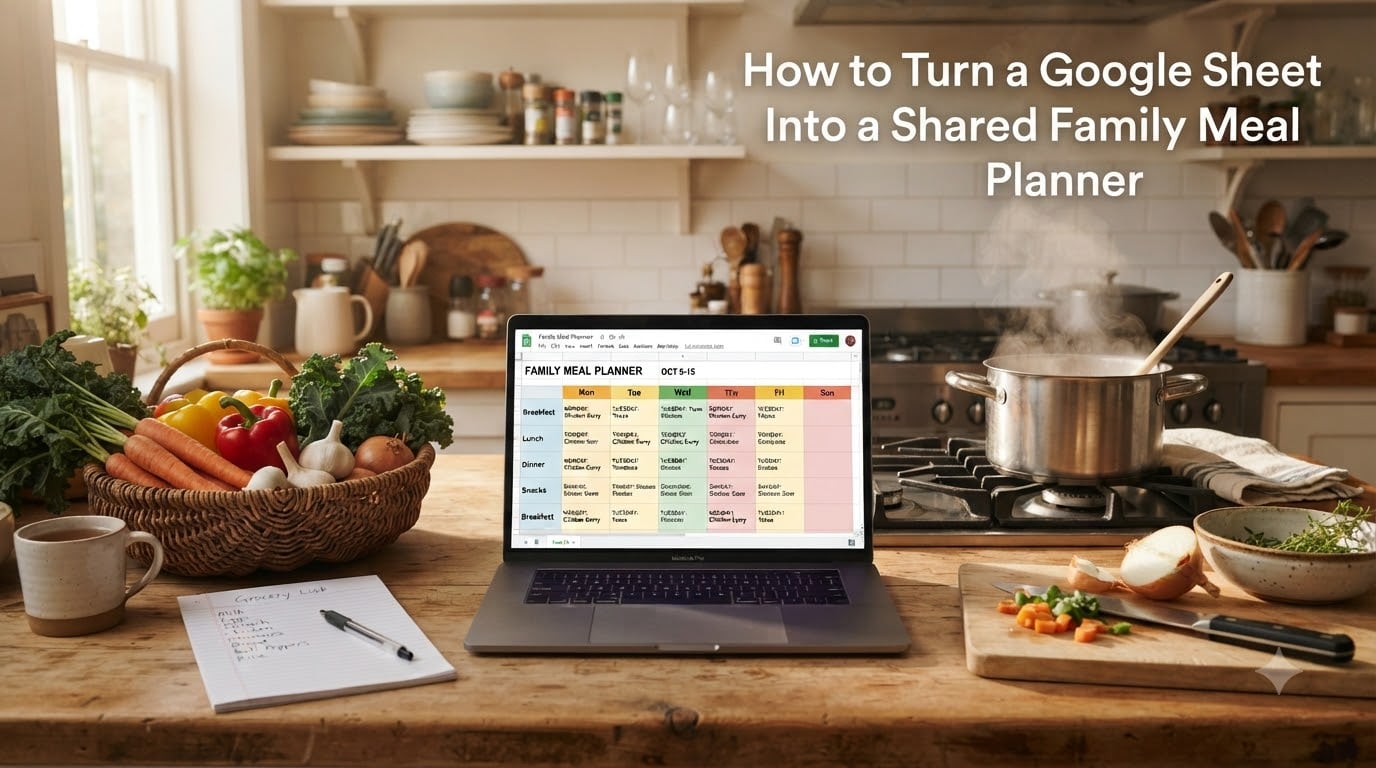
I’ve been planning family dinners in Google Sheets for over three years, and it’s the simplest, free way I know to keep everyone in my house on the same page about what’s for dinner. If you’ve ever lost a sticky-note meal plan, forgotten to defrost the chicken, or had one family member buy groceries another already bought, a shared Google Sheet family meal planner solves all of that. In this guide, I’ll walk you through exactly how to turn a Google Sheet into a shared family meal planner that everyone can edit from any device, in real-time.
By the end, you’ll have a working spreadsheet with tabs for weekly meals, a grocery list that updates automatically, a recipe hub, and a pantry inventory. Best of all, it’s free, customizable, and lives in the cloud so you never lose it.
Table of Contents
- Why Google Sheets Is the Best Free Tool for Family Meal Planning
- How to Turn a Google Sheet Into a Shared Family Meal Planner
- Step-by-Step: Building Your Meal Planner Spreadsheet
- How to Share Your Meal Planner with Family Members
- Automating Your Grocery List with Formulas
- Mobile Tips for Grocery Shopping Day
- Beyond the Basics: Inventory, Batch Cooking, and Meal Prep
- Frequently Asked Questions
- Start Your Shared Family Meal Planner Today
Why Google Sheets Is the Best Free Tool for Family Meal Planning
Google Sheets is a cloud-based spreadsheet that lives in your Google Drive. Multiple people can view and edit the same document at the same time, and changes save automatically. For families, this is the single biggest advantage over a paper planner or a notes app: everyone sees the same version, instantly.
Here are the main reasons I keep recommending it to other busy households:
- It’s free. Any Google account gives you unlimited Sheets, and sharing is free for everyone you invite.
- Real-time collaboration. Your partner can mark “out for lunch Tuesday” on their phone while you’re at the grocery store checking the list on yours.
- Cross-device access. Works on laptop, tablet, phone, and even offline if you lose Wi-Fi in the store.
- Fully customizable. Add columns for dietary restrictions, prep time, leftovers, or freezer inventory without paying for a “premium” tier.
- Plays well with the rest of Google. You can link recipes from Google Docs, attach images from Google Photos, or pull from a Google Form when family members vote on meals.
Does Google Sheets have a meal planner? Not a built-in template, no — but it gives you the raw building blocks to make one that fits your family perfectly. That’s actually the point. A pre-built app decides for you how many columns of nutrition facts to show. A Google Sheet lets you decide.
How to Turn a Google Sheet Into a Shared Family Meal Planner
Turning a Google Sheet into a shared family meal planner takes about 30 minutes the first time and only 5 minutes a week after that. You create a spreadsheet with four tabs (Weekly Plan, Grocery List, Recipes, and Pantry Inventory), populate the weekly plan with meals, and share the file with Editor permissions so everyone in your household can update it. From then on, the grocery list tab auto-collects ingredients from your weekly plan using simple formulas.
That’s the short answer. Below I’ll break each piece down step by step, plus the sharing workflow that lets multiple family members edit at once.
Step-by-Step: Building Your Meal Planner Spreadsheet
Here’s the exact workflow I use. It works whether you’re cooking for two or for a household of eight.
Step 1: Create the spreadsheet and name your tabs
Open Google Drive, click New > Google Sheets > Blank spreadsheet, and rename it “Family Meal Planner.” At the bottom you’ll see a tab called “Sheet1.” Right-click it and rename it to Weekly Plan. Then add three more tabs by clicking the + icon: Grocery List, Recipes, and Pantry.
Four tabs is enough for most families. You can always add more later for things like “Meal Prep,” “Budget,” or “Vacation Meals.”
Step 2: Build the weekly plan grid
In the Weekly Plan tab, set up a grid. Row 1 should be the days of the week (Mon, Tue, Wed, Thu, Fri, Sat, Sun). Column A should list meal slots: Breakfast, Lunch, Dinner, and Snacks. In each cell, type the meal name — for example, “Sheet-pan chicken and veggies” or “Leftover chili.”
Pro tip: keep meal names short. Long names get cut off on phones. Use a separate “Notes” column (Column H) for serving tips, who is eating, or the recipe link.
Step 3: Set up the grocery list tab
In the Grocery List tab, create these column headers in Row 1: Item, Aisle, Quantity, Bought?, Notes. As you plan meals, add the ingredients you need to this tab. You can either type them manually or use a formula to auto-pull them from a recipe list — I’ll show you that trick in the automation section below.
Step 4: Build a recipe hub
In the Recipes tab, add column headers for Recipe Name, Source URL, Servings, Prep Time, Cook Time, Ingredients, and Instructions. Each row is one recipe. The Ingredients column is where you’ll list each ingredient on its own line so the grocery list automation can pick them up later.
You don’t need to type out every family recipe on day one. Start with the 10 meals you actually cook on repeat, and add more over time.
Step 5: Add a pantry inventory
In the Pantry tab, list what you already have on hand: olive oil, rice, canned beans, frozen peas, etc. Include columns for Quantity, Location (pantry, fridge, freezer), and Expires By. Before each weekly planning session, glance at this tab so you don’t buy a third bottle of soy sauce.
How to Share Your Meal Planner with Family Members
How to make a Google Sheet shareable? Click the green Share button in the top-right corner of your spreadsheet. A dialog opens. Type your family member’s email address, set the role to Editor, and uncheck “Notify people” if you’d rather send the link yourself. Click Send (or Share if notifications are off), and that’s it.
If you’d rather share via a link, click Share, then Copy link, and change the general access setting from “Restricted” to Anyone with the link. Pick Editor so they can edit, not just view. Paste the link into a family group chat.
Once shared, here’s what real-time collaboration looks like in practice:
- Each person’s cursor shows up in a different color when they’re typing.
- Changes save instantly — no “send” button needed.
- The version history (File > Version history > See version history) lets you roll back if someone accidentally deletes a column.
- You can leave cell comments by right-clicking and choosing Comment — perfect for “Can we do fish Friday instead?” without rewriting anyone’s plan.
I run our family sheet with my partner and our teenager. Three people editing simultaneously has never caused a single conflict in three years. Google Sheets handles the merges automatically.
Automating Your Grocery List with Formulas
The single biggest time-saver in our family meal planner is the grocery list. Manually typing out every ingredient for every meal gets old fast. Here are two ways to automate it.
Method 1: Pull ingredients from the Recipes tab
In the Recipes tab, make sure each ingredient is on its own line within the Ingredients cell (use Alt+Enter for line breaks inside a cell). Then, in the Grocery List tab, paste this formula into cell A2:
=ARRAYFORMULA(UNIQUE(TRIM(SPLIT(TEXTJOIN("|", TRUE, Recipes!F2:F50), "|"))))
This pulls every ingredient from the Recipes tab, splits each line into its own item, trims extra spaces, and removes duplicates. You’ll get a clean, alphabetized grocery list as soon as you add a recipe.
Method 2: Auto-check items as you buy them
Add a checkbox column. Highlight column D (“Bought?”), go to Insert > Checkbox. Now anyone shopping can tick items off in real time, and the family at home sees the checkmarks appear.
Optional power move: add data validation to the Aisle column so each item is sorted by store section (Produce, Dairy, Frozen, Pantry, Meat). Select the column, click Data > Data validation, choose “List of items,” and type your aisle names.
Mobile Tips for Grocery Shopping Day
Most of us actually use the meal planner on our phones at the grocery store, not at the kitchen table. A few tweaks make that experience much smoother.
- Pin the sheet to your home screen. On iPhone, open the sheet in Safari, tap Share, then “Add to Home Screen.” On Android, open it in Chrome, tap the three-dot menu, and “Add to Home screen.” You’ll get a one-tap icon that opens straight to your grocery list.
- Use the Google Sheets app. The app supports offline mode, so if your store has bad reception, the grocery list still loads.
- Turn on voice typing. On the keyboard, tap the microphone icon. Saying “add ground beef to grocery list” beats typing with one hand while holding a basket.
- Use the comments feature. If you’re in aisle 7 and your partner texts “do we need paper towels?” — don’t answer by text. Answer in the sheet, where the answer persists.
What is the best free shared meal planner app for families? In my experience, Google Sheets wins because it costs nothing, has no “premium” paywall hiding the sharing feature, and works on every device your family already owns.
Beyond the Basics: Inventory, Batch Cooking, and Meal Prep
Once your weekly rhythm is set, you can layer on more advanced habits that save even more time and money.
Pantry and freezer inventory
Update the Pantry tab once a month. Note what you have, where it is, and when it expires. This single habit cut our food waste roughly in half — we no longer find forgotten rotisserie chickens in the back of the fridge.
Batch cooking schedule
Add a fifth tab called Meal Prep. On Sunday afternoons, cook two or three base ingredients (a big pot of rice, a tray of roasted vegetables, a batch of shredded chicken). Each weeknight meal then becomes “assemble,” not “cook from scratch.” Most weeks this saves 45 minutes per night across our household.
The 3-3-3 rule for meal prep
What is the 3-3-3 rule for meal prep? It’s a simple weekly rhythm: 3 meals from the fridge, 3 from the pantry, 3 from the freezer. The idea is to cycle through your stored food so nothing gets buried and forgotten. Add the rule as a sticky note at the top of your Meal Prep tab so the whole family sees it during planning.
Vacation meal planning
Add a sixth tab called Vacation. Use it for road-trip snacks, cabin-week menus, or “what we eat at Grandma’s house.” Same structure, different scope.
Budget tracking
Add a column to the Grocery List tab for Estimated Cost. Sum the column with =SUM(F2:F100) at the bottom. You’ll quickly spot weeks when dinners creep over budget.
Dietary restrictions
Add a “Tags” column to your Recipes tab — values like “vegetarian,” “gluten-free,” “kid-friendly,” or “under 30 minutes.” During planning, you can filter by tag so you know at a glance which meals fit the household’s needs.
Frequently Asked Questions
Does Google Sheets have a meal planner?
Google Sheets does not include a built-in meal planner template, but it gives you the raw tools to build a fully customized one. With four tabs (Weekly Plan, Grocery List, Recipes, and Pantry) and a few formulas, you can have a working shared family meal planner in about 30 minutes, completely free.
How to make a Google Sheet shareable?
Open your spreadsheet, click the green Share button in the top-right corner, type each family member’s email address, set their role to Editor, and click Send. Alternatively, change the general access setting to Anyone with the link and choose Editor permission. Everyone you invite can then view and edit the meal planner in real time from any device.
What is the best free shared meal planner app for families?
Google Sheets is the strongest free option for most families because it costs nothing, supports real-time multi-user editing, works on every device, and never gates sharing behind a paid tier. Dedicated meal-planning apps often charge for the shared-collaboration feature that families need most.
What is the 3-3-3 rule for meal prep?
The 3-3-3 rule is a simple weekly rhythm: plan 3 meals from the fridge, 3 from the pantry, and 3 from the freezer. It cycles through stored food so nothing gets buried and forgotten, and it dramatically reduces food waste in busy households.
Start Your Shared Family Meal Planner Today
You now have everything you need to turn a Google Sheet into a shared family meal planner that actually works for a busy household. Create the four tabs, share with Editor permissions, and add your first week of meals tonight. Within a week, you’ll wonder how your family ever managed a Sunday night “what’s for dinner?” argument.
Once your shared Google Sheet family meal planner is running, the rest of the system — grocery automation, pantry inventory, batch cooking, the 3-3-3 rule — drops into place one habit at a time. Start small, share it with the family, and let the spreadsheet grow with you.