
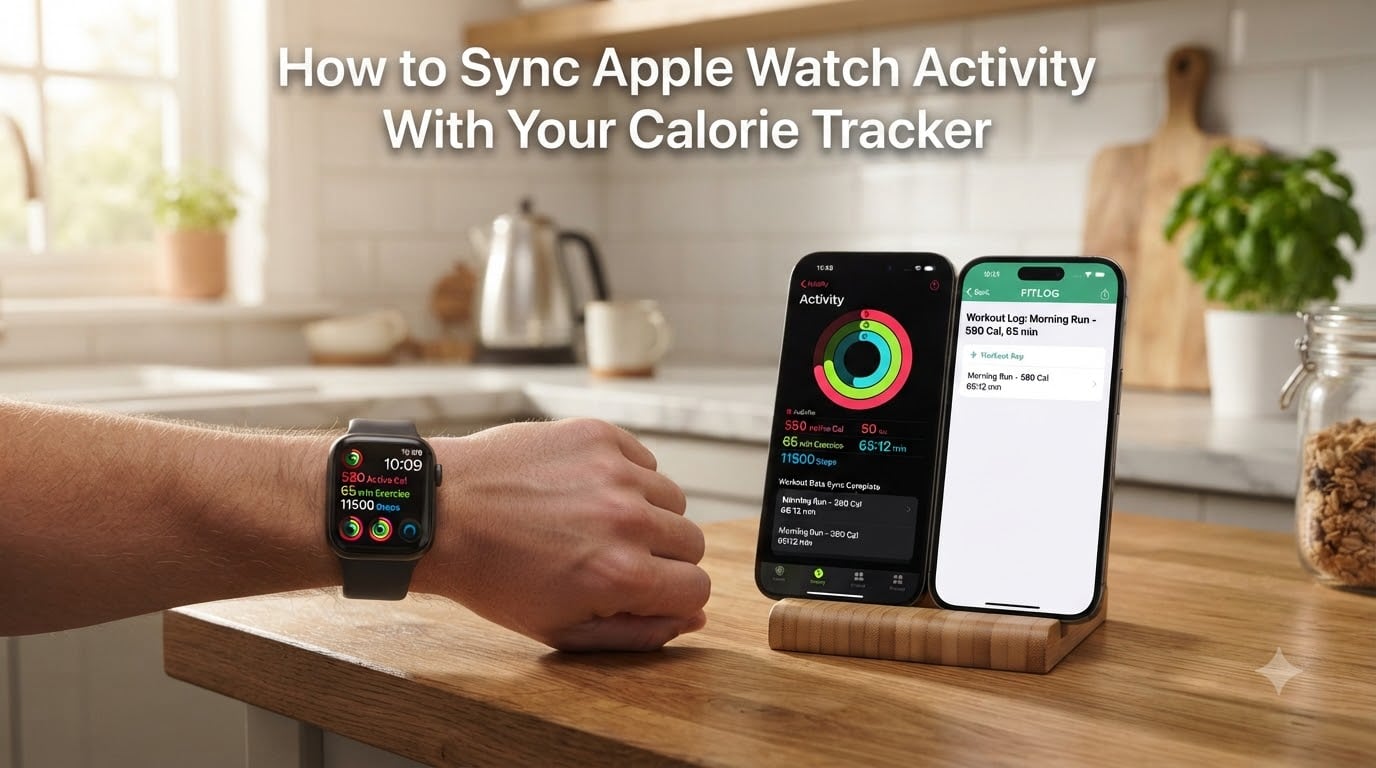
Syncing your Apple Watch with a calorie tracker should be one of those set-it-and-forget-it things. You strap on the Watch, it tracks your movement, and the numbers show up in your nutrition app automatically. But anyone who has tried knows the reality: sometimes it works, sometimes calories show up hours late, and sometimes they do not match at all.
I have spent months testing different combinations of Apple Watch models, iOS versions, and calorie tracking apps to figure out exactly how to sync Apple Watch activity with a calorie tracker reliably. The process comes down to understanding one key concept: Apple Health is the bridge between your Watch and your nutrition app. Get that bridge configured right and everything else falls into place.
This guide walks through the complete setup from scratch, covers the most popular calorie tracker apps, explains why your calorie numbers sometimes disagree, and gives you a troubleshooting checklist for when things break. Whether you use MyFitnessPal, Lose It!, Cronometer, or a free alternative like FitBee, the steps below apply.
Table of Contents
- How Apple Health Works as Your Sync Hub
- Step-by-Step: Connect Your Apple Watch to Apple Health
- How to Connect Calorie Tracker Apps to Apple Health
- Active Calories vs Total Calories: What Gets Synced
- Verifying Your Sync Is Working Correctly
- Troubleshooting Common Apple Watch Calorie Sync Issues
- Tips for Accurate Calorie Data and Sync
- Frequently Asked Questions
- Conclusion
How Apple Health Works as Your Sync Hub
Apple Health is the central hub that makes syncing possible. Your Apple Watch does not send data directly to MyFitnessPal or any other third-party calorie app. Instead, every piece of activity data your Watch collects flows into the Apple Health app on your iPhone first.
From there, your calorie tracker reads that data using Apple’s HealthKit framework. HealthKit is the underlying system that lets apps request permission to read and write health data. Think of Apple Health as a secure database on your phone, and HealthKit as the set of rules that controls which apps can access it.
This matters because it means you control the flow. When you grant a calorie tracker permission to read workout data and active calories from Apple Health, it pulls that information on a schedule. When you revoke permission, the data stops flowing. Everything passes through Apple Health, which is why getting your Health app permissions right is the single most important step in the entire process.
One thing that trips people up: the sync is one-directional for most data types. Your Apple Watch writes calorie burn and workout data to Apple Health. Your calorie tracker reads it. The calorie tracker may also write nutrition or weight data back to Apple Health, but exercise calories typically flow from Watch to Health to tracker, not the other way around.
Step-by-Step: Connect Your Apple Watch to Apple Health
Your Apple Watch and Apple Health are designed to pair automatically when you first set up your Watch. If you are starting fresh or setting up a new Watch, here is the process to make sure activity data is flowing into Apple Health.
Step 1: Pair your Apple Watch with your iPhone. Open the Watch app on your iPhone, follow the pairing prompts, and sign in with your Apple ID. During setup, iOS asks whether you want to share activity and health data with Apple Health. Tap yes.
Step 2: Enter your Health Details. Open the Watch app on your iPhone, tap the My Watch tab, then tap Health and Health Details. Make sure your height, weight, age, and sex are accurate. These numbers directly affect how your Apple Watch calculates calories burned. Wrong details mean wrong calorie estimates.
Step 3: Enable Fitness Tracking. In the Watch app, go to Privacy and Motion and Fitness. Toggle on Fitness Tracking. This is the master switch that lets your Apple Watch record movement data and send it to Apple Health. If this is off, nothing syncs.
Step 4: Verify data in Apple Health. Open the Apple Health app on your iPhone, tap Browse, then Activity. Look for Active Energy and Steps. If you see data populating for today, your Watch is successfully writing to Apple Health. If the sections are empty, restart your Watch and iPhone, then check again.
Step 5: Confirm iCloud Health sync is on. Go to Settings on your iPhone, tap your name at the top, then iCloud. Under Apps Using iCloud, make sure Health is toggled on. This keeps your health data consistent across devices and helps with background sync reliability.
How to Connect Calorie Tracker Apps to Apple Health
Once your Apple Watch data is flowing into Apple Health, the next step is giving your calorie tracker permission to read it. The process is nearly identical across apps, but the exact menu paths differ. Here is how to connect the most popular calorie trackers.
Connecting MyFitnessPal to Apple Health
MyFitnessPal is the most commonly used calorie tracker paired with Apple Watch, and Reddit users in the MyFitnessPal and CICO communities have tested every quirk of this integration.
Step 1: Open MyFitnessPal on your iPhone and tap the More or Menu tab (three dots in the bottom navigation).
Step 2: Tap Apps and Devices, then select Apple Health from the list.
Step 3: Tap Connect at the top right. iOS will open a permissions screen showing all the data types MyFitnessPal wants to access.
Step 4: Toggle on Turn On All, or manually enable Steps, Active Energy, Workouts, and Exercise Minutes under the Allow MyFitnessPal to Read section. Make sure you also allow it to write Weight and other data back if you want two-way sync.
Step 5: Tap Allow in the top right. Return to MyFitnessPal and check your Steps source. Go to More, then Settings, then Steps. Select Apple Health as your step source. If you skip this step, MyFitnessPal will not pull step or workout data from the Health app.
One thing to note from forum discussions: MyFitnessPal reads step data and workouts from Apple Health but does not always factor in active calories as a separate adjustment. Instead, it uses your workout data to estimate an exercise calorie adjustment. This is why your numbers may look different between the two apps.
Connecting Lose It!, Cronometer, and Other Apps
The process is similar for other popular calorie trackers. In Lose It!, go to the More tab, then Apps and Devices, select Apple Health, and toggle on the data types you want to share. Cronometer follows the same pattern: tap the Settings icon, select Sync, choose Apple Health, and enable permissions.
If you are looking for a free alternative that community members on Reddit recommend, FitBee is frequently mentioned as an app that syncs cleanly with Apple Health without the premium paywalls of some other trackers. The connection process works the same way through Settings and Apple Health permissions.
Regardless of which app you use, the critical permissions to enable are Active Energy, Steps, and Workouts. Without all three, your calorie tracker will not have a complete picture of your daily activity.
Active Calories vs Total Calories: What Gets Synced
This is the single biggest source of confusion for anyone syncing an Apple Watch with a calorie tracker. The numbers do not match because Apple Watch reports two different calorie figures, and most calorie apps only use one of them.
Active calories are the extra calories you burn through movement above your resting metabolic rate. This includes walking, workouts, fidgeting, and any physical activity throughout the day. Think of this as the calories your activity rings track.
Total calories are active calories plus your resting energy, which is the energy your body burns just staying alive. Resting energy makes up the majority of your daily burn, often 60 to 75 percent for the average person. Total calories is the complete picture of everything you burned in a day.
Your Apple Watch shows active calories in the Activity app by default, but Apple Health stores both active and resting energy separately. Most calorie trackers, including MyFitnessPal, pull active calories or workout calories to calculate an exercise adjustment. They do not add your resting energy because their calorie goal already accounts for it using your basal metabolic rate.
If you see a large discrepancy between what your Apple Watch shows and what your calorie tracker credits you for, it is almost always this difference. The Apple Watch Move ring shows active calories only. Your calorie tracker is adding those active calories on top of your base metabolic rate to estimate total daily burn. Which number should you trust for weight loss? Use the exercise adjustment your calorie tracker gives you, because that number is already integrated into your daily calorie budget.
Verifying Your Sync Is Working Correctly
After setting up permissions, you want to confirm data is actually moving from your Apple Watch through Apple Health and into your calorie tracker. Here is how to check at each stage.
Check Apple Health first. Open the Health app, tap Browse, then Activity, then Active Energy. Tap the graph and make sure data appears for today. Also check Workouts under the Fitness section. If you see data here, your Watch is writing correctly.
Check your calorie tracker. Open your calorie app and look for the exercise or steps section. In MyFitnessPal, check the diary for today and look for an exercise entry or calorie adjustment. In Lose It!, check the Log screen for a calories from exercise figure. If the numbers match what Apple Health shows, your sync is working.
Watch for timing differences. Sync is not instant. Based on user reports across Reddit forums, expect a 15 to 20 minute delay between when your Apple Watch records data and when it appears in your calorie tracker. This is normal. The data moves from Watch to iPhone via Bluetooth, then from Apple Health to your calorie app via background refresh. If you completed a workout and it has not appeared in your tracker within 30 minutes, that is when you should start troubleshooting.
Do a test workout. If you want to be certain everything works, do a short 5-minute outdoor walk recorded as a Workout on your Apple Watch. Check Apple Health for the workout entry, then open your calorie tracker and see if it appears. This end-to-end test confirms the entire pipeline is functional.
Troubleshooting Common Apple Watch Calorie Sync Issues
When sync breaks, it usually falls into one of a few categories. Here is a systematic approach to fixing the most common problems.
Problem: Calories Not Appearing in Your Calorie Tracker
Fix 1: Check Background App Refresh. Your calorie tracker needs Background App Refresh enabled to pull data from Apple Health when you are not actively using the app. Go to Settings, General, Background App Refresh, and make sure it is turned on globally and for your specific calorie tracker app. If this is off, your tracker can only sync when you open the app manually.
Fix 2: Re-verify Health permissions. Sometimes an iOS update resets health data permissions. Open Settings, scroll to Privacy and Security, then Health. Tap your calorie tracker app and confirm that Active Energy, Steps, and Workouts are still enabled under the Read section. Re-toggle them off and on if needed.
Fix 3: Force a manual sync. Some calorie trackers have a sync button or pull-to-refresh option. In MyFitnessPal, pulling down on the dashboard screen can trigger a fresh data pull from Apple Health. If that does not work, try opening the Apple Health app first, then switching back to your calorie tracker. This can nudge the background sync process.
Problem: Workout Data Syncing but Calorie Numbers Are Wrong
Fix 1: Update your personal stats. If you have lost or gained weight, your calorie calculations will be off. Open the Watch app, go to My Watch, then Health, then Health Details, and update your current weight. This recalculates your basal metabolic rate.
Fix 2: Check your step source. In MyFitnessPal, go to Settings and Steps. Make sure Apple Health is selected, not your phone’s built-in pedometer. If the wrong source is selected, the app may be reading fewer steps than your Apple Watch actually recorded.
Fix 3: Understand the calorie adjustment logic. MyFitnessPal and similar apps do not show your raw active calories from Apple Health. Instead, they compare your total energy expenditure from the Watch against what they estimated you would burn. If your Watch says you burned more than the app expected, you get a positive adjustment. If you were less active than expected, you might see zero extra calories even though your Watch recorded movement. This is by design, not a bug.
Problem: Sync Delayed by Hours or Only Updates Overnight
Fix 1: Restart both devices. The classic fix still works. Power off your iPhone and Apple Watch, turn them back on, and wait 10 to 15 minutes for data to repopulate. This clears stuck sync queues.
Fix 2: Check iCloud sync status. If iCloud Health sync is having issues, data may not propagate correctly across devices. Go to Settings, your name, iCloud, and verify Health is enabled. If you recently updated iOS, give iCloud up to 24 hours to fully re-sync health data.
Fix 3: Uninstall and reconnect. As a last resort, remove the calorie tracker from the Health app’s data sources, then reconnect it from within the calorie tracker’s settings. This forces a fresh permission grant and can resolve persistent sync failures.
Tips for Accurate Calorie Data and Sync
Getting sync working is half the battle. Getting accurate data is the other half. Here are the adjustments that make the biggest difference.
Calibrate your Apple Watch. Go to a flat, open outdoor area and do a 20-minute walk or run using the Workout app with GPS enabled. This helps your Watch learn your personal stride length and movement patterns, which improves calorie estimates for all future workouts. Apple recommends doing this a few times at different paces for best results.
Keep your weight current. Update your weight in the Health Details section of the Watch app every few weeks, or whenever it changes significantly. Calorie calculations are heavily weight-dependent. A 10-pound difference can shift your daily calorie burn estimate by over 100 calories.
Use Workout mode for structured exercise. Free activity tracking captures general movement, but starting a Workout on your Apple Watch for gym sessions, runs, and bike rides gives your Watch heart rate data and GPS context that significantly improves calorie accuracy for that session.
Be patient with sync timing. Accept that there will always be a small delay. Check your calorie tracker after meals or at the end of the day rather than immediately after a workout. The data will catch up.
Frequently Asked Questions
Why isn’t my Apple Watch showing calories during my workouts?
If your Apple Watch is not showing calories during a workout, check that Fitness Tracking is enabled in the Watch app under Privacy and Motion and Fitness. Also verify your Health Details (height, weight, age) are entered correctly, as these are required for calorie calculations. If the issue persists, restart your Apple Watch and make sure you started the activity as a Workout rather than relying on passive tracking.
Why isn’t MyFitnessPal syncing with my Apple Watch activity?
The most common reason is that Apple Health is not set as the step source in MyFitnessPal, or that Health permissions have been reset after an iOS update. Open MyFitnessPal, go to Settings and Steps, and select Apple Health. Then go to iPhone Settings, Privacy and Security, Health, and verify MyFitnessPal has read access for Active Energy, Steps, and Workouts. Toggling the permissions off and back on often fixes the connection.
How do I link my Apple Watch to the calorie counter?
You link your Apple Watch to a calorie counter through Apple Health. Open your calorie tracker app, find the Apps and Devices or Sync section, select Apple Health, and allow it to read Active Energy, Steps, and Workouts. Your Apple Watch data already flows into Apple Health automatically, so once the calorie tracker has permissions, it will pull Watch data from the Health app.
Can I sync my calorie counter with Apple Health?
Yes, most major calorie tracking apps including MyFitnessPal, Lose It!, Cronometer, and FitBee support syncing with Apple Health. Each app connects through Apple’s HealthKit framework by requesting permission to read activity and workout data. You control access in the Health section of your iPhone Settings under Privacy and Security.
How do I force Apple Health to sync?
To force Apple Health to sync, open the Health app and pull down on the dashboard to refresh. You can also open your calorie tracker app and use its pull-to-refresh or sync button. If data is still stuck, go to iPhone Settings, tap your name, then iCloud, and confirm Health is enabled. Restarting your iPhone and Apple Watch clears most stuck sync queues.
Conclusion
Getting your Apple Watch to sync Apple Watch activity with your calorie tracker comes down to three things: making sure your Watch writes data to Apple Health, giving your calorie app permission to read it, and keeping Background App Refresh enabled so the data actually transfers. Once those pieces are in place, your workouts and activity data will flow into your nutrition app automatically.
Remember that small calorie discrepancies between apps are normal and usually come down to the difference between active and total calories. Update your personal stats regularly, calibrate your Watch with outdoor walks, and give the system 15 to 20 minutes to sync after each workout. If you do all of that and still have issues, the troubleshooting steps above will get you back on track.