
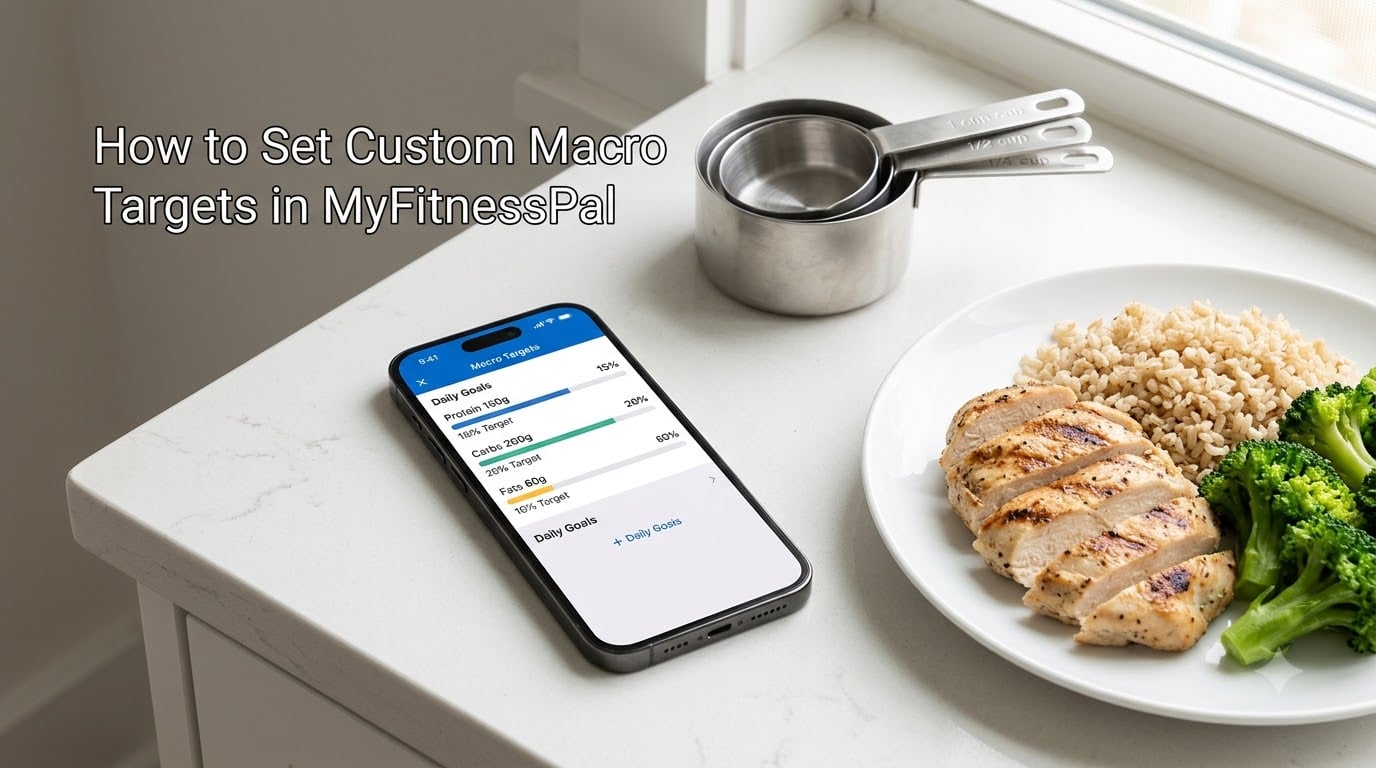
If you’ve ever opened MyFitnessPal and felt stuck with the default macro goals, you’re not alone. Setting custom macro targets in MyFitnessPal is the fastest way to line the app up with a specific diet plan, whether that’s keto, high-protein, or something your nutritionist prescribed for you.
In this guide, I’ll walk you through the exact menu paths on iOS, Android, and the web version. I’ll also cover what changes between the free and Premium versions, explain the 40/40/20 macro rule, and fix the most common problem people run into: goals that won’t stay put.
Let’s get your nutritional goals dialed in so every entry in your food diary actually counts toward the plan you’re trying to follow.
Table of Contents
- What Are Macro Targets in MyFitnessPal
- How to Set Custom Macro Targets in MyFitnessPal on iOS
- How to Set Custom Macro Targets in MyFitnessPal on Android
- How to Set Custom Macro Targets in MyFitnessPal on the Web
- Premium vs Free: What Changes for Macro Control
- The 40/40/20 Macro Rule Explained
- How to Calculate Your Ideal Macro Split
- Why Your MyFitnessPal Macro Goals Keep Resetting (And How to Fix It)
- Tips for Hitting Your Macro Targets Every Day
- Frequently Asked Questions
- Final Thoughts on Setting Custom Macro Targets in MyFitnessPal
What Are Macro Targets in MyFitnessPal
Macro targets are the daily goals MyFitnessPal gives you for each macronutrient: protein, carbohydrates, and fat. They sit alongside your calorie goal and shape how the app scores every food you log.
By default, MyFitnessPal picks macro percentages based on your profile, activity level, and weight goal. That’s fine for many people, but it falls short the moment you follow a plan that calls for, say, 40 percent protein or a strict low-carb split.
Custom macro targets let you override those defaults. Instead of accepting whatever the app suggests, you set the exact protein, carbs, and fat percentages you want to hit each day. Your calorie goal is then built from those numbers.
The reason this matters: if your plan calls for 180 g protein and 60 g fat with the rest as carbs, the default goal won’t get you there. Custom targets close that gap.
How to Set Custom Macro Targets in MyFitnessPal on iOS
The iOS app is where most people track, so let’s start there. Custom macro targets on iPhone live behind a single goals menu, and the whole process takes under two minutes once you’ve done it once.
Step-by-step for iOS:
- Open the MyFitnessPal app and tap More in the bottom-right corner of the screen.
- Tap Goals, then tap the card labeled Calorie & macro goals.
- Toggle off Recommended Calories at the top of the screen so MyFitnessPal stops auto-adjusting your calorie goal.
- Tap Macro Goals, then choose Custom instead of “Recommended” or any preset.
- Set your protein percentage using the slider or the plus and minus buttons. Each tap moves it in 5 percent increments on the free version.
- Set carbs and fat the same way. The three percentages must add up to 100 percent.
- Tap Save in the upper-right corner.
If you’re on Premium, you’ll see a switch for gram-level control instead of percentage. That lets you set exact grams of protein, carbs, and fat — handy for IIFYM or plans your coach wrote out for you.
One catch on iOS: if you leave Recommended Calories toggled on, the app will recalculate your calorie goal from your profile and silently overwrite your macros. Turn that toggle off first, save, and your custom settings stick.
How to Set Custom Macro Targets in MyFitnessPal on Android
The Android menu layout is slightly different, but the logic is identical. The steps land you in the same Calorie & macro goals card.
Step-by-step for Android:
- Open MyFitnessPal and tap the three-line Menu icon in the upper-left corner.
- Tap Goals, then tap Calorie & macro goals.
- Switch off Recommended Calories.
- Tap Macro Goals, then choose Custom.
- Adjust protein, carbs, and fat percentages using the sliders. Free version users see changes in 5 percent chunks.
- Hit the back arrow or tap Save to commit.
Premium Android users get the same gram-level customization as on iOS. The 5 percent increment limit is tied to your account, not your device, so it behaves the same on both platforms.
How to Set Custom Macro Targets in MyFitnessPal on the Web
The web version is the easiest place to edit goals with a mouse. It’s also where you can quickly type in specific numbers without fighting a touch slider.
Step-by-step on the web:
- Log in at myfitnesspal.com and click My Foods in the top navigation.
- Click Settings on the dropdown.
- Choose Goals from the left-hand menu.
- Under Calorie & Macro Goals, click Calorie Goals and uncheck Use Recommended Calories.
- Click Macro Goals, pick Custom, and enter your percentages.
- Click Save Changes at the bottom.
Changes you make on the web sync to your phone app within a few minutes. If you’ve already set percentages on mobile and they’re not showing up, force a sync by pulling down on the home screen of the app to refresh.
Premium vs Free: What Changes for Macro Control
The biggest difference between Premium and free for macro control comes down to precision. Here’s how they compare.
Free version:
- Macros set in 5 percent increments only.
- Total calorie goal rebalances automatically when you change macro percentages.
- Standard presets available: Balanced, High Protein, Low Carb, Keto, and Paleo.
Premium version:
- Set macros in exact grams (1 gram increments).
- Set a fixed protein and fat target while letting carbs fill the rest.
- Set a fixed carb and fat target while letting protein float.
The practical effect: on the free plan, you can’t dial in 35 percent protein or 25 percent fat. You’re locked to multiples of 5. That rules out some plans, especially stricter bodybuilding or therapeutic diets.
If your coach handed you a printout that says 165 g protein, 180 g carbs, and 70 g fat, you need Premium to enter those numbers exactly. Otherwise, you’d have to math your way into the closest 5 percent block and accept small drift.
For most casual trackers, the free version is plenty. Power users and competitive athletes get their money’s worth from the upgrade.
The 40/40/20 Macro Rule Explained
The 40/40/20 macro rule means 40 percent of your daily calories from protein, 40 percent from carbohydrates, and 20 percent from fat. It’s a balanced split popular in athletic performance circles.
Where did it come from? Coaches and nutritionists started using 40/40/20 as a flexible starting point that supports both strength and endurance training. Protein at 40 percent keeps muscle repair well-fed. Carbs at 40 percent keep glycogen stores topped off for training. Fat at 20 percent covers hormone production without dominating the plate.
For a 2,000 calorie day at 40/40/20, you’d hit roughly 200 g protein, 200 g carbs, and 44 g fat. To run the math yourself, multiply calories by the percentage, then divide by 4 for protein and carbs or 9 for fat.
Is it right for everyone? Not really. It’s a starting point. Runners and CrossFitters often do well on it. Pure strength athletes sometimes want more protein. People on insulin-resistance protocols might run higher fat. Use it as a launchpad, not a law.
How to Calculate Your Ideal Macro Split
You don’t need a custom macro target in MyFitnessPal to be useful, but it’s a lot more useful when the numbers fit your goals. Here’s how to find a split you’ll actually stick to.
Step 1. Set your calorie goal first. Use MyFitnessPal’s calculator or a TDEE calculator to find your maintenance calories, then subtract 10 to 20 percent if you’re cutting weight.
Step 2. Pick a protein floor. A common rule is 0.7 to 1 g of protein per pound of bodyweight. Lifters often go higher, around 1 to 1.2 g per pound. Lock in protein first because it’s the most important macro for body composition.
Step 3. Pick a fat floor. Going below 20 percent of calories from fat can disrupt hormones for many people. 25 to 35 percent is a safer range unless you have a medical reason to go lower.
Step 4. Let carbs fill the rest. Once protein and fat are set, carbs are the remainder. Adjust them up or down based on training intensity and how you feel.
Example: a 165 lb person targeting 2,200 calories. Protein at 1 g per pound is 165 g (660 cal). Fat at 25 percent is 61 g (550 cal). That leaves 990 cal for carbs, which is 248 g. So the split works out to roughly 30/25/45 (protein/fat/carbs).
Why Your MyFitnessPal Macro Goals Keep Resetting (And How to Fix It)
This is the single most common complaint in the MyFitnessPal subreddit, and it’s almost always caused by one of three things. Here’s how to fix each.
Problem 1: Recommended Calories is still on. When this toggle is active, MyFitnessPal keeps re-deriving your calorie goal from your profile. Any change you make gets overwritten on the next sync.
Fix: Go back to Goals > Calorie & macro goals and toggle Recommended Calories off. Save your changes.
Problem 2: A connected fitness app is overriding your goals. If you linked MyFitnessPal to Fitbit, Apple Health, Google Fit, or another tracker, those apps can push new calorie goals back into MyFitnessPal.
Fix: Go to More > Apps & Devices and disconnect extra trackers. Keep only the one you genuinely need.
Problem 3: Exercise calories are being added. MyFitnessPal can add calories burned during exercise on top of your base goal. That shifts the math and can trigger a recalculation of your macros downstream.
Fix: In Goals, look for Add exercise calories to your daily goal and toggle it off if you want a fixed daily target. Some users prefer to keep it on and adjust macros on workout days instead.
Problem 4: You’re editing the wrong goal type. The free version has preset splits under names like “Keto” and “Balanced.” If you pick one of those, your custom percentages get replaced with the preset.
Fix: After saving custom values, double-check by reopening Macro Goals. The selected option should still say Custom.
If macros still won’t save after these fixes, log out and back in, then re-enter the values. A small number of users have reported that a fresh sign-in clears a stuck sync.
Tips for Hitting Your Macro Targets Every Day
Setting custom macros in MyFitnessPal is only the first half of the job. Hitting them day after day is where most people get stuck.
Use verified entries whenever possible. Foods in MyFitnessPal with a green checkmark have been reviewed for accuracy. Generic crowdsourced entries are often off by 20 percent or more, especially on calories.
Plan your day backward. Pick your protein-rich meals first, since protein is the hardest macro to hit. Once protein is locked in, fat and carbs usually fall into place.
Use the barcode scanner for packaged food. It’s faster than searching and reduces entry errors. Just confirm the serving size matches what you’re actually eating.
Turn off net carbs if you don’t need them. Net carbs subtract fiber from total carbs. Useful for keto, but if you’re not on keto, leave total carbs on so you don’t accidentally underreport your intake.
Save your own recipes. Custom recipes let you log a multi-ingredient meal once and split it across future diaries. Pulling a saved recipe into today’s log is faster than re-entering each ingredient.
Review your week on Sundays. Sunday afternoon is when I look at the past week’s macro hit rate. If protein is consistently 20 g under target, I shift breakfast to a higher-protein option. Small weekly tweaks beat daily panic.
Frequently Asked Questions
Can I set my own macro goals in MyFitnessPal?
Yes. Go to More u0026gt; Goals u0026gt; Calorie u0026amp; macro goals, toggle off Recommended Calories, then open Macro Goals and choose Custom. On the free version, percentages move in 5 percent steps. Premium users can set macros in exact grams.
Why are my macro goals not saving in MyFitnessPal?
Most often, the Recommended Calories toggle is still on and the app is overwriting your changes. Make sure that toggle is off, disconnect any linked fitness trackers that may be pushing new calorie goals, and re-save. Logging out and back in can also clear a stuck sync.
What is the 40/40/20 macro rule?
It means 40 percent of daily calories from protein, 40 percent from carbohydrates, and 20 percent from fat. It is a balanced split popular with athletes who do mixed strength and endurance training. Use it as a starting point and adjust based on your goals and how your body responds.
Can I set macro goals by grams without Premium?
No. Gram-level macro targets require MyFitnessPal Premium. The free version only lets you choose percentages in 5 percent increments. If your plan calls for a specific gram target like 165 g protein, you’ll need to upgrade or pick the closest 5 percent block.
How do I stop MyFitnessPal from recalculating my calorie goal?
Open Goals u0026gt; Calorie u0026amp; macro goals and turn off the Recommended Calories toggle. Also disconnect linked fitness apps under More u0026gt; Apps u0026amp; Devices, since they can push new calorie targets back into MyFitnessPal. With both off, your calorie goal stays where you set it.
Final Thoughts on Setting Custom Macro Targets in MyFitnessPal
Setting custom macro targets in MyFitnessPal comes down to three things: turning off Recommended Calories, picking Custom under Macro Goals, and entering the percentages (or grams, with Premium) that match your plan. The process takes a couple of minutes on iOS, Android, or the web.
If your goals keep resetting, the fix is almost always a fitness tracker connection or the Recommended Calories toggle sneaking back on. Run through those two switches first, save your settings, and log a few days to confirm the macros stay put.
Once your targets are locked in, the real work is consistent logging. Use verified entries, plan protein first, and review your week to catch drift before it snowballs. If 2026 is the year you finally stop fighting the app and start hitting your macros, this guide should have you most of the way there.