
I built my first intermittent fasting tracker spreadsheet three years ago, and it taught me more about my eating habits than any app ever did. Spreadsheets put you in control of every column, every formula, and every visual cue, which is exactly what most fasting apps refuse to do.
If you want a fasting tracker that you fully own, can customize forever, and never asks for a subscription, a Google Sheets or Excel file is the right place to start. This guide walks you through how to set up an intermittent fasting tracker in a spreadsheet from scratch, including the actual formulas that calculate your fasting hours and eating window automatically.
Table of Contents
- Why Use a Spreadsheet Instead of an App for Intermittent Fasting?
- Choosing Your Fasting Schedule Before You Build
- Essential Columns for Your Intermittent Fasting Tracker Spreadsheet
- Step-by-Step Google Sheets Setup
- Setting Up the Same Tracker in Excel
- Visual Formatting Tips for Quick Reading
- Handling Time Zones and Late-Night Eating Windows
- Troubleshooting Common Spreadsheet Problems
- Frequently Asked Questions
- Can you use Google Sheets for intermittent fasting?
- What formulas do I need for an intermittent fasting tracker spreadsheet?
- Is there a free Excel template for weight loss tracking?
- How do I handle time zones when logging eating windows?
- Does 12 hours still count as intermittent fasting?
- Is 16:8 or 14:10 better for intermittent fasting?
- Start Tracking Your Fast in a Spreadsheet Today
Why Use a Spreadsheet Instead of an App for Intermittent Fasting?
Spreadsheets give you ownership of your data in a way apps never can. Your fasting history lives in a file you control, exports cleanly to CSV, and never gets locked behind a paywall or a deleted account.
Apps tend to bundle features that distract beginners, like mood tracking, water logging, social feeds, and recipe libraries. A custom intermittent fasting tracker spreadsheet strips all of that away and leaves only the columns and formulas that actually move the needle for your fasting goal.
I have tested both approaches, and spreadsheets win on three points: flexibility, privacy, and long-term cost. Once you learn the formula patterns below, you can adapt the same tracker to 16:8, 18:6, OMAD, or any custom schedule without downloading a new app.
Choosing Your Fasting Schedule Before You Build
Pick your fasting window first because every formula in your spreadsheet depends on the hours you want to fast each day. Here is a quick comparison of the most common intermittent fasting schedules you can encode into your tracker.
| Schedule | Fasting Hours | Eating Window | Best For |
|---|---|---|---|
| 14:10 | 14 hours | 10 hours | True beginners easing in |
| 16:8 | 16 hours | 8 hours | Most popular starting point |
| 18:6 | 18 hours | 6 hours | Steady fat loss after a few weeks of 16:8 |
| 20:4 (Warrior) | 20 hours | 4 hours | Experienced fasters who plateaued |
| OMAD | 23 hours | 1 hour | One meal a day enthusiasts |
| 5:2 | 25 hours twice weekly | Normal other days | People who dislike daily restrictions |
My recommendation if this is your first spreadsheet tracker: start with 16:8. It is forgiving, well-documented, and easy to grow out of when you feel ready.
Essential Columns for Your Intermittent Fasting Tracker Spreadsheet
Before any formulas, you need a clean set of headers. I keep the daily log simple so I can fill it out in under 30 seconds each morning.
Daily log columns I use:
- Date
- Last Meal Time (when your eating window closed)
- First Meal Time (when your eating window opened next)
- Target Fast Hours (your goal, like 16)
- Actual Fast Hours (calculated by formula)
- Goal Met (Yes or No, calculated)
For the weekly summary tab, I add Average Fast Hours, Weight (logged Monday morning), Streak Days, and a Notes column for sleep, energy, or cravings.
This split keeps the daily entry friction low while still giving you meaningful trend data at the end of each week.
Step-by-Step Google Sheets Setup
Open a blank Google Sheet, name the first tab Daily Log, and put these headers in row 1: Date, Last Meal, First Meal, Target Hours, Actual Hours, Goal Met.
Step 1: Format the time columns. Select columns B and C, click Format, then Number, then Time. This lets you type values like 8:00 PM and have Sheets treat them as time data, not text.
Step 2: Build the actual fasting hours formula. In cell E2, type this formula:
=IF(AND(B2<>””,C2<>””), IF(C2>B2, (C2-B2)*24, (C2+1-B2)*24), “”)
This formula handles overnight fasts automatically. If your first meal falls the next day, the (C2+1-B2) branch adds 24 hours so the math stays correct.
Step 3: Build a live countdown timer. In a new cell, say H1, add:
=IF(B2<>””, TEXT(IF((NOW()-B2)*24>=16, “Goal reached!”, MOD(NOW()-B2,1)*24), “0.00”), “Enter last meal time”)
That MOD function is the secret sauce for any overnight fasting tracker spreadsheet. It strips the day count from NOW() and keeps only the time-of-day portion, so your countdown ticks forward smoothly past midnight.
Step 4: Clean up empty cells with IF and ISBLANK. Empty cells displaying 0 or 12:00 AM look messy. Wrap every formula with IF(ISBLANK(…), “”, calculation) so blank rows stay blank until you log data.
A clean formula example:
=IF(ISBLANK(B2), “”, TEXT(NOW()-B2, “h:mm”))
Step 5: Add a Goal Met indicator. In column F, use:
=IF(AND(E2<>””, E2>=D2), “Yes”, IF(E2=””, “”, “No”))
This pulls double duty: it shows your streak for the day and feeds the weekly summary tab.
Setting Up the Same Tracker in Excel
Excel works almost identically, with a few syntax differences. NOW() and MOD() both work the same way, so your fasting hours formula ports directly.
The biggest change is conditional formatting. In Google Sheets you right-click a cell to apply a color scale. In Excel, go to Home, then Conditional Formatting, then New Rule to color a cell green when Actual Hours meets or exceeds Target Hours.
Another tip for Excel users: format your time columns as h:mm AM/PM through Format Cells, then Custom. Excel is pickier about how it parses text times, so entering 20:00 instead of 8:00 PM prevents formula errors.
Visual Formatting Tips for Quick Reading
A tracker that takes effort to read will be abandoned in two weeks. The whole point of building your own intermittent fasting tracker spreadsheet is to glance at it once a day and know exactly where you stand.
Two tricks I rely on:
Color-code by goal status. In Google Sheets, select the Actual Hours column, click Format, then Conditional Formatting. Set the color scale so anything at or above your target hours turns green, and anything below turns red. This creates a visual streak across your week at a glance.
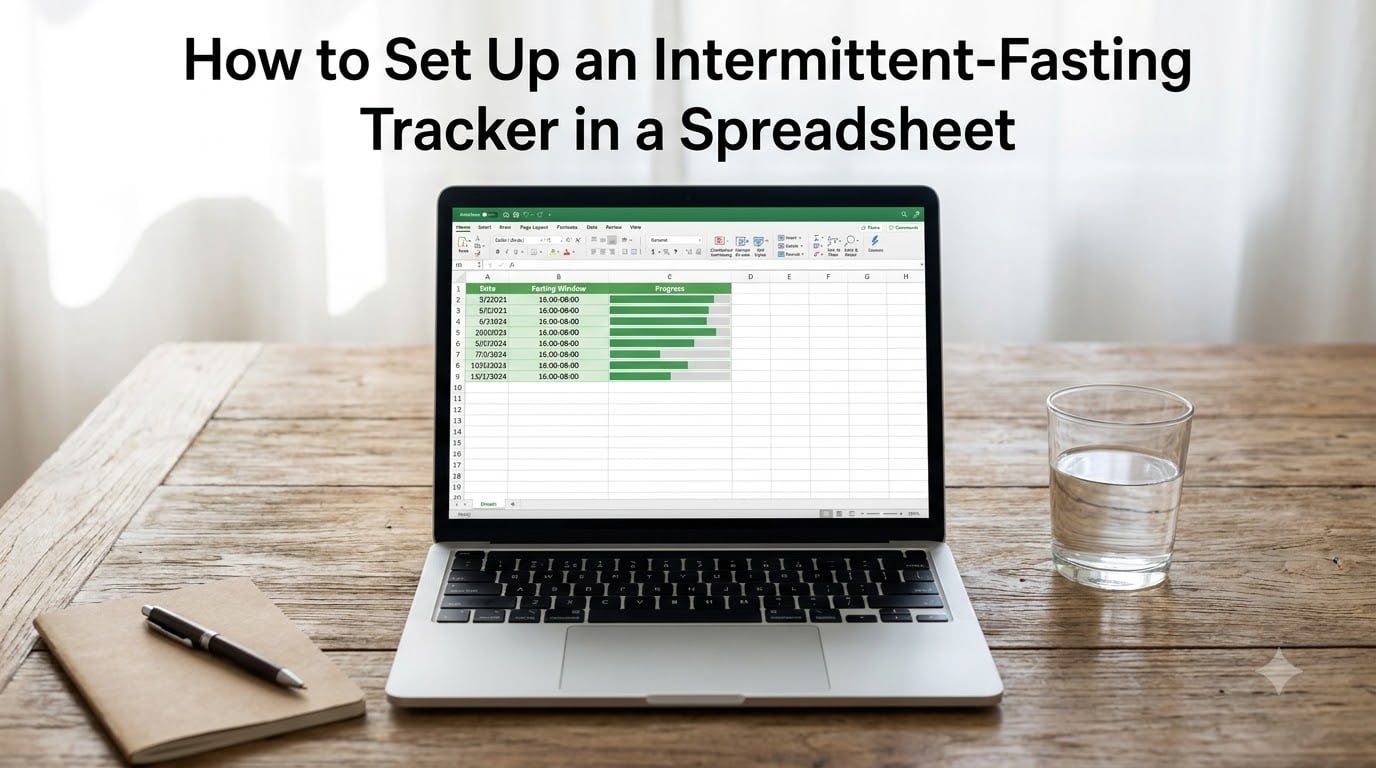
Build a progress bar. Stack three cells horizontally and use this formula in the first cell:
=REPT(“█”, MIN(FLOOR(E2/16*10), 10)) & REPT(“░”, MAX(10-FLOOR(E2/16*10), 0))
Replace 16 with your target hours. The result is a 10-block bar that fills up as your fast progresses, giving you the same visual feedback you would get from a paid app.
Handling Time Zones and Late-Night Eating Windows
Travel is the moment most homemade fasting trackers break. If you fly from New York to Tokyo and log a meal at what your phone says is 9 PM, your spreadsheet may calculate a fast that is 8 hours longer than reality.
Fix this by anchoring all your times to one consistent time zone. I keep my tracker in Eastern Time regardless of where I travel, then mentally adjust when I log a meal. It is imperfect but it prevents silent errors that wreck your weekly averages.
Daylight saving time is the other gotcha. Because you are working in time-of-day math, a 2 AM clock change does not break MOD-based formulas. It only matters if you cross time zones that observe DST on different dates, which is rare.
Troubleshooting Common Spreadsheet Problems
Three errors show up over and over in any fasting tracker spreadsheet. Here is the quick fix for each.
My countdown shows a negative number. Your formula is subtracting in the wrong direction. Swap the order so it reads NOW() minus the meal time, not meal time minus NOW().
Empty rows display 12:00 AM. Wrap the formula with IF(ISBLANK(cell), “”, calculation). Sheets and Excel both display blank cells as midnight by default, which is misleading.
My weekly average is wrong. You probably have a text value mixed into the Actual Hours column. Use =AVERAGE(IF(ISNUMBER(E2:E100), E2:E100)) entered as an array formula, or filter out blanks before averaging.
Frequently Asked Questions
Can you use Google Sheets for intermittent fasting?
Yes. Google Sheets handles time math, conditional formatting, and live countdowns through the NOW, IF, MOD, and ISBLANK functions, which makes it a fully capable intermittent fasting tracker. Many users prefer it over apps because the data is private, customizable, and free.
What formulas do I need for an intermittent fasting tracker spreadsheet?
The core formulas are NOW() for the current time, MOD() to handle overnight fasts past midnight, IF() and ISBLANK() to keep empty cells clean, and a simple subtraction multiplied by 24 to get fasting hours. Together these four functions cover about 90 percent of what any fasting tracker needs.
Is there a free Excel template for weight loss tracking?
There is no official Microsoft template, but you can build your own in under an hour using the same formulas described above. Excel supports conditional formatting, color scales, and progress bars, so the end result matches or beats most paid templates.
How do I handle time zones when logging eating windows?
Pick one time zone and stick to it for all entries, even while traveling. This keeps your weekly averages consistent and avoids the silent errors that happen when your phone clock jumps zones mid-fast.
Does 12 hours still count as intermittent fasting?
Technically any fasting window can be called intermittent, but the benefits most people seek start showing up around 14 to 16 hours. Twelve hours is roughly the time most people sleep, so it does not usually trigger the metabolic shifts fasting is known for.
Is 16:8 or 14:10 better for intermittent fasting?
16:8 is the most studied and the easiest to maintain for beginners because it covers an overnight sleep plus a few morning hours. 14:10 is a softer start if 16 feels too long, and many people move to 16:8 after a few weeks of adjustment.
Start Tracking Your Fast in a Spreadsheet Today
An intermittent fasting tracker spreadsheet takes about 30 minutes to set up the first time and saves you hours of frustration over the following months. You will own your data, learn a handful of useful formulas, and stop relying on apps that change their paywalls every quarter.
Open a fresh Google Sheet, drop in the headers and formulas from this guide, and log your first fast tonight. Within a week you will have a clean streak tracker that costs nothing and bends to whatever fasting schedule you choose next.