
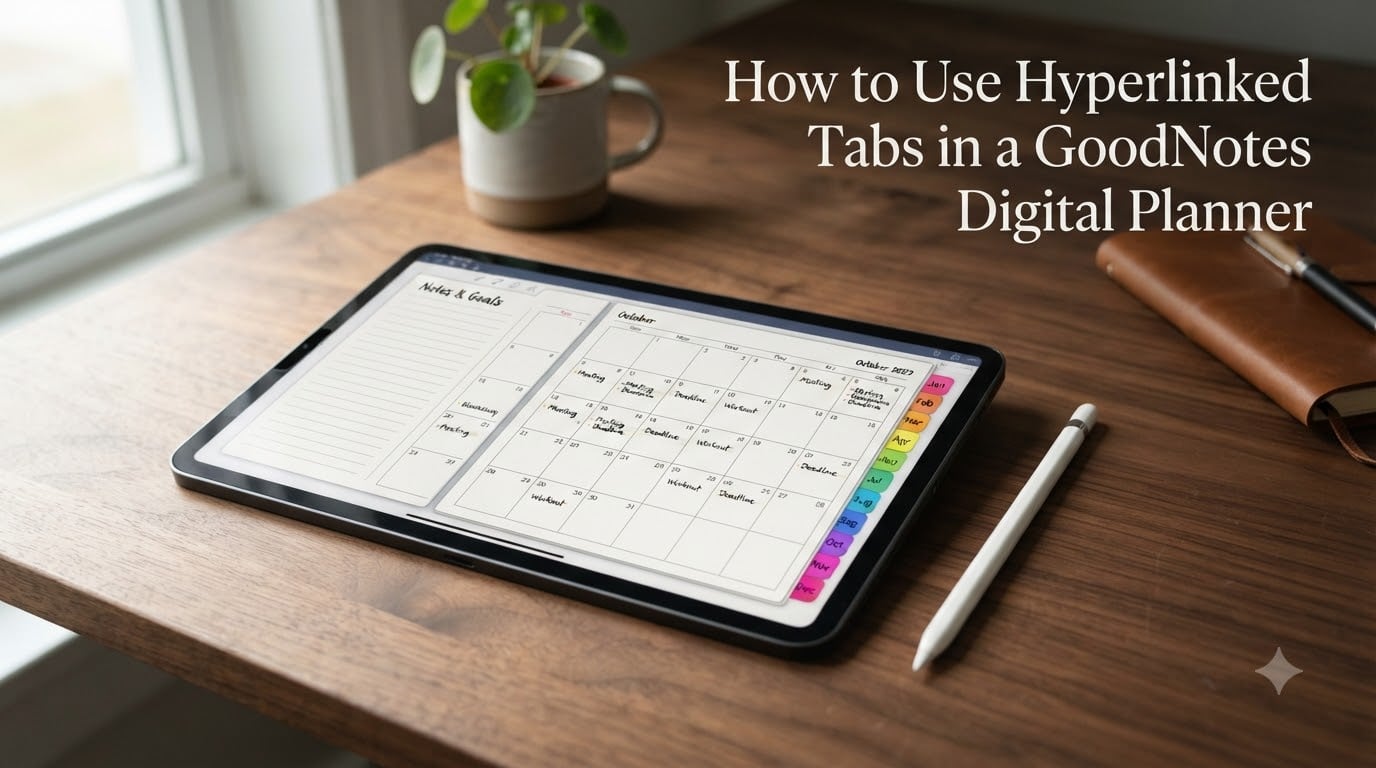
I remember the first time I bought a digital planner and tapped on what I thought was a navigation tab, only to have nothing happen. I tapped again. Still nothing. I almost requested a refund before I realized the tabs were not broken at all. I just had GoodNotes open in the wrong mode.
If you have ever felt that frustration, this guide is for you. I have spent months testing digital planners across GoodNotes 5 and GoodNotes 6, and I am going to walk you through exactly how to use hyperlinked tabs in a GoodNotes digital planner so you can tap through your monthly, weekly, and daily pages with zero friction.
Table of Contents
- What Are Hyperlinked Tabs in a GoodNotes Digital Planner
- GoodNotes Modes: The Critical First Step
- How to Use Hyperlinked Tabs in GoodNotes: Step-by-Step
- Back Button Navigation: Returning to Your Previous Page
- Why Your Hyperlinked Tabs Are Not Working
- GoodNotes 5 vs GoodNotes 6: Key Differences
- Alternative Navigation Methods in GoodNotes
- Creating Your Own Hyperlinked Tabs
- Frequently Asked Questions
- Conclusion
What Are Hyperlinked Tabs in a GoodNotes Digital Planner
Hyperlinked tabs are invisible interactive areas embedded inside the planner PDF that, when tapped, jump you to a specific page. Think of them as tiny invisible buttons painted over the colorful tab graphics you see on the side or top of each planner page.
From a technical perspective, each tab is a small rectangular hot zone with an internal hyperlink coded into the PDF. When you tap inside that zone in the right mode, GoodNotes reads the link and instantly transports you to the linked page, whether that is January’s calendar, a weekly spread, or a notes section.
This is what makes a GoodNotes digital planner feel like a paper planner instead of a static document. Without working hyperlinks, you would have to scroll endlessly through hundreds of pages just to find a single date.
Why hyperlinked tabs matter for digital planning
Tabs turn a flat PDF into a true navigation system. They save time, reduce friction, and let you focus on planning instead of hunting for the right page.
- One tap jumps you anywhere in the planner
- They replicate the physical tab experience of a paper planner
- They make daily planning feel fast and satisfying
GoodNotes Modes: The Critical First Step
GoodNotes has two main interaction modes: Read-Only and Edit. This is the single most important thing to understand before you do anything else with your planner tabs.
In Edit mode, you can draw, write, highlight, and modify the document. Hyperlinks are disabled because GoodNotes is listening for stylus input instead of taps.
In Read-Only mode, the document becomes read-only, which means GoodNotes treats the entire page like a tap surface. This is where your hyperlinks come alive and your colorful tabs actually work.
How to switch modes in GoodNotes 5
- Open your planner document in GoodNotes 5
- Tap the wrench or spanner icon in the top toolbar to open settings
- Look for the “Read-Only” toggle at the top of the settings panel
- Tap the toggle to enable Read-Only mode
- Confirm by tapping once on any tab graphic to test your navigation
How to switch modes in GoodNotes 6
- Open your planner document in GoodNotes 6
- Tap the three-dot menu in the top right corner
- Select “Document Settings” or look for the mode toggle directly in the toolbar
- Switch the document to Read-Only
- Tap any tab to confirm the hyperlink is now active
Once you understand this Read-Only requirement, 90 percent of the “my tabs don’t work” complaints simply disappear.
How to Use Hyperlinked Tabs in GoodNotes: Step-by-Step
Using hyperlinked tabs in your GoodNotes digital planner takes about five seconds once you know the workflow. Here is the exact sequence I follow every single morning with my own planner.
- Open your planner PDF inside GoodNotes from your library
- Switch the document to Read-Only mode if it is not already
- Locate the colorful tab you want to use, usually on the right edge or top of the page
- Tap directly on the tab graphic with your finger or stylus
- Wait for GoodNotes to jump to the linked page
- To return, use the back arrow in the top toolbar (covered in the next section)
Long-press method as a faster alternative
If you do not want to toggle between modes every time you want to use a tab, there is a clever workaround. Long-press on a tab graphic while in Edit mode. Holding your finger or stylus down for about one second will still activate the hyperlink in many recent versions of GoodNotes.
This long-press trick is perfect for users who write and navigate frequently without wanting to switch modes constantly. Test it on your setup, because behavior varies slightly between GoodNotes 5 and GoodNotes 6.
Back Button Navigation: Returning to Your Previous Page
This is the most common pain point I see in Facebook groups and Reddit threads. People tap a tab, arrive at their destination page, and then have no idea how to get back.
The good news is the solution is simple. After tapping a tab and jumping to a new page, look in the top toolbar for a small left-pointing arrow icon. Tap that arrow once and GoodNotes returns you to the page you were on before.
Many premium planners also include a dedicated “back” hyperlink that is wired into the cover page or each monthly layout. Look for a small arrow graphic or a “return to index” tab, especially on monthly calendar pages.
On a desktop or with a trackpad, you can also swipe right with two fingers from the left edge of the screen to go back, similar to a web browser.
Why Your Hyperlinked Tabs Are Not Working
If your tabs still refuse to respond even after switching to Read-Only mode, one of these four issues is usually the culprit.
Issue 1: You are still in Edit mode
This is the most common issue by far. Double-check the mode toggle. If the mode icon shows a pencil symbol, you are in Edit mode and taps will not trigger links.
Issue 2: The PDF is a print version, not an interactive version
Some sellers distribute the same planner in two formats: a regular print PDF and an interactive PDF with embedded links. If you downloaded the print version, no app will ever make the tabs clickable. Reach out to the seller for the interactive version.
Issue 3: The hyperlink points to the wrong page
This is a designer mistake, not a user mistake. If every tab you tap jumps to the next page instead of the correct destination, the PDF was exported incorrectly. Contact the seller for a corrected file.
Issue 4: GoodNotes 6 subscription confusion
Some users on GoodNotes 6 paid subscriptions report that the internal hyperlink button is harder to find. The button is still there, it has just been moved inside a different menu or behind a “more tools” icon. Check the full toolbar under the overflow menu.
GoodNotes 5 vs GoodNotes 6: Key Differences
Most hyperlink behavior is identical between GoodNotes 5 and GoodNotes 6, but a few interface changes catch users off guard.
| Feature | GoodNotes 5 | GoodNotes 6 |
|---|---|---|
| Mode toggle location | Wrench icon then Read-Only | Three-dot menu or toolbar |
| Back button | Top toolbar arrow | Top toolbar arrow |
| Subscription model | One-time purchase | Subscription required for full features |
| Internal link support | Yes | Yes |
If you upgraded from GoodNotes 5 to GoodNotes 6 and your planner seems broken, double-check the toolbar layout. Mode toggles and hyperlink tools were rearranged, but the underlying feature still works exactly the same way.
Alternative Navigation Methods in GoodNotes
Sometimes a tab still will not cooperate, and that is okay. GoodNotes ships with three built-in alternative navigation methods that work in any mode.
Bookmarks
Tap any page, open the side panel, and add a bookmark. You can build your own quick-access list of frequently used pages like this month’s calendar or your most-used weekly spread.
Outline view
The Outline tool reads the PDF’s built-in bookmarks (separate from hyperlinks). If the planner designer added outline bookmarks, you can jump between them from a collapsible list.
Page thumbnails
Tap the page number in the corner to open the thumbnail drawer. Scroll until you spot the page you need, then tap the thumbnail to jump there. Slow, but reliable for any PDF in any mode.
Creating Your Own Hyperlinked Tabs
If you design your own planners, hyperlink tabs must be built with an external tool because GoodNotes itself does not let you create internal page-to-page links. The three most popular approaches among the designers I have interviewed are Keynote, Canva, and PowerPoint, all of which can export PDFs with working internal links.
For more advanced designs, Adobe InDesign and Affinity Publisher offer full control over interactive PDF export settings, including invisible link rectangles that do not interfere with your tab graphics. Specialized tools like Planify Pro even automate the entire process so you do not have to link every page by hand.
Whichever tool you use, the key is to export as an “interactive” PDF and not a “print” PDF. Print PDFs strip out all link data during export, which is why some users receive planners with dead tabs even though the links looked fine in the design software.
Frequently Asked Questions
How do I add hyperlink tabs in GoodNotes?
GoodNotes does not currently let you build internal hyperlinks from scratch. Your planner designer builds them in an external tool like Keynote, Canva, InDesign, or Affinity Publisher, then exports the planner as an interactive PDF. You import that PDF into GoodNotes, switch to Read-Only mode, and tap the tabs to navigate.
How to make a GoodNotes planner with hyperlinks?
Design your pages in Keynote, Canva, PowerPoint, or InDesign. Add invisible rectangles over each tab graphic and link each rectangle to the destination page. When you export, choose Interactive PDF rather than Print PDF to preserve the link data. Then import the file into GoodNotes.
How do I get tabs to work in GoodNotes?
Open your planner, switch the document to Read-Only mode using the toolbar toggle, then tap any tab graphic. If taps still do nothing, long-press the tab for about one second, which often activates links even in Edit mode. Also confirm you imported the interactive PDF and not the print version.
Can I add hyperlinks to a digital planner myself?
Yes, using external design software. GoodNotes itself does not support creating internal page-to-page hyperlinks, but Keynote, Canva, PowerPoint, InDesign, and Affinity Publisher all support exporting PDFs with working internal links that GoodNotes recognizes.
Why are my GoodNotes tabs not working?
The most common cause is being in Edit mode instead of Read-Only mode. Other causes include using a print PDF instead of an interactive PDF, a designer error where tabs default to the wrong page, or a GoodNotes 6 interface change that hides the mode toggle in the overflow menu.
Conclusion
Learning how to use hyperlinked tabs in a GoodNotes digital planner comes down to two simple things: switching to Read-Only mode and using the right tap or long-press technique.
Once you have those fundamentals down, your daily planning routine becomes much faster. Start by enabling Read-Only mode, tap a tab to confirm it works, and use the back arrow when you need to return. Bookmark this guide and you will never again wonder why your planner tabs refuse to respond.