
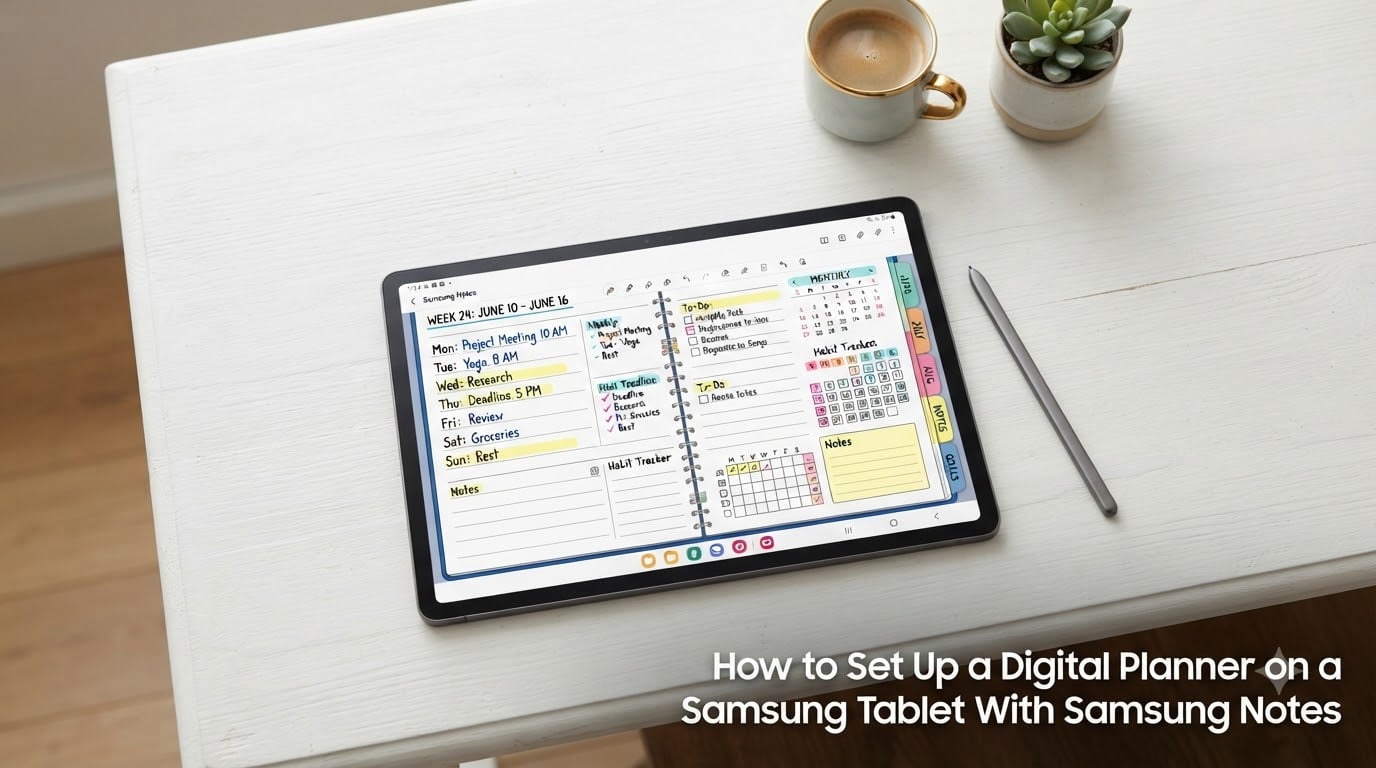
If you just unboxed a Galaxy Tab and want to go paperless, learning how to set up a digital planner on a Samsung tablet with Samsung Notes is the fastest way to start planning for free. I’ve been using Samsung Notes for digital planning on my own Galaxy Tab S9 FE for the past 18 months, and in this guide I’ll walk you through every step of the setup. By the end, you’ll have a hyperlinked planner you can write in with your S Pen, navigate with a tap, and sync across your other Samsung devices.
This walkthrough is built for beginners, so you don’t need any prior note-taking experience. I’ll show you the exact taps, gestures, and settings I use daily, plus a few tricks most guides skip (like Companion Mode and Samsung Calendar integration). Let’s get your planner ready.
Table of Contents
- What Is Samsung Notes and Why Use It for Digital Planning
- What You Need Before You Start Setting Up Samsung Notes
- How to Set Up a Digital Planner on a Samsung Tablet With Samsung Notes
- How to Import a Digital Planner PDF Into Samsung Notes
- How to Navigate a Hyperlinked Digital Planner in Samsung Notes
- Essential Samsung Notes Settings for Digital Planning
- S Pen Basics: Handwriting, Highlighting, and Annotation
- Advanced S Pen Tools: Lasso, Eraser, and Handwriting-to-Text
- Organizing Your Digital Planner With Folders and Bookmarks
- Samsung Notes Companion Mode: Using Your Phone as a Second Screen
- Syncing Samsung Notes and Connecting With Samsung Calendar
- Troubleshooting Common Samsung Notes Digital Planner Issues
- Top Tips for Digital Planning in Samsung Notes
- Frequently Asked Questions
- Can I use a digital planner on Samsung Notes?
- Why are some users reporting changes to Samsung Notes?
- What are the best digital planner apps for Android tablets?
- How do I use Samsung Notes on a tablet for the first time?
- How do I import a calendar into my Samsung calendar app?
- Do Samsung Notes planners sync across devices?
- Final Thoughts
What Is Samsung Notes and Why Use It for Digital Planning
Samsung Notes is a free, pre-installed note-taking app that comes on every modern Galaxy tablet. It does far more than type basic notes. You can import PDFs, handwrite with the S Pen, record voice memos, build folders, and sync everything through your Samsung account.
I love using it for digital planning because it costs nothing, supports hyperlinked PDF planners, and pairs perfectly with the S Pen. Compared to paid apps like GoodNotes, there are no subscriptions and no in-app purchases. You install it once and you’re done.
For anyone who wants to plan with handwriting instead of typing, it’s a genuinely good fit. The app handles daily, weekly, and monthly layouts without lag on mid-range tablets like the Tab S6 Lite.
Key Samsung Notes Features That Matter for Planners
- PDF import with hyperlink support so your tabs and tabs-to-pages actually work
- Pen and highlighter tools with adjustable stroke width and color
- Lasso selection for moving text boxes or stickers around
- Handwriting-to-text conversion when you want to search handwritten notes later
- Folder organization and bookmarks to keep large planners tidy
What You Need Before You Start Setting Up Samsung Notes
Before opening the app, gather a few things so your setup runs smoothly.
- A Samsung tablet running Android 10 or newer (Tab S6 Lite, S7 FE, S8, S9, S10, and most A-series slates work well)
- An S Pen or compatible stylus for handwriting and hyperlinked tab tapping
- A digital planner PDF downloaded from a planner shop or free template site
- A Samsung account signed in so your notes can sync and back up
- At least 500 MB of free storage for the planner file plus future notes
I’ve set up planners on the Tab S9 Plus, S8, and a budget Tab A8. All three handled the same planner PDF without lag once I cleared other apps from memory. If your tablet is older than 2020, update the system software and Samsung Notes from the Galaxy Store before continuing.
How to Set Up a Digital Planner on a Samsung Tablet With Samsung Notes
This is the core walkthrough. Follow these numbered steps in order and your planner will be ready in about 10 minutes.
Step 1: Open Samsung Notes and Create a New Note
Find Samsung Notes in your app drawer (it has a yellow icon with a folded page). Open it and tap the floating + button at the bottom of the screen. Choose PDF when prompted for the file type. (Choosing “Text” first will force you to convert later, so go straight to PDF.)
Step 2: Pick Your Digital Planner PDF From File Storage
After tapping PDF, your tablet opens the file picker. Navigate to Downloads (where most planner files land) or your preferred folder. Select the planner file and tap Done. Your planner loads as the first page of a new note.
Step 3: Rename the Note for Easy Identification
Tap the three dots in the top-right corner and select Rename. I usually name mine with the year and version, like “2026 Life Planner v2.” This helps when you accumulate multiple planners across years.
Step 4: Adjust the View for Full-Screen Planning
Open the planner, then tap the Page Settings icon (it looks like a small page with corner brackets). Choose Full Screen so the top toolbar disappears while writing. Switch the scroll direction to Vertical unless your planner is horizontal.
Step 5: Sign in to Your Samsung Account for Sync
Tap the hamburger menu in the top-left, then choose Settings. Confirm your Samsung account is signed in so notes sync across devices and back up to Samsung Cloud. I lost two weeks of notes once before I turned this on, so I never skip it now.
Step 6: Start Planning
Tap any page with an empty date box, pick up your S Pen, and write. Tapping a hyperlinked tab at the front of the planner jumps you to the matching monthly or weekly section.
How to Import a Digital Planner PDF Into Samsung Notes
If you already have a note open and want to drop a planner into it, the import flow is almost identical to creating a new note.
- Open the existing note (or create a new one) in Samsung Notes.
- Tap the three dots menu in the top-right corner.
- Choose Insert → PDF file.
- Browse to your planner file in Downloads.
- Tap Done when finished to return to the planner view.
If your planner came as a ZIP file, extract it first using the Samsung My Files app. The PDF inside is what Samsung Notes needs. If the planner is broken into multiple PDFs (common for split volumes), import them one at a time into separate notes so they don’t bloat a single file.
Tip: If Samsung Notes asks whether you want to open in “Reading mode” or “Edit mode,” always pick Edit mode. Reading mode locks the S Pen tools and prevents you from writing on the pages.
How to Navigate a Hyperlinked Digital Planner in Samsung Notes
The whole point of a hyperlinked planner is jumping between tabs and pages with a single tap. Samsung Notes handles these links natively once your PDF has them embedded.
Tapping Hyperlinks With the S Pen
Hover the S Pen over a tab at the front of your planner. A blue underline appears underneath if a hyperlink is detected. Tap once and the page jumps. The same gesture works for any link inside a page, including calendar entries and grocery lists.
If taps feel sluggish, the S Pen tip might be worn. Swap it for a fresh tip from the box your S Pen came in. A fresh tip makes hyperlink tapping noticeably more reliable.
Using Bookmarks for Fast Jumps
Bookmarks are perfect when your planner doesn’t have hyperlinks or you want to mark a custom page. Open any page, tap the bookmark icon at the top of the screen, and the page saves to your bookmarks list. I bookmark my current week, my meal plan, and my goal tracker so I jump to them with two taps.
Searching Inside the Planner
Tap the magnifier glass at the top of the note. Samsung Notes searches typed text and converted handwriting inside PDFs. If your planner pages have labeled sections like “January” or “Q1,” they show up in the results.
Essential Samsung Notes Settings for Digital Planning
A few settings make the difference between a frustrating planner and a smooth one. Open Settings from the hamburger menu and adjust these first.
Scroll Direction
Vertical scroll works for most monthly planners. Switch to horizontal if your planner spreads weekly layouts across two pages side-by-side.
Finger Draw Toggle
Turn on Draw with fingers if you plan to write without the S Pen some of the time. Leave it off if you find stray palm marks appearing on your pages. I keep mine off and write with the S Pen only.
Pen Detection
Enable Only show cursor with pen so a floating cursor doesn’t appear every time you tap with your finger. This is a small thing that keeps your planning pages clean.
Page Settings (Full Screen + Page Lines)
Use Full Screen for distraction-free writing. Toggle Page Lines on if you want subtle guides on every page, or off if your planner already has its own layout.
S Pen Basics: Handwriting, Highlighting, and Annotation
The S Pen is what makes Samsung Notes a true digital planning app. Each of these tools is one tap away in the bottom toolbar.
The Pen Tool
Tap the pen icon to start writing. Press the + button next to the pen to open a stroke and color picker. I use a 0.5 mm black pen for daily entries and a 1.0 mm blue pen for headers. Changing pen thickness makes future notes easier to skim.
The Highlighter Tool
Pick the marker-style icon next to the pen. Use it for highlighting important tasks or marking habits you don’t want to miss. Lower the highlighter opacity to around 30% so it doesn’t drown out the underlying text.
The Eraser
The default eraser removes entire strokes, which is great for mistakes. Switch to Erase by stroke for handwriting and Erase by area when working with shapes or large colored blocks.
Color Palette Shortcuts
Tap and hold any color swatch to pin it to the quick-access row. I keep black, blue, red, and a pastel yellow pinned so I never fumble through the full palette when planning on the go.
Advanced S Pen Tools: Lasso, Eraser, and Handwriting-to-Text
Once you’re comfortable with the basics, these three tools turn Samsung Notes into something close to a desktop illustration app.
Using the Lasso Tool
Tap the lasso icon (a dotted loop). Draw a circle around any element you want to move. The selection lifts off the page and you can drag it, resize it, or copy it to another page. I use this constantly to rearrange stickers and move checkboxes around weekly layouts.
Stroke Eraser vs Area Eraser
Long-press the eraser icon to switch between erase modes. Erase by stroke removes entire strokes with one touch, perfect for handwritten text. Erase by area is great for clearing large blocks of highlighter when restructuring a layout.
Handwriting-to-Text Conversion
Write a phrase with the S Pen. Long-press the lasso tool, circle the handwriting, and tap Convert to text. Samsung Notes turns it into editable text you can copy, search, or move. This is how I search old planner entries without scrolling forever.
Practice the conversion tool with block letters first. Samsung’s handwriting recognition reads print better than script, especially right after a system update.
Organizing Your Digital Planner With Folders and Bookmarks
A folder structure keeps a year’s worth of planning from becoming a wall of identical note titles.
Creating Folders
Tap the hamburger menu and choose Manage folders. Hit + to create a new folder like “2026 Planning,” “Work,” or “Personal.” Drag existing notes into the folder by long-pressing and tapping Move.
Color-Coding Folders
Each folder can have a custom color. Choose a color that matches the folder’s purpose. I use yellow for personal planning, green for health, and blue for work so I can spot a folder in three seconds.
Bookmarking Key Pages
Beyond hyperlinks, Samsung Notes saves page-level bookmarks. Tap the bookmark icon at the top of any page to add it. Pull up all bookmarks by tapping the bookmark list on the left edge of the screen.
Bookmark at minimum: this week’s spread, your monthly goal page, and any reference chart you consult often (like a habit tracker grid).
Samsung Notes Companion Mode: Using Your Phone as a Second Screen
Companion mode is the most underused Samsung Notes feature, in my experience. It turns a recent Samsung phone into a wireless second screen for your tablet.
- Open Samsung Notes on your tablet and the latest version on your Galaxy phone.
- Sign both devices into the same Samsung account.
- Tap the Connected devices icon in the tablet’s note view.
- Select your phone from the list to pair the two screens.
- Write on the tablet and your phone screen mirrors the same page.
I use Companion mode during cooking. The tablet sits on the kitchen counter showing the meal plan, and my phone shows the grocery list at eye level. Both screens update instantly if I check a box on either one.
Companion mode requires both devices on the same Wi-Fi network with Bluetooth turned on. If pairing fails, restart both devices and try again.
Syncing Samsung Notes and Connecting With Samsung Calendar
Because Samsung Notes is a first-party app, sync is one of its strongest features. Once turned on, every change you make shows up on every signed-in device within seconds.
Turning on Samsung Cloud Sync
Open Settings inside Samsung Notes. Toggle Sync with Samsung Cloud on. Choose which folders to sync. I let everything sync by default because storage caps are generous (up to 5 GB free).
Adding Samsung Notes to Samsung Calendar
Open Samsung Calendar on the same tablet. Tap the three dots and choose Manage calendars. Toggle Samsung Notes on. Now any event you tag in your planner shows as a colored bar in the calendar view.
Setting Reminders From Planner Pages
Open any planner page with a dated entry. Tap the three dots and choose Set reminder. Pick a date and time. The reminder fires through Samsung Reminders and shows up on your phone’s lock screen.
This three-way link between Notes, Calendar, and Reminders is what makes the Samsung Notes planner feel like a real productivity hub rather than a static PDF viewer.
Troubleshooting Common Samsung Notes Digital Planner Issues
Even with a smooth setup, things occasionally break. These are the problems I (and several readers on r/GalaxyTab) have run into, plus the fixes that actually work.
Hyperlinks Not Tapping
If your hyperlinked tabs aren’t responding, your planner file might have flattened links. Open the planner file in a desktop PDF editor like Adobe Acrobat to verify the links exist. If they do, force-close Samsung Notes and reopen the planner.
Lag When Writing With the S Pen
Planners with hundreds of pages can slow older tablets. Split the planner into single-quarter files or close background apps. If lag persists, clear the Samsung Notes cache by going to Settings → Apps → Samsung Notes → Storage → Clear cache.
Notes Not Syncing Across Devices
Sync stalls usually mean Wi-Fi dropped briefly or the Samsung account signed out. Pull down the notification shade and check for a Samsung account error. Sign in again from the hamburger menu in Samsung Notes and the missing notes reappear within a minute.
Planner File Won’t Open
If Samsung Notes says the file is corrupted, re-download the planner PDF from the original source. Partial downloads are the most common cause. Some shops send planners inside ZIP folders, so make sure you extract before importing.
Finger Marks Appearing on Pages
Turn off Draw with fingers in Settings. Use the S Pen for writing and your finger only for navigation. This single change eliminated the smudges on my own planner pages.
Top Tips for Digital Planning in Samsung Notes
After 18 months of daily planning in Samsung Notes, here are the habits that actually stuck for me.
- Pin your four favorite colors so you stop hunting through the palette mid-thought
- Bookmark every Monday page as a quick weekly jump
- Use a dedicated folder per year so previous years stay searchable
- Pair S Pen strokes with highlighter instead of new colors for visual variety
- Convert every meeting note to text so you can search it later
- Set a reminder for Sunday evening to review next week’s plan in Samsung Reminders
The Reddit r/DigitalPlanner community echoed similar advice, with users reporting that keeping planners in yearly folders makes audits faster and protects against accidental deletions.
Frequently Asked Questions
Can I use a digital planner on Samsung Notes?
Yes. Samsung Notes supports PDF import, hyperlinks, S Pen handwriting, and bookmarks, which covers everything a hyperlinked digital planner needs. You can import any compatible PDF and start planning immediately.
Why are some users reporting changes to Samsung Notes?
Samsung has been expanding Samsung Notes with new AI features and cross-device tools, which users sometimes describe as a redesign. The core app and planner functionality remain available on supported Galaxy tablets.
What are the best digital planner apps for Android tablets?
Samsung Notes, GoodNotes (now on Android), Noteshelf, Penly, and OneNote are the most popular options. Samsung Notes is the only free option with native S Pen integration and Samsung Cloud sync.
How do I use Samsung Notes on a tablet for the first time?
Open the app, sign in to your Samsung account, tap the + button, choose PDF, and import a planner file from your Downloads folder. You can start writing on any page right away.
How do I import a calendar into my Samsung calendar app?
Open Samsung Calendar, tap the three dots, choose Manage calendars, and toggle on Samsung Notes. Any dated events in your planner now appear on the calendar timeline.
Do Samsung Notes planners sync across devices?
Yes. Enable Sync with Samsung Cloud inside Samsung Notes settings and sign in on every device you own. Notes and planner pages appear on each device within seconds of editing.
Final Thoughts
You now have a complete blueprint for how to set up a digital planner on a Samsung tablet with Samsung Notes. From installing and importing a PDF through syncing, troubleshooting, and using Companion mode, the full setup takes about ten minutes once you have your planner file ready.
The biggest advantage of going with Samsung Notes over a paid planner app is that the entire system is free and built into your tablet. Once you build your folder and bookmark system, every new planner year feels easier than the last.
Pick a planner file, set up a folder, and write your first entry tonight. By next week, you’ll have a paperless planning system that travels with you on every Samsung device you own.