
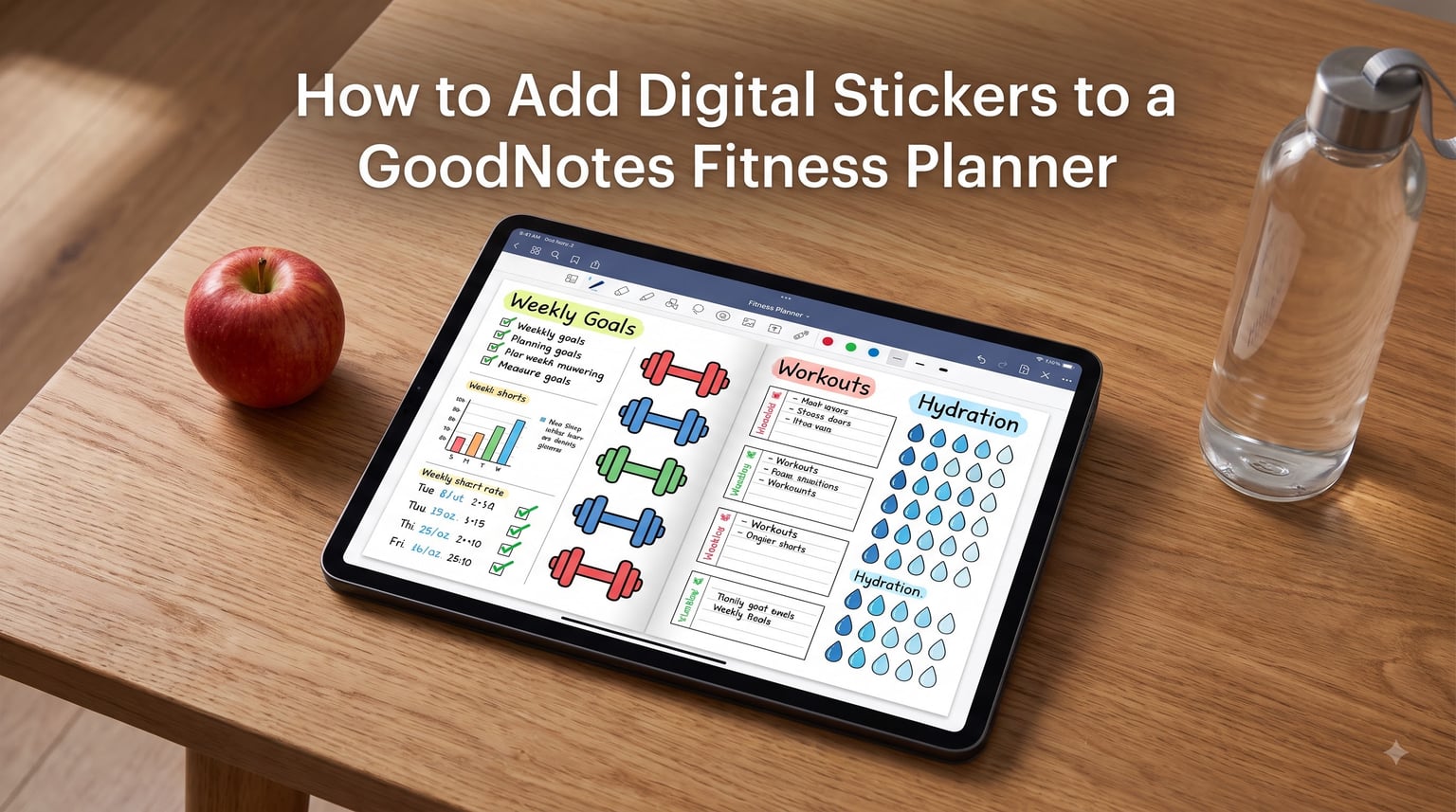
If you’ve just downloaded a GoodNotes fitness planner and want to add digital stickers to track your workouts, mark habits, and decorate your spreads, you’re in the right place. I use my GoodNotes fitness planner daily, and once you know the right import method, adding stickers takes under a minute. Here’s the quick answer: To add digital stickers to a GoodNotes fitness planner, open a .goodnotes sticker file in GoodNotes, use the lasso tool to select individual stickers, copy them, then paste onto any planner page. You can also drag and drop PNG stickers, or copy them from any open document.
In this guide, I’ll walk you through every method I’ve tested, plus share fitness-specific sticker ideas, troubleshooting fixes, and where to grab free sticker packs. By the end, you’ll have a fitness planner that looks as good as it functions.
Table of Contents
- What Are Digital Stickers in GoodNotes?
- How to Add Digital Stickers to a GoodNotes Fitness Planner
- How to Use the Lasso Tool for Stickers
- Resizing, Rotating, and Positioning Stickers
- Fitness Planner Sticker Ideas and Tips
- Organizing Your Sticker Collection
- Troubleshooting Common Sticker Problems
- Where to Find Free Digital Stickers
- Frequently Asked Questions
- Conclusion
What Are Digital Stickers in GoodNotes?
Digital stickers are reusable graphic elements you import into GoodNotes and place on any planner page. Unlike paper stickers, you can resize, rotate, duplicate, and reposition them as often as you want.
In GoodNotes, two main file formats work for stickers:
- PNG files — single transparent-background images you import one at a time
- .goodnotes sticker files — entire sticker sheets already cropped and labeled within the app
Think of PNGs as individual cards and .goodnotes files as a full sticker book. The .goodnotes format saves you from manually cropping each design. For fitness planning, I find .goodnotes files faster because workout icons, water drops, and dumbbell graphics usually arrive in themed packs.
You can also create custom stickers by exporting your own designs from Procreate or Canva as PNGs with transparent backgrounds.
How to Add Digital Stickers to a GoodNotes Fitness Planner
There are three reliable methods for adding stickers to a GoodNotes fitness planner. I tested all three on my iPad during a 30-day fitness tracking challenge. Here’s what each method does best.
- .goodnotes file import — best for buying or downloading pre-made sticker packs
- Drag and drop PNGs — best for adding a few individual stickers
- Copy and paste lasso method — best for grabbing stickers from any open document
The fitness-specific instructions below assume you already have your fitness planner open as a notebook in GoodNotes.
Method 1: Import a .goodnotes Sticker File
This is the fastest way to add digital stickers to a GoodNotes fitness planner when working with pre-made sticker packs.
Step 1. Locate the .goodnotes file you downloaded (usually in your Files app under Downloads or iCloud Drive).
Step 2. Tap the file. GoodNotes will open automatically if it’s your default note app, or tap “Open in GoodNotes” from the share sheet.
Step 3. Tap the new sticker notebook in your GoodNotes library to open the sticker sheet.
Step 4. Use the lasso tool (the loop icon in the toolbar) to circle the sticker you want.
Step 5. Tap “Copy” from the floating menu, then switch to your fitness planner notebook and tap-and-hold on the target page. Choose “Paste.”
Step 6. Drag the sticker into position. Use the corner handles to resize, then tap outside to deselect.
I use this method most often because it keeps all stickers in one searchable notebook I can revisit anytime.
Method 2: Drag and Drop PNG Stickers
This method works great on iPad with iOS 11 or later using split view. It’s perfect when you’ve found individual PNG stickers online or exported your own.
Step 1. Open GoodNotes with your fitness planner visible.
Step 2. Swipe up from the bottom to open the Dock, then drag the Files app icon to the left or right edge to enter split view.
Step 3. In the Files app pane, navigate to your PNG sticker.
Step 4. Press and hold the PNG file, then drag it into the GoodNotes planner window. Drop it on the page.
Step 5. Resize with corner handles, then position as desired.
If you’re on Android, the GoodNotes Android app supports a similar drag gesture in split-screen mode on supported tablets. On iPhone, you’ll want to use the copy and paste method instead since split view isn’t available.
Method 3: Copy and Paste Individual Stickers
Use this when you have a sticker sheet image open in GoodNotes or any other app and want to copy specific items.
Step 1. Open the image or sticker sheet page in GoodNotes.
Step 2. Select the lasso tool and draw a circle around the sticker you want to grab.
Step 3. Tap “Copy” from the menu that appears.
Step 4. Switch to your fitness planner notebook and open the target page.
Step 5. Tap and hold on the page, then choose “Paste.” The sticker appears at the tap location.
This is my favorite method for grabbing single fitness icons like a single dumbbell or checkmark without importing an entire sticker pack.
How to Use the Lasso Tool for Stickers
The lasso tool is the centerpiece of how to add digital stickers to a GoodNotes fitness planner. It lives in the toolbar as a looped-line icon. Tap it once to activate, then circle any element on a page.
When you release your finger, a floating menu appears with options including Copy, Cut, Resize, and Delete. For stickers, you’ll primarily use Copy. Drawing a slightly larger circle than the sticker itself helps ensure you capture the entire element, especially icons with thin outlines or script text.
If the menu doesn’t appear, you may have drawn a closed loop that’s too small or too tight against the sticker edge. Redraw with more padding around the design.
Resizing, Rotating, and Positioning Stickers
After a sticker lands on your fitness planner page, tap it once to reveal handles. You’ll see a small rotation handle above the element and resize handles at each corner.
Drag a corner handle inward to shrink the sticker, or outward to enlarge it. To keep proportions even, use two fingers to pinch and zoom after releasing the corner handle.
To rotate, drag the circular handle above the element in either direction. Two-finger rotation is also supported: place two fingers on the sticker and twist them in the direction you want to turn.
If two stickers overlap, tap the one on top to bring it forward, or use the “Arrange” menu to send it backward. For fitness tracking, I layer my stickers carefully so daily checkmarks sit on top of weekly habit trackers.
Fitness Planner Sticker Ideas and Tips
Here’s where I focus on what none of the generic GoodNotes sticker tutorials cover: actually using stickers in a fitness planner. After three months of daily fitness planning, I’ve found the categories that deliver real tracking value, not just decoration.
Workout tracking. Use dumbbell, running shoe, and yoga mat stickers to mark which workouts you completed that day. I assign a unique color per workout type and stack stickers to show intensity.
Hydration and nutrition. Water drop stickers make an easy-to-see hydration tracker. Place 8 drops around your daily block and check one off every time you finish a glass.
Habit checkmarks. Don’t underestimate simple checkmark or X stickers. Combined with habit labels like “Sleep 8 hrs” or “Meal prep,” they build a powerful visual streak.
Goal milestones. Trophy, star, and flag stickers work great on monthly goal pages. I place a trophy sticker on the day I hit a PR or completed a benchmark workout.
Meal planning. Fork and knife stickers divide your weekly meal prep sections visually so you can spot unplanned eating at a glance.
For aesthetic appeal, add a header sticker like “Leg Day” or “Restorative Stretch” at the top of each workout page. It keeps the planner scannable when you flip back later.
Organizing Your Sticker Collection
Once you’ve added 20 or 30 sticker packs, organization becomes essential. Here’s the system I use to keep my collection searchable.
First, I create one master GoodNotes notebook called “Sticker Library” where I import every .goodnotes sticker file as a sub-section. GoodNotes treats each imported sticker file as its own notebook in the library, but you can rename and group them into folders.
Second, I name each sticker sheet descriptively. Instead of “Sticker Pack 1,” I use names like “Hydration – Water Drops – 50 ct” so I can find them with GoodNotes search.
Third, I keep my most-used stickers as PNGs in an iCloud folder named “Quick Stickers” for fast drag and drop access without opening any sticker notebook.
For backup, GoodNotes stores everything in iCloud automatically. If you switch devices, log into your GoodNotes account and your sticker library rebuilds itself.
Troubleshooting Common Sticker Problems
Even with the best setup, you’ll occasionally hit snags. Here are the five issues I see most often in fitness planning communities, with the fixes that worked for me.
Stickers look blurry when enlarged. This happens when you scale a PNG past its original resolution. Always start with the highest quality file you have. If you must enlarge a small sticker, consider the .goodnotes format instead since these stay crisp at any size.
Stickers won’t paste. Usually caused by trying to paste outside GoodNotes. Make sure both the source and destination are open within the GoodNotes app. Switch notebooks using the library icon rather than switching apps entirely.
Lasso tool isn’t selectable. Check that you’re not in read-only mode. Tap the page with two fingers to enter edit mode, then the lasso tool becomes available.
Stickers appear with white backgrounds. Your PNG lacks transparency. Re-export from your design tool with transparent background enabled, or use a .goodnotes sticker file which handles backgrounds for you.
Stickers are too small to use comfortably. After resizing, drop the sticker, tap it once to enter edit mode, then drag a corner handle to enlarge. If the result looks pixelated, switch to a higher-resolution source file.
Where to Find Free Digital Stickers
You don’t need to spend money to build a solid fitness sticker collection. Here are the sources I trust most.
- GoodNotes Marketplace — official editable sticker packs with built-in text customization
- Etsy free sample sections — many sticker shops offer a small free sampler to introduce their style
- Reddit r/GoodNotes — community-shared freebies updated weekly
- Planner Facebook groups — frequent free PDF sticker drops from designers
- Canva — design and export your own workout-themed stickers with transparent backgrounds
For paid options, Etsy remains the strongest source for themed fitness kits, while independent designers on Instagram often run launch promotions with bonus packs.
Frequently Asked Questions
How do I add stickers to my GoodNotes planner?
Open your fitness planner in GoodNotes, then open the .goodnotes sticker file in a second notebook. Use the lasso tool to circle a sticker, tap Copy, switch to your planner page, then tap and hold to Paste. Resize with the corner handles once placed.
How do I add stickers to a digital planner?
Use one of three import methods. Open a .goodnotes sticker file and copy items with the lasso tool, drag and drop PNGs from the Files app via split view, or paste individual stickers from any open GoodNotes document onto your planner page.
Where can I download stickers for GoodNotes?
The GoodNotes Marketplace offers official editable stickers. Etsy provides themed fitness packs. Reddit r/GoodNotes and planner Facebook groups share free community designs. Canva lets you design your own custom stickers.
How do I import a digital planner into GoodNotes?
Download the planner PDF or .goodnotes file to your Files app, then tap the file and choose Open in GoodNotes from the share sheet. The planner appears as a new notebook in your library, ready to add stickers and start planning.
Why won’t my stickers paste in GoodNotes?
Most paste failures come from switching out of the GoodNotes app between copy and paste. Stay within GoodNotes the entire time. Switch notebooks using the library icon. Also confirm you’re in edit mode by tapping the page with two fingers before pasting.
Conclusion
Learning how to add digital stickers to a GoodNotes fitness planner comes down to mastering the lasso tool and picking one of three import methods that fit your workflow. The .goodnotes file method is fastest for sticker packs, drag and drop works well for individual PNGs, and copy and paste handles everything else.
Start with a single free sticker pack, import it using Method 1, and spend ten minutes placing workout icons across one week. Once you feel comfortable, layer in hydration drops, habit checkmarks, and milestone trophies. Your GoodNotes fitness planner will quickly become both a powerful tracker and a piece of personal art.