
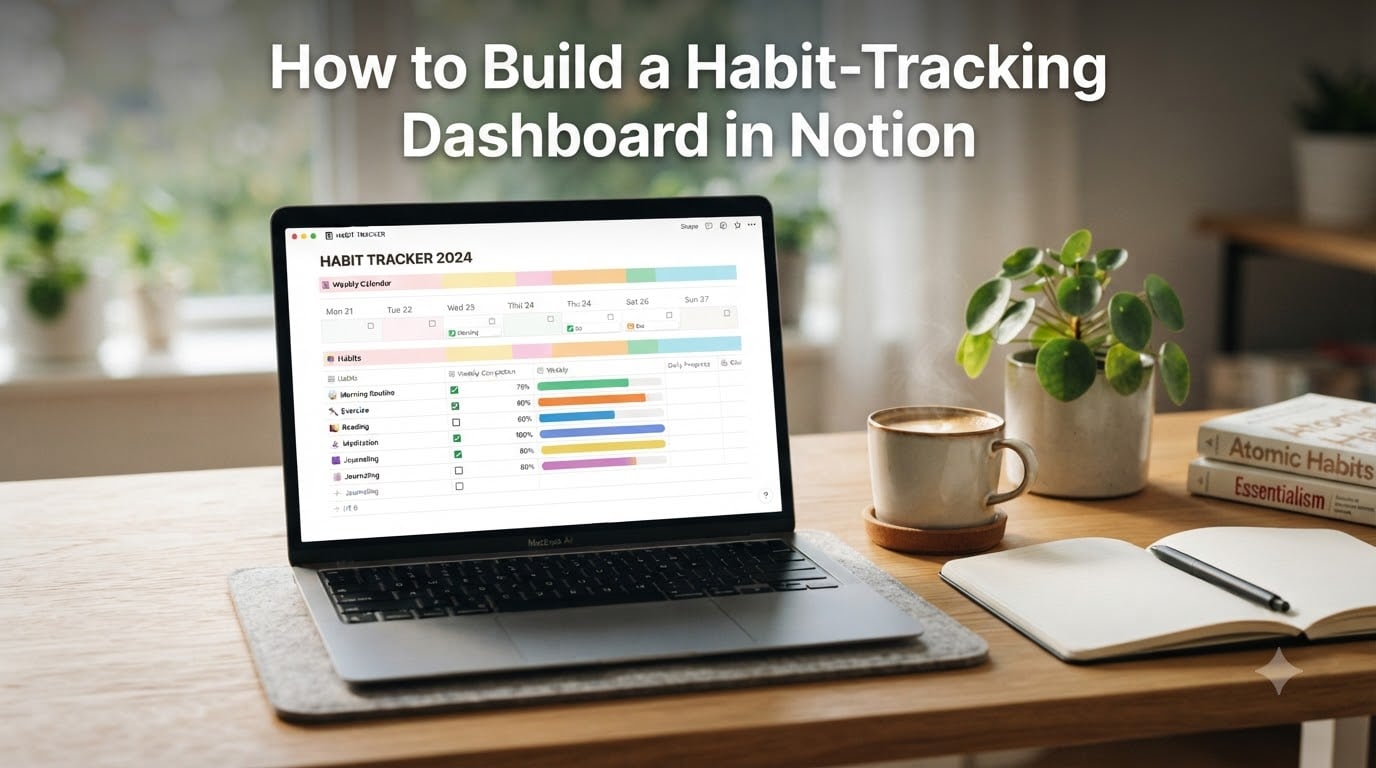
I built my first Notion habit tracker three years ago, and it completely changed how I approach my morning routine. What started as a simple checkbox list evolved into a full dashboard with progress bars, streak counters, and monthly analytics. If you’ve been wanting to build your own habit-tracking dashboard in Notion but felt overwhelmed by formulas and database setups, this guide walks you through every single step.
The beauty of using Notion for habit tracking is that you control every detail. You can start with a basic checklist today and add advanced features like day scores and streak formulas whenever you’re ready. No app subscription, no locked features, just a system that grows with you.
Our team tested the most popular approaches from Reddit’s r/Notion and r/notioncreations communities, compared them with tutorials from Thomas Frank and Super.so, and combined the best techniques into one streamlined process. Here’s exactly how to build a habit-tracking dashboard in Notion, step by step.
Table of Contents
- What Is a Notion Habit-Tracking Dashboard?
- How to Build a Habit-Tracking Dashboard in Notion: Step-by-Step
- Step 1: Create Your Habit Database in Notion
- Step 2: Add Habit Properties (Checkbox, Number, Select)
- Step 3: Set Up a Repeating Daily Template
- Step 4: Build Your Dashboard View With Linked Databases
- Step 5: Add Progress Tracking With Formulas
- Step 6: Track Streaks and Advanced Analytics
- Habit Tracking in Notion for ADHD
- Common Mistakes to Avoid
- Frequently Asked Questions
- Conclusion
What Is a Notion Habit-Tracking Dashboard?
A habit-tracking dashboard in Notion is a customizable database system that lets you log, track, and visualize your daily habits using properties like checkboxes, formulas, and progress bars. Each row in your database typically represents a single day, and each column represents a habit you want to build.
Think of it as a digital planner that does the math for you. Instead of manually counting how many days you meditated this month or calculating your current streak, Notion formulas handle those calculations automatically. You just check your boxes and let the system work.
The dashboard part comes from linking that database to a clean, visual page where you can see everything at a glance. Calendar views show your month, gallery views display daily entries, and formula-driven progress bars give you instant feedback on how you’re doing.
Notion works well as a habit tracker because it combines database power with visual flexibility. You get the structure of a spreadsheet, the aesthetics of a journal, and the automation of a formula engine all in one workspace.
How to Build a Habit-Tracking Dashboard in Notion: Step-by-Step
The process breaks down into six clear steps. Each one builds on the previous, so work through them in order even if you’re tempted to jump ahead to the fancy formulas.
Step 1: Create Your Habit Database in Notion
Start by creating a new page in your Notion workspace. Type /table and select Table – Full page to create a new database. This table becomes the backbone of your entire habit tracker.
Name your database something clear like “Habit Tracker” or “Daily Habits.” I recommend including the year in the title, such as “Habit Tracker 2026,” so you can archive completed years without confusion.
By default, Notion creates your table with one column called “Name.” This column becomes your daily entry title. Click into the first cell and type today’s date in a format you’ll remember, like “August 12” or “2026-08-12.” Consistent naming matters later when you set up calendar views.
Add a Date property as your second column. Click the “+” button at the right edge of your table, select “Date,” and pick today’s date. This column is what powers calendar and timeline views down the road.
Here’s a tip from the Notion community: use the Date property rather than typing dates into the Name column. The Date property enables recurring entries, calendar sorting, and automated date-based filtering that text names simply can’t do.
Choose Your Primary View
Your table starts in List view by default, which works fine for data entry. But you’ll want additional views for different purposes. Click the tab at the top left that says “Table” and then click the “+” next to it to add views.
For most habit trackers, you’ll want at least three views: a Table view for editing, a Calendar view for visualizing your month, and a Board view grouped by status or category. We’ll set those up in Step 4 once your properties are in place.
Step 2: Add Habit Properties (Checkbox, Number, Select)
This is where your tracker takes shape. Each habit you want to track becomes its own column (property) in your database. The property type you choose depends on what kind of habit you’re tracking.
Checkbox Properties for Binary Habits
For habits that are simply done or not done, use the Checkbox property type. These are perfect for habits like “Meditated,” “Drank 8 glasses of water,” “Read 20 minutes,” or “No sugar.”
To add one, click the “+” button at the right of your table, type your habit name, and select “Checkbox” as the type. Repeat this for each binary habit. I recommend starting with no more than 5 to 7 checkbox habits to avoid overwhelming yourself early on.
Number Properties for Measurable Habits
Some habits are better tracked as quantities. Use the Number property type for habits like “Steps walked,” “Pages read,” “Minutes exercised,” or “Hours slept.”
Number properties let you track progress over time and calculate averages later. If you walked 8,000 steps today, just type that number into the cell. Your formulas in Step 5 can pull from these numbers to calculate weekly averages or monthly totals.
Select Properties for Category Tracking
Use Select or Multi-select properties when you want to categorize your habits or days. For example, a “Mood” select property with options like Great, Good, Okay, Low gives you data to cross-reference against your habit completion.
A “Energy Level” select property helps you spot patterns. After a few weeks, you might notice your meditation habit correlates with higher energy days. That kind of insight is what makes Notion more powerful than a paper habit tracker.
Here’s a quick reference for choosing property types based on what the competitor analysis confirmed works best:
- Checkbox: Binary habits (done / not done)
- Number: Countable metrics (steps, pages, minutes)
- Select: Single categories (mood, energy, location)
- Multi-select: Multiple tags (activities completed, foods eaten)
- Text: Notes, journal entries, reflections
- Date: Your day’s date (already added in Step 1)
Step 3: Set Up a Repeating Daily Template
This step solves the biggest pain point Notion users report: manually resetting checkboxes every day. Instead of creating a new row each morning and re-adding all your columns, you’ll use a repeating database template that handles it automatically.
Open your database and click the blue “New” button dropdown at the top right. Select “New template” from the menu. This opens a template editor where you define what every new daily entry looks like.
Name the template something like “Daily Habit Log” and set all your checkbox properties to unchecked. Add any default text you want in your Notes property, like “How did today go?” as a prompt.
Now here’s the magic part. Click the three dots menu at the top right of the template editor and select “Repeat”. Choose “Daily” as the repeat frequency. Notion will automatically create a new row using this template every single day at your specified time.
When the new row appears, all checkboxes start unchecked, all number fields are empty, and your notes prompt is pre-filled. You just open Notion each morning and your daily habit log is waiting for you.
This repeating template feature is what users on r/Notion consistently praise. It transforms Notion from a manual checklist into something that feels like a dedicated habit-tracking app.
Set Reminders So You Never Forget
One feature many guides overlook is Notion’s built-in reminders. Hover over any property in your database, click the three dots, and select “Reminder.” You can set a reminder for a specific time each day.
I set my reminder for 8:00 PM so I get a notification to review my day before bed. If you track habits throughout the day, consider multiple reminders or a morning reminder to set your intentions.
Step 4: Build Your Dashboard View With Linked Databases
Now you have a functional habit database, but it lives on its own page. A true dashboard brings everything together on one visually clean page. This is where linked databases come in.
Create a new page in your workspace and name it “Habit Dashboard” or “Daily Dashboard.” This becomes your home base. Type /linked and select “Linked view of database” to connect your habit tracker database.
Choose your Habit Tracker database from the list. A linked database shows a mirror of your data, meaning any changes you make here also update the original database and vice versa.
Add a Calendar View to Your Dashboard
Within your linked database on the dashboard page, click the view dropdown and select Calendar. Set it to group by your Date property. Now you can see your entire month laid out visually.
Click any day to open that day’s habit entry and check off your boxes right from the calendar. This is the view I use most often because it gives me a bird’s-eye view of my consistency.
Add a Gallery View for Daily Entries
Add another view and select Gallery. Set it to group by “Created time” or limit it to show only the most recent 7 entries. In the gallery card layout settings, choose which properties to display on each card.
I like to show the date, all checkboxes, and the day score formula on each gallery card. This creates a clean, card-based view of my recent habit performance that feels more like a journal than a spreadsheet.
Layout Tips for Your Dashboard Page
A great dashboard layout follows a simple principle: most important information at the top. Use Notion’s /columns feature to create side-by-side layouts for related elements.
Place your calendar view at the top, spanning the full width. Below that, create two columns: your gallery of recent entries on the left and your progress stats on the right. Use callout blocks for motivational quotes or weekly focus reminders.
Keep visual clutter to a minimum. Hide properties you don’t need to see by clicking the three dots on any view and deselecting unnecessary columns. A clean dashboard is one you’ll actually want to open every day.
Step 5: Add Progress Tracking With Formulas
This is where your habit tracker becomes genuinely powerful. Formulas let you calculate scores, visualize progress, and generate insights automatically. Don’t worry if you’ve never written a Notion formula before; the most useful ones are surprisingly simple.
Create a Day Score Formula
Add a new Formula property called “Day Score.” This formula counts how many of your checkbox habits you completed each day. Click into the formula field and use Notion’s formula editor.
In Notion’s Formulas 2.0, you can add checkbox properties directly. A basic day score formula looks like this:
prop("Meditated") + prop("Read") + prop("Exercised") + prop("No Sugar") + prop("Journal")
Each checkbox has a value of 1 when checked and 0 when unchecked. This formula returns a number from 0 to 5 representing how many habits you completed that day. Notion’s formula editor auto-suggests property names as you type, so you don’t need to memorize exact spelling.
Build a Progress Bar Formula
Visual progress bars make your data instantly readable. Add another Formula property called “Progress.” Use this formula to create a visual bar that fills based on your day score:
let(score, prop("Day Score"), let(max, 5, slice("||||||||||", 0, round(score / max * 10)) + slice("..........", 0, 10 - round(score / max * 10)) + " " + format(score) + "/" + format(max)))
This formula creates a bar like “|||||…..” showing 5 out of 10 possible points. Adjust the max value to match your number of habits. The visual feedback is immediate and motivating.
Calculate Completion Percentage
For a percentage-based view, add a Formula property with this approach:
round(prop("Day Score") / 5 * 100) / 100
Format this as a percentage in Notion, and it shows your daily completion rate as a clean number like 80% or 60%. Display this on your gallery cards for instant visual feedback on how well each day went.
These formulas work because Notion treats checkboxes as boolean values that equal 1 when true. This means you can do math directly with your checkboxes without any conversion steps.
Step 6: Track Streaks and Advanced Analytics
Streak tracking is the feature most Notion habit tracker users want but few guides explain clearly. A streak tells you how many consecutive days you’ve completed a specific habit. It’s one of the strongest motivators for habit consistency.
True streak tracking in Notion requires either a Relation property connecting each day to the previous day, or a workaround formula that checks if yesterday’s entry exists and was completed. The relation approach is more reliable.
Set Up a Self-Relation for Streak Tracking
Add a Relation property in your database and relate it to the same database (a self-relation). Name it “Previous Day.” In each daily entry, link to yesterday’s entry.
This is admittedly manual, which is one of the limitations Notion users discuss on Reddit. However, once the relation is set, you can use a Rollup property to pull the streak count from the previous day and add 1 if today’s habit was completed.
A simpler alternative that many community members prefer: use a formula that checks if the entry from the previous day (by date) exists and has the checkbox marked. The formula references your Date property and compares it to the previous calendar date.
Create a Weekly Overview Rollup
If you want weekly summaries, create a separate Habits database where each row is a habit rather than a day. Then create a relation between your daily entries and this habits database. This two-database approach is what Thomas Frank recommends for advanced tracking.
With this setup, you can add Rollup properties in the habits database that calculate average completion rate, longest streak, and total completions across all your daily entries. This gives you the kind of analytics dashboard that dedicated habit apps charge monthly fees for.
Add a GitHub-Style Heatmap
One of the most requested visual features in the Notion community is a GitHub-style heatmap showing your habit activity over time. While Notion doesn’t have a native heatmap, you can approximate one using a formula that assigns emoji based on completion percentage.
Use a Formula property with conditional logic to assign green squares for high completion, yellow for moderate, and red for low:
ifs(prop("Completion %") >= 0.8, "🟩", prop("Completion %") >= 0.5, "🟨", "🟥")
Display this in your gallery view sorted by date, and you get a color-coded history of your habit performance. It’s not a true heatmap, but it scratches the same visual itch.
Habit Tracking in Notion for ADHD
One question that shows up repeatedly in search data is “Is Notion for ADHD?” The answer is yes, with the right approach. Notion’s flexibility makes it an excellent tool for ADHD-friendly habit tracking because you can design a system that matches how your brain works.
The key for ADHD users is to minimize friction between wanting to log a habit and actually doing it. Keep your dashboard simple at first. Start with just 3 checkbox habits and your day score formula. Add more complexity only when the basic habit of opening Notion daily is established.
Visual cues matter enormously for ADHD focus. Use bright callout blocks, large text, and emoji in your property names. A habit called “🧘 Meditate” is more visually stimulating and memorable than one called “Meditate.”
Set multiple reminders throughout the day rather than relying on a single evening check-in. Many ADHD users on Reddit report that a morning reminder to set intentions and an evening reminder to log results works better than one notification.
Most importantly, build flexibility into your system. If you miss a day, your streak formula should handle it gracefully rather than making you feel like a failure. Design your dashboard to celebrate small wins and make returning after a missed day feel effortless.
Common Mistakes to Avoid
The Notion community has identified several recurring pitfalls that derail habit trackers. Learning from these saves you weeks of frustration.
Starting too complex. Many users try to build a full analytics dashboard on day one with streaks, rollups, and relations. Start with checkboxes and a day score. Add complexity gradually as your tracking habit solidifies.
Forgetting to set up repeating templates. If you’re manually creating a new row each day, you’ll eventually stop. The repeating template from Step 3 is what makes the system sustainable long-term.
Tracking too many habits. Willpower is finite. Tracking 15 habits feels productive but usually leads to burnout. Most successful trackers in the Reddit community recommend 5 to 7 core habits maximum.
Ignoring mobile experience. You’ll check your habits on your phone more often than your computer. Test your dashboard layout on the Notion mobile app and adjust column widths and property visibility for smaller screens.
Not using the Date property. Typing dates as text instead of using the Date property breaks calendar views, sorting, and date-based formulas. Always use the dedicated Date property for your day column.
Frequently Asked Questions
How to make a habit tracker in Notion?
Create a full-page table database, add a Checkbox property for each habit, add a Date property for the day, then set up a repeating daily template so a new row appears automatically each day. Add a Formula property to calculate your day score by adding checkbox values together.
Is Notion good for habit tracking?
Yes. Notion works well for habit tracking because it combines database power with visual flexibility. You get checkboxes, formulas for automatic scoring, calendar views for visual progress, and repeating templates so you never have to manually create a new daily entry.
Is Notion for ADHD?
Notion can be an excellent tool for ADHD habit tracking when set up with visual cues, minimal friction, and flexible reminders. Use emoji in property names, keep the dashboard simple with just 3 to 5 habits to start, and set multiple daily reminders to maintain consistency.
How do you create a habit tracker template?
Open your habit database, click the New button dropdown, select New template, set all checkboxes to unchecked, add any default notes, then click the three dots menu and choose Repeat set to Daily. Notion will generate a fresh daily entry automatically each day.
Conclusion
Building a habit-tracking dashboard in Notion comes down to six steps: create your database, add habit properties, set up a repeating daily template, build a visual dashboard with linked databases, add progress formulas, and optionally layer on streak tracking and analytics.
The most important advice I can give is to start simple. A basic checklist with a day score formula is enough to build the daily habit of tracking itself. You can always add progress bars, streak counters, and heatmaps once the foundation is solid.
Your next step is to open Notion right now and create that first table. Pick three habits you care about, set up your repeating template, and check your first box today. The dashboard you build over the coming weeks will be uniquely yours, and that ownership is what makes Notion habit tracking stick.