
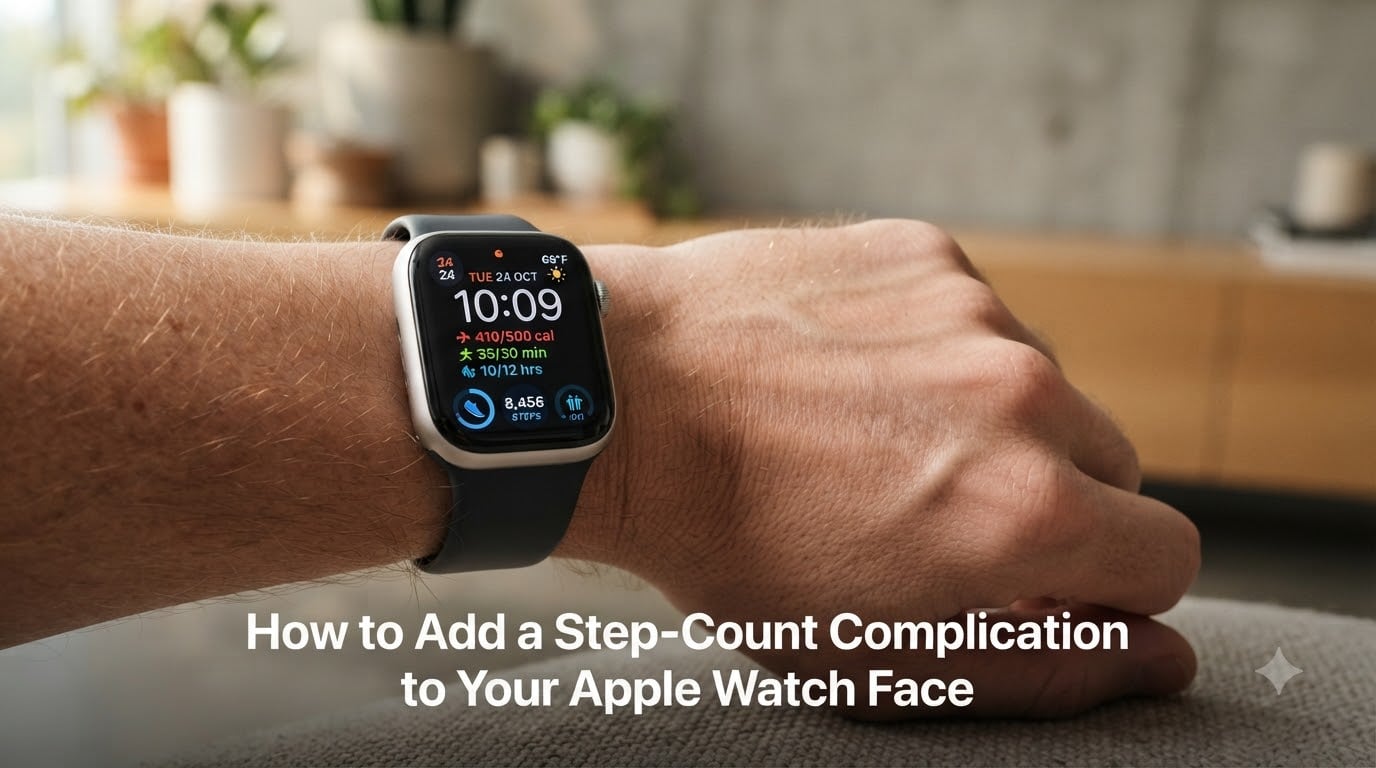
Apple Watches count steps accurately, but unlike most fitness trackers, they don’t show that number on the watch face out of the box. Instead, Apple focuses on activity rings, which can frustrate anyone switching from a Fitbit or Galaxy Watch who just wants to glance down and see their daily steps. The good news is that with the right third-party pedometer app, you can add a step-count complication to your Apple Watch face in about five minutes.
This guide walks through how to add a step-count complication to your Apple Watch face, including which apps work best, which watch faces support complications, and how to fix common syncing problems that leave your step count stuck.
Table of Contents
- Why Apple Watch Doesn’t Show Step Count on the Watch Face by Default
- How to Add a Step-Count Complication to Your Apple Watch Face: Step-by-Step
- Best Pedometer Apps for Apple Watch Step Complications
- Watch Face Compatibility: Which Faces Support Step Complications
- Troubleshooting: When Your Step Count Isn’t Updating
- Frequently Asked Questions
- Final Thoughts
Why Apple Watch Doesn’t Show Step Count on the Watch Face by Default
If you’ve searched through every built-in complication looking for “steps” and come up empty, you’re not alone. Forum threads on Reddit’s r/AppleWatch and Apple’s own support communities are filled with users asking the same question: why doesn’t Apple include a native step count complication?
The answer comes down to Apple’s fitness philosophy. Apple designed the watch around three Activity Rings rather than a single step total. Those rings measure Move (active calories), Exercise (brisk activity), and Stand (hours spent standing). Apple’s position is that rings paint a more complete picture of health than steps alone.
That stance has held for roughly a decade, through every watchOS update. Even on the latest Series 11 and Watch Ultra models, there’s no built-in complication that displays your raw daily step count. Until Apple changes course, the workaround is the same: install a third-party pedometer app that taps into the Health app’s step data and exposes it as a complication.
How to Add a Step-Count Complication to Your Apple Watch Face: Step-by-Step
Here is the exact process I recommend, broken into four steps. Each one depends on the one before it, so don’t skip ahead.
Step 1: Download a Pedometer App on Your iPhone
Start by downloading a pedometer app that includes an Apple Watch component. The three I see recommended most often in forums are Pedometer++, Duffy, and StepsApp. All three are free to download, and each pulls step data from Apple’s Health app rather than counting steps independently, which keeps your numbers consistent across devices.
Open the App Store on your iPhone, search for one of these apps, and install it. During setup, the app will ask for permission to read your step data from the Health app. Tap Allow All or at minimum enable Steps access, otherwise the complication will display zero.
Step 2: Install the Companion Watch App
This is the step that trips up the most people. Downloading the app on your iPhone does not automatically put it on your watch.
To fix this, open the Watch app on your iPhone (the one with the black background and watch icon). Scroll down to the My Watch tab, find your newly installed pedometer app in the list, and toggle on Show App on Apple Watch. If your iPhone has automatic app installation enabled, the watch app may already be installed, but it’s worth verifying before you move on.
Give it a moment to sync. You’ll see a loading circle on your Apple Watch while it installs. Once the app icon appears in your watch’s app grid, you’re ready for the next step.
Step 3: Customize Your Watch Face
Now you’ll add the complication to your watch face. Press and hold your finger on the current watch face until it shrinks and enters edit mode, then tap Edit.
Swipe left until you reach the Complications screen. You’ll see tappable zones on the watch face, each of which can display different data. Tap the complication slot where you want your step count to appear. A scrolling list of available complications will open.
Scroll through the list and look for the name of your pedometer app. Tapping it reveals the display styles that app offers for that slot. Pick the one you want, and the step count will populate within a few seconds.
Step 4: Choose Your Display Style
Most pedometer apps offer several complication styles. Pedometer++, for example, lets you display just the number, the number with a progress ring, or a percentage of your daily goal. StepsApp offers a colorful ring that fills as you approach your target.
The right choice depends on which watch face you use. Modular and Modular Compact faces have small complication slots, so a clean numeric display reads best. Infograph and Infograph Modular faces have larger corner slots that can show the number alongside a small graphic.
Once you’ve selected your style, press the Digital Crown to save your changes and exit edit mode. Your step count should now be visible every time you raise your wrist.
Best Pedometer Apps for Apple Watch Step Complications
Not every pedometer app offers a complication, and among those that do, quality varies. Here’s a quick breakdown of the three apps that come up most in user recommendations.
Pedometer++ is the most popular choice. It offers multiple complication styles, a clean interface, and a small premium upgrade that adds mileage tracking and customizable goals. The free version is more than enough for most users.
Duffy is favored by users who want a minimalist look. Its complication shows a simple step count with an optional goal ring, and the app itself is lightweight with almost no setup.
StepsApp is the best pick if you want color. Its complication uses a vivid ring that fills as you get closer to your daily goal, and the app includes weekly charts that some users find more motivating than a raw number.
All three read from the same Health app data source, so your step count will be identical regardless of which app you choose. The difference is purely in how the information is displayed.
Watch Face Compatibility: Which Faces Support Step Complications
Not every Apple Watch face supports complications, and the ones that do offer different slot sizes. Here’s what to know before you pick a face.
The Modular and Infograph Modular faces are the best choices for step count because they offer multiple small complication slots where a number fits cleanly. Infograph works well too, with four corner complications that can each display a step count.
Modular Compact and X-Large faces also accept complications, though the display options are more limited. Faces like Photos, Stripes, and Kaleidoscope do not support complications at all, so if you’re using one of those you’ll need to switch first.
Troubleshooting: When Your Step Count Isn’t Updating
Sometimes the complication appears on your watch face but shows zero or an outdated number. This is the single most common complaint in Apple Watch forums, and it almost always traces back to one of two issues.
The first culprit is Health app permissions. If the pedometer app doesn’t have read access to your step data, the complication has nothing to display. Go to Settings > Privacy & Security > Health > [App Name] on your iPhone and confirm that Steps is enabled.
The second issue is data source priority. If both your iPhone and Apple Watch are logging steps, the Health app combines them, which can produce a number that doesn’t match either device. To prioritize your Apple Watch, open the Health app, tap Browse > Activity > Steps > Data Sources & Access, and drag your Apple Watch to the top of the list under Data Sources. This tells the system to prefer watch data, which is what you’ll see on your wrist.
If neither fix works, restart both devices. A simple reboot resolves most lingering sync glitches after a fresh app install.
Frequently Asked Questions
How to add a steps complication to Apple Watch face?
Download a pedometer app like Pedometer++, Duffy, or StepsApp on your iPhone, grant it Health app access, install the companion Watch app through the iPhone Watch app, then press and hold your watch face, tap Edit, and select your pedometer app from the complications list.
Can I display my step count on my Apple Watch face?
Yes, but not with built-in Apple software. You need a third-party pedometer app that offers a complication. Once installed and added to your watch face, it will show your daily step count pulled from the Health app.
Is there an Apple Watch complication that shows steps?
Apple does not include a native step count complication. However, third-party apps like Pedometer++, Duffy, and StepsApp each provide complications that display your step count using data from the Apple Health app.
How do I add steps to my watch face?
Press and hold your current watch face, tap Edit, swipe to the Complications screen, tap the slot where you want steps to appear, and select your installed pedometer app from the list. Choose a display style and press the Digital Crown to save.
Why doesn’t Apple Watch show step count natively?
Apple designed the watch around three Activity Rings (Move, Exercise, and Stand) instead of a raw step total. The company’s view is that rings give a fuller picture of daily health than steps alone, and this approach has remained consistent across every watchOS version to date.
Final Thoughts
Learning how to add a step-count complication to your Apple Watch face takes a few minutes, but it solves one of the most common frustrations new Apple Watch owners face. Once a pedometer app like Pedometer++, Duffy, or StepsApp is installed and configured, you get the at-a-glance step visibility that Apple’s rings don’t provide.
The workaround isn’t perfect, but it works reliably as long as your Health app permissions and data source priorities are set correctly. If your count ever stops updating, walk through the troubleshooting steps above before assuming something is broken.
With your step count now living on your wrist, you can focus on what matters: hitting that daily goal, whether it’s 10,000 steps or something you’ve set for yourself.