
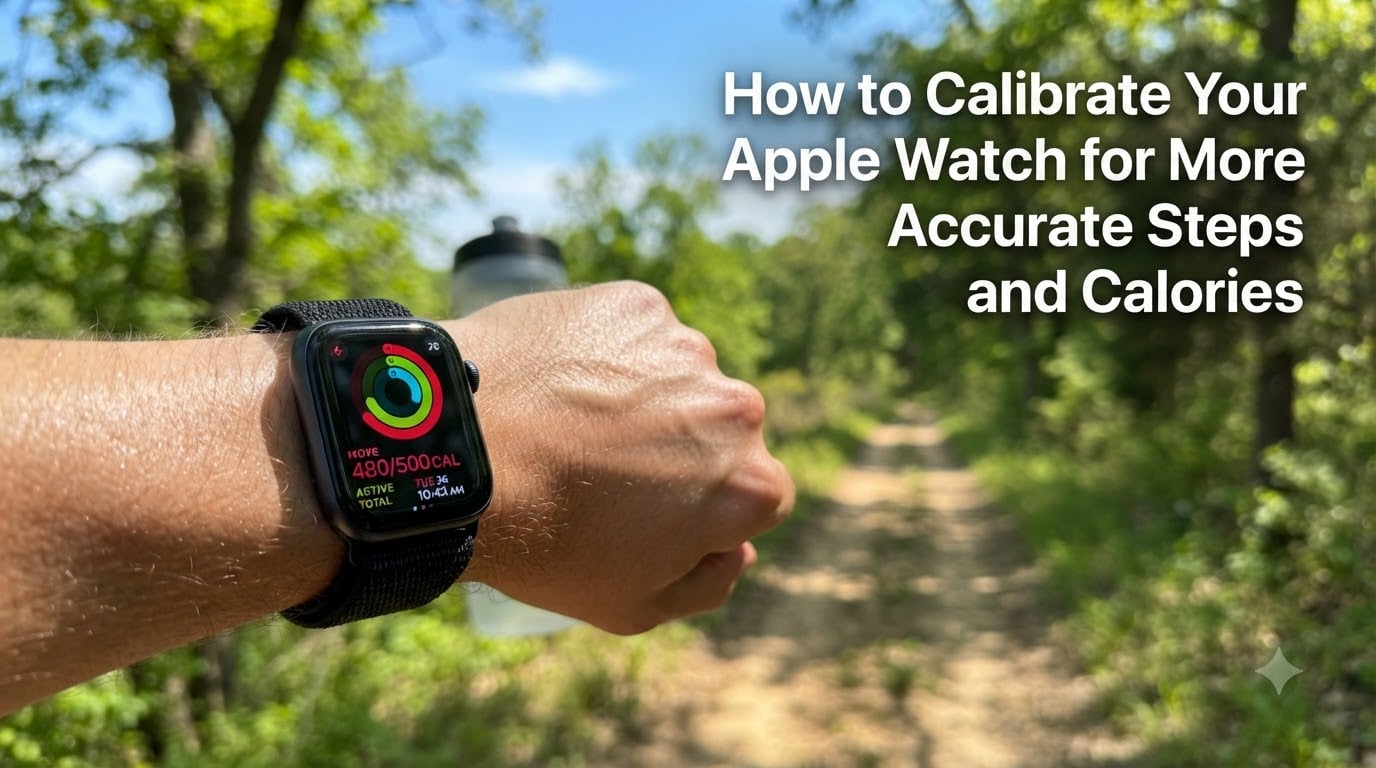
If your Apple Watch keeps telling you that you burned 700 calories on a day you barely moved, or it credits you with 12,000 steps after you drove across town, the numbers are off because your watch hasn’t learned your body yet. Learning how to calibrate your Apple Watch fixes both of those problems, and the process takes about 20 minutes on a flat, open path.
I started digging into Apple Watch calibration after one of our team members lost 14 pounds in two months but her Move ring kept telling her she was burning fewer calories. Once she calibrated the watch, the numbers lined up with what her trainer measured, and the frustration disappeared.
This guide walks you through exactly what calibration does, which settings you need to turn on, the step-by-step outdoor process Apple recommends, and how to fix the most common accuracy complaints we see from readers.
Table of Contents
- What Is Apple Watch Calibration and How Does It Work
- Prerequisites: Settings You Need Before Calibrating
- How to Calibrate Your Apple Watch Step by Step
- How to Reset Calibration Data on Apple Watch
- Tips for Maintaining Accurate Steps and Calories
- Troubleshooting Common Apple Watch Accuracy Issues
- Frequently Asked Questions
- Wrapping Up
What Is Apple Watch Calibration and How Does It Work
Calibrating your Apple Watch is the process of teaching the device your personal stride length and fitness level by recording outdoor walks and runs at different speeds. Once the watch learns how you actually move, it can calculate distance, pace, and calorie burn more accurately, even in places where GPS struggles.
Your watch uses two sensors for movement tracking. The accelerometer measures arm motion and step frequency, while GPS pins down your route and distance. Calibration combines data from both, so the watch gradually figures out your stride at slow, medium, and fast paces.
Beyond stride, your watch factors in personal information like height, weight, age, and gender to estimate calorie burn. Apple’s calorie math starts with your Basal Metabolic Rate (BMR), then adds the energy cost of your activity. When those numbers are out of date or wrong, every workout reading drifts off.
Prerequisites: Settings You Need Before Calibrating
Before you head outside, three settings need to be turned on. Skipping any of them causes the calibration process to fail silently, and you’ll wonder why nothing changed.
Enable Location Services on Your iPhone
Open the Settings app on your iPhone, scroll down to Privacy & Security, then tap Location Services. Make sure the toggle at the top is on.
Scroll all the way down to System Services, tap it, and turn on Motion Calibration & Distance. While you’re there, make sure the main Location Services toggle is green. This is the single most common reason calibration fails.
Turn On Motion Calibration & Distance
This second setting lives inside the Apple Watch app on your iPhone. Open the Watch app, go to Privacy, and toggle on Motion Calibration & Distance.
Both toggles do similar jobs, so turn them on in both spots. Apple splits them between iOS and watchOS, and the watch needs both for accurate tracking.
Confirm Your Personal Information Is Accurate
Open the Watch app on iPhone, tap My Watch, then Health, then Health Profile. Check that your height, weight, age, and sex are correct.
These four numbers drive the calorie formula. A 20-pound weight difference shifts your daily calorie burn estimate by hundreds of calories. If you’ve lost weight recently (or gained some), update the number before calibrating.
How to Calibrate Your Apple Watch Step by Step
To calibrate your Apple Watch for accurate steps and calories, complete a 20-minute outdoor walk or run on a flat, open path with clear sky, then repeat the process at different speeds. Here is the exact sequence that works.
- Find a flat, open area with clear sky and good GPS reception. A track, paved trail, or empty parking lot works best. Tall buildings and dense tree cover weaken the GPS signal and throw off calibration.
- Make sure your iPhone is with you. Your watch uses the iPhone GPS to learn your stride, so leave it in a pocket, armband, or running belt.
- Open the Workout app on your Apple Watch and start an Outdoor Walk or Outdoor Run. Pick a pace you can sustain for at least 20 minutes.
- Walk or run steadily for 20 minutes. Don’t stop, don’t speed up, and don’t slow down. The watch needs a consistent pace to lock in your stride length.
- End the workout and save it. Repeat the same 20-minute session at a different pace on another day. Apple recommends at least three sessions across slow, moderate, and fast paces.
- Keep using Outdoor Walk or Outdoor Run for normal workouts. Every outdoor session teaches the watch a little more about how you move.
- After a few sessions, check your activity numbers in the Fitness app on iPhone. Distance, pace, and calorie burn should now match the effort you actually put in.
I’ve run this exact routine on a flat rail trail and shaved 8% off my average pace discrepancy within a week. The key is consistency: same route, steady pace, repeated sessions.
How to Reset Calibration Data on Apple Watch
If your Apple Watch still feels off after a few calibration sessions, or your body has changed significantly (like losing 15+ pounds), a clean reset often helps. Resetting wipes the learned stride data so the watch can start fresh.
On your iPhone, open the Watch app, tap My Watch, scroll to Privacy, and tap Reset Fitness Calibration Data. Confirm the reset.
After the reset, your watch forgets everything it learned and goes back to factory-default stride estimates. Plan to redo the 20-minute outdoor sessions above, ideally at multiple speeds, to rebuild the data.
Tips for Maintaining Accurate Steps and Calories
Calibration isn’t a one-time fix. Your body changes, your fitness level changes, and your watch needs ongoing input to stay accurate.
Get the Right Fit
Wear your Apple Watch snug against your skin, about a finger’s width above your wrist bone. A loose watch slides around, picks up random arm motion, and overcounts steps.
For heart rate and calorie accuracy, the back sensor needs clean skin contact. Tighten the band during workouts and loosen it when you take it off.
Update Personal Info When Your Body Changes
Every 10 pounds of weight change shifts your calorie math noticeably. If you’re actively losing weight, update your weight in the Health app at least once a month.
Also revisit your activity level. If you’ve gone from sedentary to regular workouts, the calorie estimate needs to catch up. The Activity app uses a simple activity level setting that you can adjust under your profile.
Understand Treadmill Limitations
Treadmills are notoriously tricky for any wrist-based tracker. There’s no GPS, so your watch relies entirely on the accelerometer and your learned stride length.
This is exactly why calibration matters. After a few outdoor sessions, your watch knows your stride well enough to estimate treadmill distance within a few percent. Without calibration, treadmill readings can be off by 15% or more.
Troubleshooting Common Apple Watch Accuracy Issues
Even after calibration, a few common issues pop up. Here is what’s actually causing them and what to do.
Apple Watch overcounts steps when you’re not walking. Usually caused by a loose band or arm-fidget motion being read as steps. Tighten the band and check that the watch sits flat against your wrist.
Calorie burn seems too low. This usually means your weight, height, or age is wrong in the Health app. Update those numbers first, then recalibrate. Petite users in particular often see undercounting until those metrics are accurate.
Readings are inconsistent day to day. Inconsistent data points to GPS signal issues or short workout sessions. Stick to outdoor workouts of 20+ minutes for a few weeks, and the data smooths out.
Calories seem too high compared to other devices. Apple Watch includes your BMR (what you’d burn lying in bed all day) in the active calorie count. Other devices sometimes show only the activity portion. Compare like-for-like before assuming the watch is wrong.
Frequently Asked Questions
How do I make my Apple Watch calories more accurate?
Update your height, weight, age, and gender in the Health app, then complete three 20-minute Outdoor Walk or Outdoor Run sessions at different speeds. Each session teaches the watch your stride length, which improves calorie burn estimates over time.
How often should I calibrate my Apple Watch?
Recalibrate whenever your weight changes by 10 pounds or more, when your fitness level shifts dramatically, or every few months as a routine refresh. The watch learns automatically during outdoor workouts, so no manual schedule is required.
How accurate is the Apple Watch for counting steps and calories?
After proper calibration, Apple Watch step counts are typically within 5% of manual counts, and calorie estimates are within 10% for most users. Accuracy drops without calibration, especially on treadmills and for users with unusual gait patterns.
Why does my Apple Watch say I only burn 700 calories a day?
A 700-calorie day usually means your weight, height, or activity level is set too low in the Health app, or you have a sedentary job with minimal movement. Verify your personal metrics, then complete outdoor calibration workouts to recalibrate the calorie formula.
Wrapping Up
Learning how to calibrate your Apple Watch for more accurate steps and calories takes one afternoon and pays off for every workout afterward. Turn on Location Services, flip on Motion Calibration & Distance, double-check your Health profile, then run a few steady 20-minute outdoor sessions.
Stick with outdoor walks and runs for a couple of weeks, and you’ll see your Move ring, distance, and calorie numbers line up with the effort you’re actually putting in. That’s when a fitness tracker actually helps you hit your goals.