
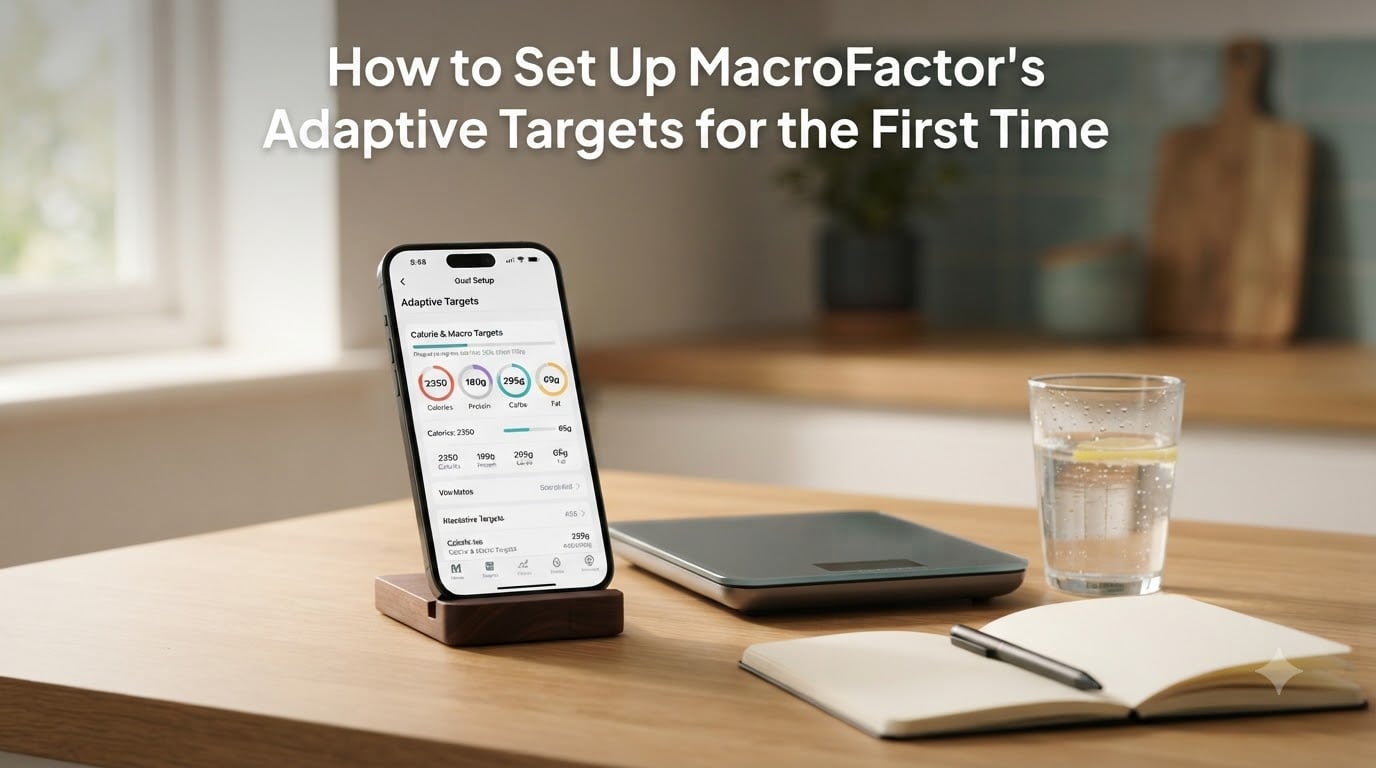
MacroFactor’s adaptive targets are the feature that makes the app stand out from every calorie tracker I have tested. Instead of locking you into a static number, the app recomputes your calorie and macro goals every week based on your actual weight change and energy intake. Setting up MacroFactor’s adaptive targets for the first time takes about ten minutes, but the choices you make in that window shape how accurate the algorithm will be for the next six months.
I have walked a dozen friends through this setup, and the same three questions always come up. Should you pick Coached, Collaborative, or Manual? How long until the calorie estimate is trustworthy? And why does the app keep dropping calories when you are already losing weight? This guide answers all of them, step by step, with screenshots of the decisions you will actually see on screen.
Table of Contents
- What Are Adaptive Targets in MacroFactor?
- Understanding the Three Program Types
- Step-by-Step: Setting Up MacroFactor for the First Time
- How MacroFactor Calculates Your Energy Expenditure
- Connecting Data Sources for Faster Calibration
- Entering Historical Weight and Nutrition Data
- How Weekly Target Adjustments Work
- Common Setup Mistakes to Avoid
- Tips for First-Time Users
- Frequently Asked Questions
- Final Thoughts
What Are Adaptive Targets in MacroFactor?
Adaptive targets are weekly calorie and macro goals that MacroFactor recalculates from your logged weight and food data. The goal is simple: keep your nutrition plan aligned with your body’s actual energy needs as those needs change.
Traditional trackers hand you a fixed number based on a BMR formula and an activity multiplier. That number drifts out of date the moment your body adapts. MacroFactor flips the script. It watches your intake, your weight trend, and the caloric content of weight change, then solves for your daily energy expenditure in real time. Once it knows your expenditure, it can build precise calorie and macro targets to hit your goal weight at the rate you chose.
This is also why MacroFactor’s adaptive targets feel so different in practice. Within two weeks, the app is rarely guessing. It is showing you what your body is actually doing, and adjusting your plan to match.
Understanding the Three Program Types
Before you finish onboarding, MacroFactor asks you to pick a program type. This is the single most important decision you will make during setup, because it controls how much control the app has over your macros. Get this wrong and you will either fight the algorithm every week or do all the math yourself.
Here is the quick version. All three programs share the same adaptive calorie engine. The difference is who decides the macro split.
Coached Program: Full Automation
In Coached mode, MacroFactor picks your protein, fat, and carbohydrate split every week. You choose a goal (lose, gain, or maintain), a rate, and the app does the rest. It will pick a high-protein split if you set a fast loss rate, and a more relaxed split if you are coasting at maintenance. This is the right choice for most first-time users.
Collaborative Program: The Hybrid Approach
Collaborative mode lets you set your own macro distribution, but the app still adjusts your calories weekly based on your progress. Tap “Edit Program” on the Strategy tab any time you want to change your protein or fat floor. This is the best option if you follow a specific diet framework (keto, low-carb, high-protein for athletes) and want the calorie math handled automatically.
Manual Program: Full Control
Manual mode locks both your calories and macros. Nothing changes unless you change it. This is the right pick if you are following a plan from a coach or a clinical protocol and MacroFactor is only being used for tracking. Most users do not need this.
My recommendation: start with Coached if you have no strong preference, then switch to Collaborative after two weeks once you understand how the algorithm responds to your data.
Step-by-Step: Setting Up MacroFactor for the First Time
This is the exact flow you will see on screen. The whole process takes 8 to 12 minutes if you have a recent scale weight handy.
Step 1: Install the App and Create Your Account
Download MacroFactor from the App Store or Google Play. The app requires a subscription after a free trial. Create your account with an email you check, because the app sends weekly check-in reminders there.
Step 2: Enter Your Biometrics and Goals
MacroFactor will ask for your sex, age, height, current weight, and goal weight. Use a recent, accurate weight, not the number on your driver’s license. The algorithm uses your current weight to estimate your starting expenditure, and garbage in means garbage out for the first two weeks.
Step 3: Choose Your Program Type
This is the screen most people stare at. Select Coached, Collaborative, or Manual based on the descriptions above. You can change this later, but picking the right one now saves a week of relearning.
Step 4: Set Your Target Rate of Progress
MacroFactor will suggest a rate based on your goal weight, but you can override it. For weight loss, a safe starting point is 0.5 to 1 percent of body weight per week. For weight gain, 0.25 to 0.5 percent. Bigger rates work, but they make the algorithm more aggressive in the early weeks, which can feel jarring.
Step 5: Activate Weight Tracking
Turn on daily weigh-ins. Yes, daily. You do not have to act on the number every day, but the algorithm needs the data points to build a smooth weight trend. I weigh first thing in the morning, after the bathroom, before eating or drinking.
Once you finish the onboarding, MacroFactor will show you your first week of targets. These are starting estimates based on the Cunningham equation and your activity profile. They will get sharper in the next 14 to 20 days as the app collects your actual data.
How MacroFactor Calculates Your Energy Expenditure
Behind the scenes, MacroFactor is doing one thing every week: solving for your true daily energy expenditure. It knows your calorie intake (from your food log) and your weight change (from your weigh-ins). It also knows the caloric content of weight change, which is roughly 3,500 kcal per pound of fat but slightly less for lean tissue. From those three numbers, the algorithm can back out your daily burn with surprising accuracy.
The platform calls this the weight trend algorithm. Instead of treating every weigh-in as gospel, it smooths through daily noise (water, sodium, carbs, training stress) to find the actual trend. That trend is what drives the calorie adjustment.
Expect a calibration window of 14 to 20 days before the numbers feel locked in. If you have historical data you can import, that window shrinks to about a week. After calibration, the calorie target you see is rarely more than 100 to 150 kcal off your actual expenditure, which is the kind of precision no other consumer tracker matches.
Connecting Data Sources for Faster Calibration
If you have used another tracker in the past, do not start from zero. MacroFactor can pull in two weeks of prior weight and nutrition data and use it to skip most of the calibration period.
Apple Health Integration
On iOS, MacroFactor reads weight entries from Apple Health automatically. Make sure your scale syncs to Health, and your historical weigh-ins will appear in the app’s weight trend graph on day one.
Google Fit
Android users can connect Google Fit the same way. The integration is one-way from Google Fit into MacroFactor, so your MacroFactor weigh-ins will not leak back to Google Fit unless you want them to.
Fitbit and Garmin
Fitbit and Garmin both sync through their native health stores. MacroFactor will pull weight data from Fitbit and weight, body composition, and activity from Garmin if you connect both. This is also the cleanest way to capture step data, which sharpens the activity side of the expenditure estimate.
Pro tip: if you already have a MyFitnessPal food log, export it before deleting that subscription. MacroFactor can import MFP history directly, which is a huge time saver.
Entering Historical Weight and Nutrition Data
You can also add history by hand. The app lets you backfill weight and food entries for up to 14 days before your signup date. This is enough to compress the calibration period significantly.
For weight, just enter your morning weigh-ins for the last two weeks. For nutrition, the fastest method is to import from MyFitnessPal or Cronometer. If you have to enter it by hand, focus on average days rather than every snack. The algorithm does not need perfection; it needs a representative sample.
One warning: do not backfill weeks of data if your tracking was inconsistent. The algorithm assumes every imported entry is accurate, and partial logging in the historical window will pollute your early estimates. Clean history is worth more than long history.
How Weekly Target Adjustments Work
Every seven days, MacroFactor looks at your weight trend and intake for the prior week and recalculates your expenditure. From that, it sets the next week’s calorie and macro targets. The new targets appear in the Strategy tab without any action on your part.
When you see calories drop, it usually means one of three things. Your actual expenditure is lower than the prior estimate, which is normal early on. Your weight is trending faster than your goal rate, so the app is pulling back to keep you on plan. Or your logging has been inconsistent, and the algorithm is correcting for partial entries.
You will also see days flagged as “excluded” from the trend calculation. These are typically travel days, heavy drinking days, or weigh-ins after a big meal. The algorithm treats them as outliers, which is why one weird Monday does not ruin your whole week.
Common Setup Mistakes to Avoid
Most first-week frustration I have seen comes from the same handful of mistakes. Avoid these and the algorithm basically runs itself.
Mistake 1: Picking Manual mode by accident. The default is Coached, but if you tap through the onboarding too quickly, you can land on Manual without realizing it. Check the Strategy tab header before you finish setup.
Mistake 2: Skipping weigh-ins. Three weigh-ins a week is the minimum the algorithm wants. Skip a week and the next adjustment will be reactive, not proactive.
Mistake 3: Partial logging. Forgetting to log a snack or a drink is the single biggest source of error in MacroFactor. If your expenditure suddenly drops 200 kcal, the first thing to check is your log completeness, not your metabolism.
Mistake 4: Panicking when calories drop. The algorithm will sometimes cut calories more aggressively than you expect in week two or three. This is normal. Give it two more weeks before you fight back.
Mistake 5: Constantly editing your program. Every time you change your goal or rate, the algorithm resets part of its confidence. Set up once, then leave it alone for at least four weeks.
Tips for First-Time Users
After running through this setup several times with friends and family, these are the habits that consistently produce the best results.
Tip 1: Log everything on day one. Even the cream in your coffee, even the bite of your kid’s fries. The first week is when the algorithm learns your patterns, and the more complete the log, the faster it locks in.
Tip 2: Use the Smart History feature. Once you log a meal twice, MacroFactor will suggest it as a one-tap entry. This saves 30 to 60 seconds per meal by week three.
Tip 3: Trust the weekly check-in. Resist the urge to peek at your weight every day and react. The weekly check-in is the only number that matters for decisions.
Tip 4: Sync your scale if you can. A Bluetooth smart scale that pushes to Apple Health or Google Fit removes the daily weigh-in friction entirely. You literally step on the scale and the data shows up in MacroFactor.
Tip 5: Read the Trends page once a week. The Trends tab shows your weight trend, your expenditure, and your macro compliance rate. A 5-minute review every Sunday catches problems before they become 3-week stalls.
Frequently Asked Questions
Why does MacroFactor keep dropping my calories?
MacroFactor lowers your calories when your actual energy expenditure is lower than its prior estimate, when your weight is dropping faster than your goal rate, or when partial logging is making you look like you are eating less than you are. Give it two weeks of consistent tracking before adjusting. The algorithm is usually right, especially after the 14 to 20 day calibration window.
How long until MacroFactor adaptive targets are accurate?
Without historical data, allow 14 to 20 days for the algorithm to zero in on your actual expenditure. If you import two weeks of prior weight and nutrition history, the calibration window shrinks to about a week. After that, targets are typically within 100 to 150 kcal of your true expenditure.
Do I have to use adaptive TDEE in MacroFactor?
No. You can opt out by choosing Manual mode, which locks both your calories and macros. You can also switch to Collaborative mode and override the macro split while keeping the calorie algorithm on. Most users prefer Coached or Collaborative so the weekly calorie math runs automatically.
Should I weigh in every day for MacroFactor?
Yes, daily weigh-ins give the weight trend algorithm the most data points to work with. You do not need to react to the daily number, only the smoothed trend. If daily weigh-ins cause anxiety, weigh every other day and the algorithm will still work, just with slightly more lag.
How much historical data should I enter into MacroFactor?
Enter up to 14 days of weight and nutrition history if you have it. Anything older gets ignored. Clean, accurate history is more valuable than long history, so do not backfill weeks of inconsistent logs, as that will pollute the early estimates.
Final Thoughts
Setting up MacroFactor’s adaptive targets for the first time is the difference between a static, drifting plan and a calorie budget that actually follows your body. Pick Coached mode if you are unsure, log everything for the first two weeks, and let the algorithm do its job. Within a month, you will have a set of calorie and macro targets that are tailored to your real energy expenditure, not a generic formula. That is the entire point of MacroFactor, and once you experience it, the older style of tracking feels almost arbitrary.