
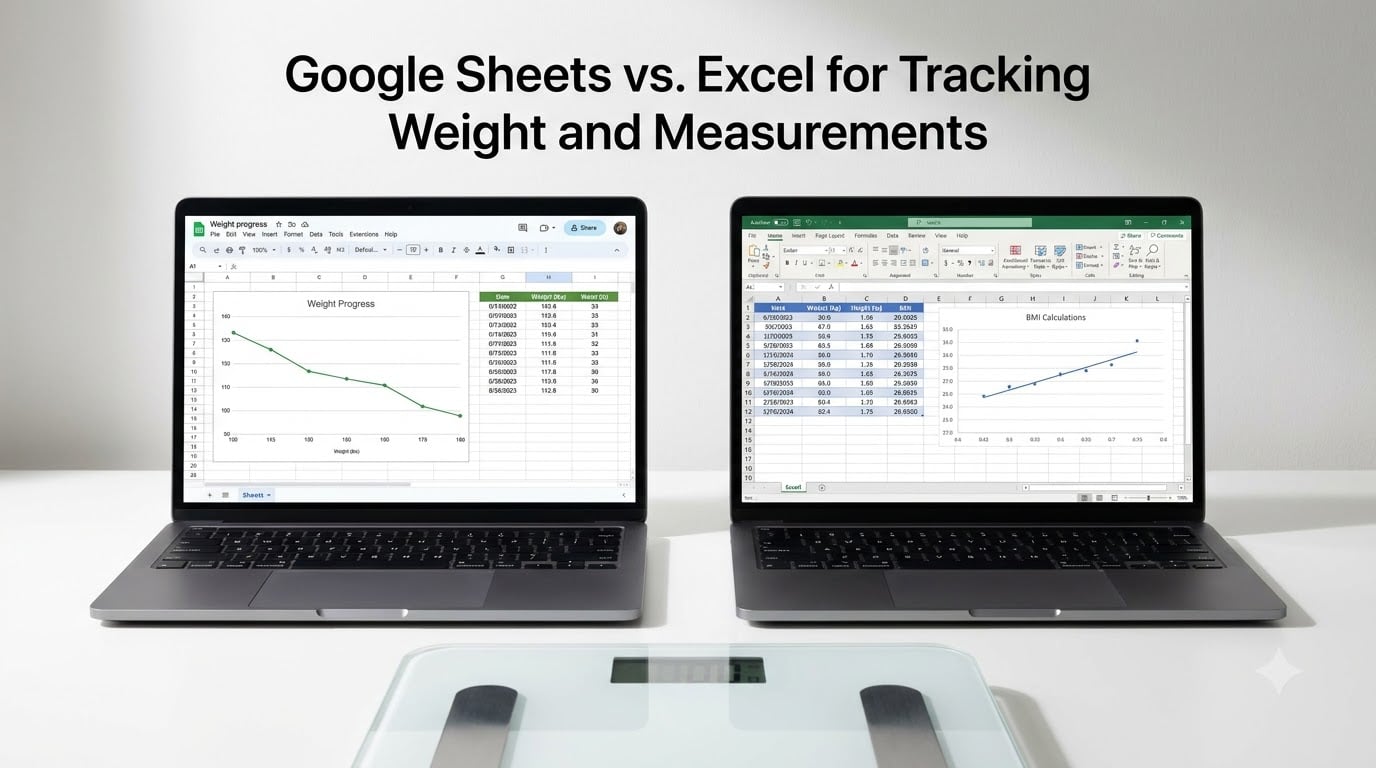
I have spent years testing spreadsheet-based weight trackers, and the debate between Google Sheets and Excel for tracking weight and measurements comes down to how you work. Some people want a free cloud tracker they can open on any phone, while others want a desktop powerhouse with advanced formulas and charts. This guide breaks down exactly how each platform performs for weight tracking, body measurements, BMI, and progress visualization, so you can pick the right tool and set it up today.
Spreadsheets remain one of the most popular ways to track weight loss because they give you total control. Unlike dedicated apps that lock you into rigid layouts, a spreadsheet lets you decide what columns to track, which formulas to use, and how your charts look. Our team analyzed forum discussions on Reddit communities like r/loseit, r/googlesheets, and r/excel to find what real users value most, and we built this comparison around those insights.
Whether you are running a solo weight loss journey or organizing a family fitness challenge, understanding the strengths and weaknesses of Google Sheets vs Excel for tracking weight and measurements will save you hours of frustration. Let us walk through the setup, formulas, charts, collaboration tools, and mobile experience for both platforms.
Table of Contents
- Why Track Weight and Measurements in a Spreadsheet
- Google Sheets vs Excel for Tracking Weight and Measurements
- Setting Up a Weight Tracker in Google Sheets
- Setting Up a Weight Tracker in Excel
- Tracking Body Measurements in Both Platforms
- Collaboration and Group Weight Loss Challenges
- Mobile Experience: Tracking on the Go
- Which Should You Choose for Weight Tracking
- Frequently Asked Questions
- Conclusion
Why Track Weight and Measurements in a Spreadsheet
Reddit users consistently report that dedicated weight loss apps feel too rigid. You cannot add custom columns for waist measurements, mood tracking, or sleep quality without hitting a paywall. A spreadsheet solves that problem instantly because you define the structure.
Spreadsheets also handle the math for you. Once you set up formulas for daily weight change, total pounds lost, percentage of goal achieved, and BMI, the spreadsheet recalculates everything automatically each time you enter a new weigh-in. No manual math required.
Visualization is another major advantage. Both Google Sheets and Excel can generate line charts that show your weight trend over weeks and months. Seeing a downward trend line is one of the strongest motivational tools available, and a spreadsheet puts that visual right in front of you.
Cost matters too. Google Sheets is completely free with a Google account. Excel requires a Microsoft 365 subscription or a one-time purchase. For many people tracking personal health data, that price difference is the deciding factor.
Google Sheets vs Excel for Tracking Weight and Measurements
The core comparison between these two tools centers on six areas: cost, collaboration, formula power, chart quality, mobile experience, and offline access. Here is how they stack up for weight and measurement tracking specifically.
Cost: Google Sheets is free with any Google account. Excel starts at around $6.99 per month with Microsoft 365 Personal, or you can buy a one-time license for the desktop version.
Collaboration: Google Sheets wins decisively. Multiple people can edit the same weight tracker simultaneously, which is perfect for group challenges. Excel Online supports co-authoring, but the desktop version requires saving and sharing files manually.
Formula power: Excel handles larger datasets, more complex nested formulas, and advanced functions like Power Query. For a typical weight tracker with a few hundred rows, both tools perform identically.
Charts: Excel offers more chart customization, including trendlines with statistical analysis. Google Sheets covers all the basics, including line charts and sparklines, with less effort.
Mobile experience: Google Sheets has a smoother mobile app for quick weigh-in entries on the go. The Excel mobile app is solid but feels heavier for simple data entry.
Offline access: Excel desktop works fully offline by default. Google Sheets supports offline mode through Chrome, but you need to enable it beforehand.
Here is a quick comparison table summarizing the differences:
| Feature | Google Sheets | Microsoft Excel |
|---|---|---|
| Cost | Free | Paid (subscription or one-time) |
| Real-time collaboration | Excellent (simultaneous editing) | Limited (Excel Online only) |
| Weight loss formulas | Full support | Full support plus advanced functions |
| Chart customization | Good (line charts, sparklines) | Superior (trendlines, statistical charts) |
| Mobile data entry | Fast and lightweight | Functional but heavier |
| Offline mode | Available via Chrome | Built-in on desktop |
| Version history | Detailed revision log | Limited (AutoHistory add-in) |
| Template library | Google Sheets template gallery | Excel template gallery |
For most people tracking personal weight and body measurements, Google Sheets covers every feature you need at zero cost. Excel becomes worth paying for when you want deeper statistical analysis, you already own a Microsoft 365 subscription, or you prefer a desktop-first workflow.
Setting Up a Weight Tracker in Google Sheets
Building a weight tracker in Google Sheets takes about 15 minutes. I will walk you through each step with the exact formulas you need.
Step 1: Create Your Column Layout
Open a new Google Sheet and set up these column headers in row 1: Date, Weight (lbs), Change, Total Loss, Goal, % to Goal, Waist, Hips, and Notes. This layout covers weight tracking, body measurements, and goal progress in one view.
Format the Date column by selecting it, then go to Format > Number > Date. Format the Weight, Change, Total Loss, Waist, and Hips columns as numbers with one decimal place for consistency.
Step 2: Add Weight Change Formulas
In the Change column (column C), enter this formula in row 3 to calculate the difference from your previous weigh-in:
=B3-B2
This subtracts your previous weight from your current weight. A negative number means you lost weight. Drag the formula down to apply it to all future rows.
For the Total Loss column (column D), use this running total formula:
=B$2-B3
This calculates total pounds lost from your starting weight. The dollar sign locks the reference to your first weigh-in so it stays fixed as you copy the formula down.
Step 3: Calculate Total Loss and BMI
For the percentage to goal column (column F), first enter your goal weight in a separate cell, say cell K1. Then use:
=(B$2-K1)/((B$2+K1)/2)
This gives you the percentage of progress toward your goal. To calculate BMI, add a column and use this formula (assuming your height in inches is in cell K2):
=(B3*703)/(K2^2)
A BMI between 18.5 and 24.9 is considered healthy. Google Sheets recalculates this instantly each time you enter a new weight.
Step 4: Build a Progress Chart
Select your Date and Weight columns, then go to Insert > Chart. Google Sheets defaults to a line chart, which is ideal for showing weight trends over time. Click the chart to customize colors, add a trendline in the Customize tab under Series, and rename the axes.
A trendline is especially motivating because it smooths out daily fluctuations and shows your overall direction. I recommend adding one immediately.
Step 5: Apply Conditional Formatting
Conditional formatting highlights your progress visually. Select the Change column, then go to Format > Conditional formatting. Set a rule: if the cell value is less than 0, set the text color to green (weight loss). If the value is greater than 0, set it to red (weight gain).
You can also color-code the Total Loss column with a color scale that darkens as your total loss grows. This creates a satisfying visual record of your progress.
Setting Up a Weight Tracker in Excel
Excel follows the same logic but with slightly different navigation and a few formula advantages. Here is how to set up an equivalent tracker.
Step 1: Build Your Tracker Columns
Open a new Excel workbook and enter the same headers: Date, Weight (lbs), Change, Total Loss, Goal Progress, Waist, Hips, and Notes. Excel auto-formats dates as you type, but you can adjust the format under Home > Number > Short Date.
Use Excel tables for better organization. Select your data range and press Ctrl+T to convert it into a formatted table. This gives you automatic filtering, banded rows, and auto-expanding formulas.
Step 2: Enter Weight Formulas
In the Change column, the formula is identical to Google Sheets:
=[@[Weight (lbs)]] - [@PrevWeight]
If you use structured table references, Excel makes formulas easier to read. For a standard cell reference approach, use =B3-B2 just like in Sheets.
For Total Loss, use =B$2-B3 to get your running total from the starting weight.
Step 3: Add BMI and Measurement Tracking
The BMI formula in Excel is the same as in Google Sheets:
=(B3*703)/(K2^2)
Excel also offers the built-in =AVERAGE() function for calculating weekly average weight, which smooths daily fluctuations. Use =AVERAGE(B3:B9) to get a seven-day rolling average. This is a feature many Reddit users on r/loseit recommend because it reduces the frustration of daily weight spikes.
For body measurements, simply enter waist, hips, thigh, and arm values in their own columns. Excel calculates measurement changes with the same subtraction formula you use for weight.
Step 4: Create a Trendline Chart
Select your Date and Weight data, then go to Insert > Charts > Line Chart. Excel offers more trendline options than Google Sheets, including linear, polynomial, and moving average trendlines. Right-click your data series and select Add Trendline to access these.
For weight tracking, a linear trendline shows your overall rate of loss, while a moving average trendline smooths short-term fluctuations. I use both on the same chart for a complete picture.
Step 5: Use Conditional Formatting Rules
Excel conditional formatting is more powerful than Google Sheets. Select your Change column and go to Home > Conditional Formatting > New Rule. Choose “Format only cells that contain” and set it to highlight negative values (weight loss) in green and positive values (weight gain) in red.
You can also add data bars to the Total Loss column, which create mini bar graphs inside each cell. This gives you an instant visual sense of progress without looking at a chart.
Tracking Body Measurements in Both Platforms
Weight alone does not tell the full story of your progress. Tracking body measurements like waist, hips, thighs, and arms reveals changes the scale cannot capture, especially when you are building muscle while losing fat.
Both Google Sheets and Excel handle body measurement tracking the same way. Create a column for each measurement site and enter your values weekly or biweekly. Use subtraction formulas to calculate the change from your starting measurements.
For a complete picture, add a combined measurements column that sums all sites. Use =SUM(G3:J3) to add waist, hips, thighs, and arms together. Tracking the total inches lost is often more motivating than any single measurement.
I also recommend creating a separate chart for body measurements so you can see non-scale progress independently. Many Reddit users on r/loseit report that measurement charts keep them motivated during weight loss plateaus when the scale stops moving.
Collaboration and Group Weight Loss Challenges
If you are running a weight loss challenge with family members, friends, or coworkers, collaboration features become essential. This is where Google Sheets and Excel diverge sharply.
Google Sheets was built for real-time collaboration from the ground up. You can share a weight tracker with up to 100 people, and everyone can enter their weigh-ins simultaneously. You see each person’s cursor moving in real time, which creates a sense of shared accountability.
For a group challenge, create a tab for each participant or use a single sheet with columns grouped by person. Google Sheets makes either approach easy, and the built-in chat feature lets participants encourage each other directly in the document.
Excel Online supports simultaneous editing, but the desktop version does not. If your group uses Excel desktop, someone must take ownership of the file and consolidate entries manually, or you need to store the file on OneDrive or SharePoint for co-authoring to work.
Forum users on Reddit consistently report that Google Sheets is the better choice for group weight loss challenges. The friction-free sharing and real-time editing make it the clear winner for collaborative tracking.
Mobile Experience: Tracking on the Go
Most people weigh themselves in the morning and want to log their weight immediately. The mobile experience determines whether you actually maintain the habit.
The Google Sheets mobile app is fast and lightweight. You can open your weight tracker, tap a cell, enter your weight, and close the app in under 10 seconds. Changes sync instantly, so your charts update the moment you get to a computer.
The Excel mobile app is functional but feels heavier. On older phones, the app takes longer to load and navigate. If you already use Microsoft 365 for work, having everything in one app is convenient. But for pure weight tracking convenience, Google Sheets has the edge.
One workaround Excel users mention on Reddit is creating a simple Microsoft Form linked to an Excel table. You enter your weight through the form, and it automatically populates the spreadsheet. This approach works well but requires extra setup.
Which Should You Choose for Weight Tracking
The right choice depends on your specific situation. Here is a decision framework based on everything our team tested and what forum users report.
Choose Google Sheets if: You want a free tool, you are running a group or family challenge, you need real-time collaboration, you primarily track on your phone, or you are new to spreadsheets and want something simple.
Choose Excel if: You already own Microsoft 365, you want advanced chart customization with statistical trendlines, you work with large datasets, you prefer a desktop-first workflow, or you want features like data bars and advanced conditional formatting.
Both tools handle weight tracking, body measurements, BMI, and progress charts equally well for personal use. The formulas are nearly identical, and the core setup process is the same. For most people starting a weight loss journey, Google Sheets is the faster, simpler, and cheaper option. Excel is worth the investment if you want maximum control and already use Microsoft tools.
Reddit users on r/loseit and r/googlesheets overwhelmingly favor Google Sheets for personal weight tracking, while r/excel users prefer Excel for its depth. The best tool is the one you will actually use consistently.
Frequently Asked Questions
Why do people use Google Sheets instead of Excel?
People use Google Sheets instead of Excel because it is free, works in any browser, supports real-time collaboration with multiple editors, syncs instantly across devices, and has a simpler interface that is easier for beginners to pick up quickly.
What can Excel do that Google Sheets can’t?
Excel offers more advanced features than Google Sheets, including Power Query for data transformation, Power Pivot for large datasets, more chart customization options with statistical trendlines, VBA macros for automation, and superior handling of very large files with millions of rows.
Which is better to use, Excel or Google Sheets?
For weight tracking and personal health data, Google Sheets is better for most people because it is free, collaborative, and mobile-friendly. Excel is better if you need advanced data analysis, already own Microsoft 365, or prefer desktop software with deeper chart and formula capabilities.
Can you track weight loss in Google Sheets?
Yes, you can track weight loss in Google Sheets by creating columns for date and weight, using formulas like =B3-B2 for daily change and =B$2-B3 for total loss, adding BMI calculations, creating line charts for progress visualization, and applying conditional formatting to highlight losses and gains.
What are the disadvantages of Google Sheets?
The main disadvantages of Google Sheets are limited handling of large datasets (around 10 million cells maximum), fewer advanced chart options than Excel, no native macro support comparable to VBA, dependency on internet for full functionality, and less powerful data analysis tools like Power Query and Power Pivot.
Is Excel or Google Sheets better for beginners?
Google Sheets is generally better for beginners because it has a cleaner interface, is free to start, requires no installation, and integrates directly with Google Drive. Excel has a steeper learning curve but offers more built-in templates and guided features through Microsoft 365.
Conclusion
Choosing between Google Sheets vs Excel for tracking weight and measurements ultimately comes down to your workflow, budget, and collaboration needs. Both platforms handle weight formulas, BMI calculations, body measurement tracking, and progress charts with the same core formulas. Start with Google Sheets if you want something free and fast, and switch to Excel if you outgrow its capabilities. The most important step is simply starting today, because consistent tracking is what drives long-term weight loss success.