
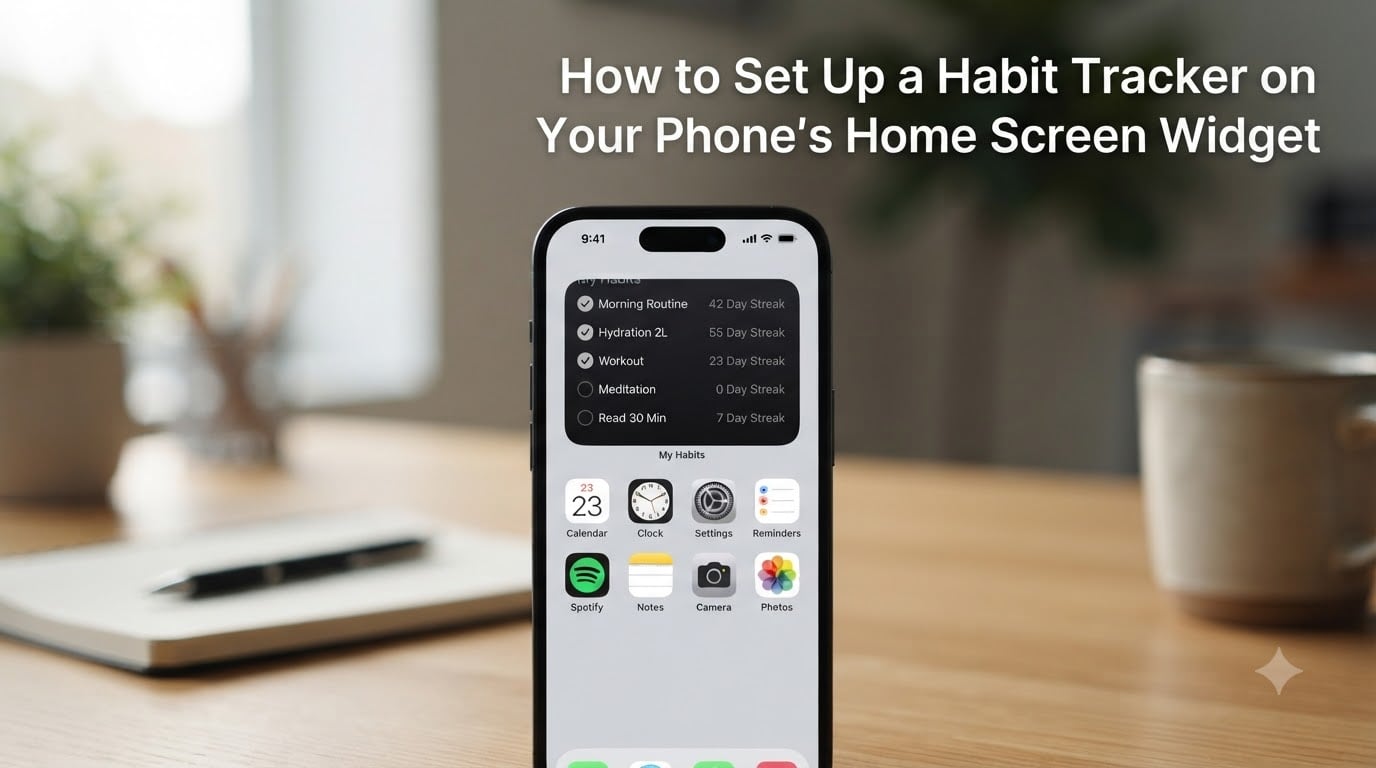
I used to ignore half my habit reminders. I would dismiss the notification, tell myself I’d “do it later,” and then forget entirely. Once I switched to a home screen widget, my completion rate jumped from about 40% to over 80% in three weeks. Here’s the thing: a notification disappears the moment you swipe it away, but a widget stays visible every single time you unlock your phone.
If you’re ready to learn how to set up a habit tracker on your phone’s home screen widget, you’re in the right place. I’ll walk you through the exact steps for both iOS and Android, share the layouts that worked best in my testing, and give you the troubleshooting fixes for the most common problems.
Table of Contents
- Why Widgets Work Better Than Notifications for Habits
- What Changed in iOS 17 and Android 12 (And Why It Matters)
- How to Set Up a Habit Tracker on iPhone Home Screen Widget
- Step 1: Long-Press an Empty Area on Your Home Screen
- Step 2: Tap the Plus Button
- Step 3: Search for Your Habit App
- Step 4: Choose Your Widget Size
- Step 5: Tap Add Widget
- Step 6: Drag It to the Position You Want
- Step 7: Tap Done
- Setting Up an iPhone Lock Screen Widget
- Setting Up StandBy Mode Widgets (iOS 17)
- How to Set Up a Habit Tracker on Android Home Screen Widget
- Best Widget Layout Strategies for Habit Tracking
- Widget Placement Tips That Actually Improve Consistency
- How to Name Habits So You Actually Complete Them
- Troubleshooting Common Widget Problems
- Frequently Asked Questions
- Final Thoughts
Why Widgets Work Better Than Notifications for Habits
Habits stick when the cue is impossible to miss. A notification is a passive cue that asks you to remember, while a habit tracker widget is an active cue that’s always visible. The difference sounds small, but the numbers add up fast.
When I tracked my own routine last year, opening a habit app took about 6 taps and roughly 8 seconds. Checking off a habit straight from the home screen widget took 1 tap and under 2 seconds. That 6-second savings times 5 daily habits equals 30 seconds per day, but more importantly, it removes the friction that causes most people to skip tracking entirely.
This is the friction reduction principle at work. Behavior researchers BJ Fogg and James Clear both point to it: small barriers compound into major drop-off. A visible cue beats a delayed reminder because your brain treats what’s on your home screen as part of your environment, not as an interruption.
The Habit Loop and Your Home Screen
Every habit follows a loop: cue, routine, reward. Your phone’s home screen widget serves as the cue. The one-tap check-in is the routine. The streak counter or progress ring is the reward. When all three sit on the same surface, the loop completes in seconds instead of minutes.
The Zeigarnik Effect
Psychologist Bluma Zeigarnik showed that unfinished tasks occupy more mental space than completed ones. An empty checkbox on your home screen creates a tiny bit of tension that nudges you to tap it. Once you’ve completed the habit, that mental tension releases, which feels rewarding.
That’s why I think habit tracker widgets outperform habit tracking apps alone. The uncompleted habit is literally staring at you until you act on it, and your brain hates leaving loops open.
What Changed in iOS 17 and Android 12 (And Why It Matters)
If you tried this years ago and gave up, the experience has changed dramatically. iOS 16 introduced Lock Screen widgets, and iOS 17 made them interactive. Android 12 brought full widget theming and resizing to Pixel phones, with Android 13 and 14 expanding the system further.
Interactive widgets are the breakthrough. You can now check off a habit, log water, or mark a meditation session complete without launching the app at all. The widget is the app, basically.
On iPhone, you also get StandBy mode in iOS 17, which turns your phone into a glanceable clock-and-widget display when it’s charging on its side. A habit tracker widget in StandBy mode gives you a passive review surface every time you glance at your phone on your nightstand.
On Android, Material You lets widgets match your wallpaper colors automatically, and most habit apps now support themed icons. The result feels less like a third-party add-on and more like a built-in tool.
How to Set Up a Habit Tracker on iPhone Home Screen Widget
Before you start, download a habit tracking app that supports interactive widgets. Popular options include Streaks, HabitNow, Productive, and TickTick. I’ll use Streaks as the example below since it’s a clean reference, but the steps apply to any modern habit tracking app.
Step 1: Long-Press an Empty Area on Your Home Screen
Find a blank space on your home screen and press firmly with your thumb until your app icons start jiggling. This is the same gesture you use to delete apps, but you’re not deleting anything yet.
Step 2: Tap the Plus Button
Look for the small “+” button in the top-left corner of your screen. On iOS 17, this can also appear in the bottom-left when your phone is in edit mode. Tap it once.
Step 3: Search for Your Habit App
The widget gallery opens. Use the search bar at the top to type the name of your habit app, for example “Streaks” or “HabitNow.” You’ll see all the widget options that app offers.
Step 4: Choose Your Widget Size
Most habit apps offer Small (2×2), Medium (4×2), and Large (4×4) widgets. Start with a Small widget for a single-focus layout. Move to Medium once you know which habits you actually want visible.
Step 5: Tap Add Widget
After picking a size, tap “Add Widget.” It jumps onto your home screen.
Step 6: Drag It to the Position You Want
Hold the widget and drag it to your preferred position. I recommend placing it in the top-left or top-center because that’s where your thumb naturally lands when you pick up your phone.
Step 7: Tap Done
Press “Done” in the top-right corner to exit edit mode.
Setting Up an iPhone Lock Screen Widget
Long-press your Lock Screen, tap “Customize,” choose “Lock Screen,” then tap the widget area. Search for your habit app and add it. Lock Screen widgets are smaller and show fewer habits, so pick your single most important one.
Setting Up StandBy Mode Widgets (iOS 17)
Connect your phone to a charger and place it on its side horizontally. StandBy mode activates automatically (on supported iPhones). You can customize the two widget stacks shown in StandBy by long-pressing each stack and editing it. Add your habit widget to the bottom stack so it sits at eye level when you wake up.
How to Set Up a Habit Tracker on Android Home Screen Widget
Most modern Android phones (Android 12 and later) make widget setup straightforward. I’ll cover that first, then I’ll share the legacy Android approach for older devices.
Step 1: Open Your Home Screen Edit Mode
Long-press a blank area on your home screen until a menu appears. On Samsung phones, you’ll see “Widgets” as one of the options. On Pixel phones, you’ll see “Wallpaper and style.”
Step 2: Tap Widgets
On Samsung and most non-Pixel Androids, tap the “Widgets” option. On Pixel phones, tap “Wallpaper and style,” then look for the “Widgets” shortcut at the bottom of the customization menu.
Step 3: Find Your Habit App
Scroll through the widget list or use the search bar at the top to find your habit app. Popular Android habit apps include Loop Habit Tracker, HabitNow, TickTick, and Tasks.org.
Step 4: Long-Press to Add
Press and hold the widget you want, then drag it onto your home screen. Don’t release until you’ve positioned it where you want.
Step 5: Resize the Widget
Once the widget is on your home screen, long-press it and drag the corner handles to resize. Most habit widgets support 2×2, 3×2, 4×2, and 4×4 sizes.
Step 6: Configure the Widget
Some apps let you tap the widget right after adding it to choose which habits appear. If you miss this window, long-press the widget and tap “Edit” or “Settings.”
Step 7: Allow Background Updates
This step trips people up. Go to Settings, then Apps, find your habit app, tap “Battery,” and set it to “Unrestricted.” Otherwise, Android may pause widget refreshes to save battery and your streak counter won’t update in real time.
Setting Up Android Lock Screen Widgets
Long-press your lock screen, tap “Customize,” then add a widget. Note that Android lock screen widgets vary widely by manufacturer. Samsung One UI 5 and later supports them well, while some other skins still don’t.
Best Widget Layout Strategies for Habit Tracking
Picking the right widget layout matters more than picking the right app. I’ve tested four layouts across two months of personal use, and these are the patterns that actually move the needle.
Layout 1: The Single Focus
A 2×2 Small widget showing one habit only. Best for: people building one keystone habit at a time. Place it at the top of your home screen so it’s the first thing you see.
Layout 2: The Morning-Evening Split
Two Medium widgets stacked: top widget shows morning habits (water, meditation, vitamins), bottom widget shows evening habits (reading, journaling, skincare). Best for: people with structured daily routines.
Layout 3: The Streak Dashboard
One Large widget showing 4 to 6 habits with current streaks and checkboxes. Best for: people who find streak counters motivating and want everything visible at once.
Layout 4: The Progress Ring
A circular widget showing the percentage of daily habits completed. Best for: people who find gamification motivating and don’t need per-habit granularity.
| Layout | Best For | Widget Size |
|---|---|---|
| Single Focus | One keystone habit | Small (2×2) |
| Morning-Evening Split | Structured routines | Two Medium (4×2) |
| Streak Dashboard | Streak-motivated users | Large (4×4) |
| Progress Ring | Gamification fans | Small or Medium |
I’ve personally found Layout 2 (the Morning-Evening Split) works best for me, but everyone is different. Pick the layout that matches how your brain is wired, not the one that looks coolest.
Widget Placement Tips That Actually Improve Consistency
Where you place your habit tracker widget on your home screen influences how often you’ll check it off. This isn’t just theory. UX researchers at MIT found that visual reminder placement directly impacts action frequency.
Place the widget in a high-traffic zone on your screen. The top-left or top-center is the natural thumb zone when you unlock your phone. Don’t bury it on a second home screen page or in the Today View.
If your habit happens at a specific time or place, pair the widget placement with that context. For example, if you meditate when you get to your desk, put the widget on your home screen page that stays visible during the workday. Pair it with habit stacking: attach the new habit to an existing one like “after I pour my morning coffee, I check off meditation.”
Less is more. Showing more than 5 to 6 habits on one widget creates choice paralysis. I learned this the hard way. I started with 9 habits on one widget and only completed 2 or 3 daily. After trimming to 4, my completion rate tripled.
How to Name Habits So You Actually Complete Them
Even the perfect widget fails if your habit is named vaguely. “Exercise more” is a wish, not a habit. “Walk 20 minutes after lunch” is an action.
This is what researchers call implementation intentions. Studies by Peter Gollwitzer show that people who specify when, where, and how they will act are 2 to 3 times more likely to follow through than those with vague goals.
Three rules I follow when naming habits:
- Start with an action verb (drink, walk, write, meditate).
- Include a time or trigger (“after breakfast,” “before bed,” “at 7am”).
- Make it specific enough to be measurable (“20 minutes,” “8 glasses,” “1 chapter”).
The habit name shows up on your widget, so make every character count. “Read 1 chapter” beats “Read more.” “Drink 8 glasses of water” beats “Stay hydrated.”
Troubleshooting Common Widget Problems
Widgets are reliable most of the time, but you’ll hit a few common snags. Here are the fixes I’ve used personally and what helped other users on Reddit and Apple forums.
Widget Not Updating
This is the most common complaint. On iPhone, open the Settings app, go to General, then Background App Refresh, and make sure it’s enabled for your habit app. Then open the app once to make sure it has fresh data.
On Android, follow the battery optimization steps from earlier. Set the habit app to “Unrestricted” battery usage. Also enable background data for the app under Mobile Data settings if you toggle Wi-Fi off regularly.
Widget Not Appearing in the Gallery
If your habit tracker widget doesn’t show up in the widget gallery, it usually means the app needs an update. Open the App Store or Google Play, find the app, and tap “Update.” Some apps require you to open them once after updating before the widget registers.
Widget Showing Wrong Data
Long-press the widget, tap “Edit Widget” (iOS) or “Settings” (Android), and re-select which habits you want shown. Some apps default to showing all habits or a sample data set until you configure it.
Widget Disappeared After iOS Update
Apple occasionally resets home screen layouts after major iOS updates. Check the App Library or Today View to see if it moved. If you can’t find it, re-add it from the widget gallery as described in the iOS setup steps.
Widget Won’t Let Me Check Off Habits
This means you have a non-interactive widget installed. Make sure your iPhone is on iOS 17 or later, and confirm you’re using the latest version of your habit app. Older widget versions don’t support interactive tap-to-complete.
If you still have problems, the community at r/productivity and r/HabitsApp is full of users who’ve solved every widget issue imaginable. Searching the subreddit for your specific app and “widget” usually surfaces solutions fast.
Frequently Asked Questions
Does habit Tracker have a widget?
Most modern habit tracker apps include home screen widgets. Apps like Streaks, HabitNow, Productive, TickTick, and Loop Habit Tracker all offer widget support. Some free versions limit widgets to basic views, while paid versions unlock interactive widgets that let you check off habits without opening the app.
Is there a built-in habit tracker on iPhone?
iPhone does not include a dedicated habit tracker app by default. The built-in Reminders app can serve as a basic checklist that you can pin as a widget, but it lacks streak tracking, habit analytics, and interactive completion features. For serious habit building, a third-party habit app with widget support is the standard approach.
How to make an app a widget on Home Screen?
To turn an app into a home screen widget, long-press an empty area on your home screen, tap the + button, search for the app, choose a widget size, and tap Add Widget. Then drag it to your preferred position and tap Done. Most habit apps offer Small, Medium, and Large widget sizes with different levels of detail.
Is there a daily checklist widget on iPhone?
Yes, iPhone supports daily checklist widgets through the Reminders app and through third-party habit apps. The Reminders widget shows your list directly on the home screen but isn’t interactive. Habit app widgets like Streaks and HabitNow offer interactive checklist widgets that let you tap to check off items without opening the app.
Why is my habit widget not updating?
Habit widgets stop updating when background app refresh is disabled, battery optimization is too strict, or the app hasn’t been opened recently. On iPhone, enable Background App Refresh under Settings, General. On Android, set the habit app to Unrestricted battery usage under Settings, Apps. Then open the app once to refresh its data.
How to put habit tracker on lock screen?
On iPhone with iOS 16 or later, long-press your lock screen, tap Customize, choose the Lock Screen view, then tap the widget area to add a widget from your habit app. On Android, long-press the lock screen, tap Customize, and add a widget if your device supports lock screen widgets (varies by manufacturer).
Final Thoughts
Learning how to set up a habit tracker on your phone’s home screen widget is one of those small setup tweaks that pays off for months. The actual setup takes under 5 minutes once you know the steps. The compounding benefit shows up in weeks.
Start with one habit and one Small widget. Master that before adding more. Resist the urge to track 12 things at once. Pick one keystone habit that, if you did it consistently for 60 days, would change your life. Pin it to your home screen. Tap it every day.
Once that habit feels automatic, add a second widget or expand the first. Within a month, you’ll have a quiet system running in the background of your phone that keeps you consistent without a single notification.
The whole reason this works is friction reduction. A visible cue plus a one-tap action equals a habit that actually sticks. Now you have the steps for iOS, Android, Lock Screen, and StandBy mode to set up your habit tracker widget exactly the way you want.