
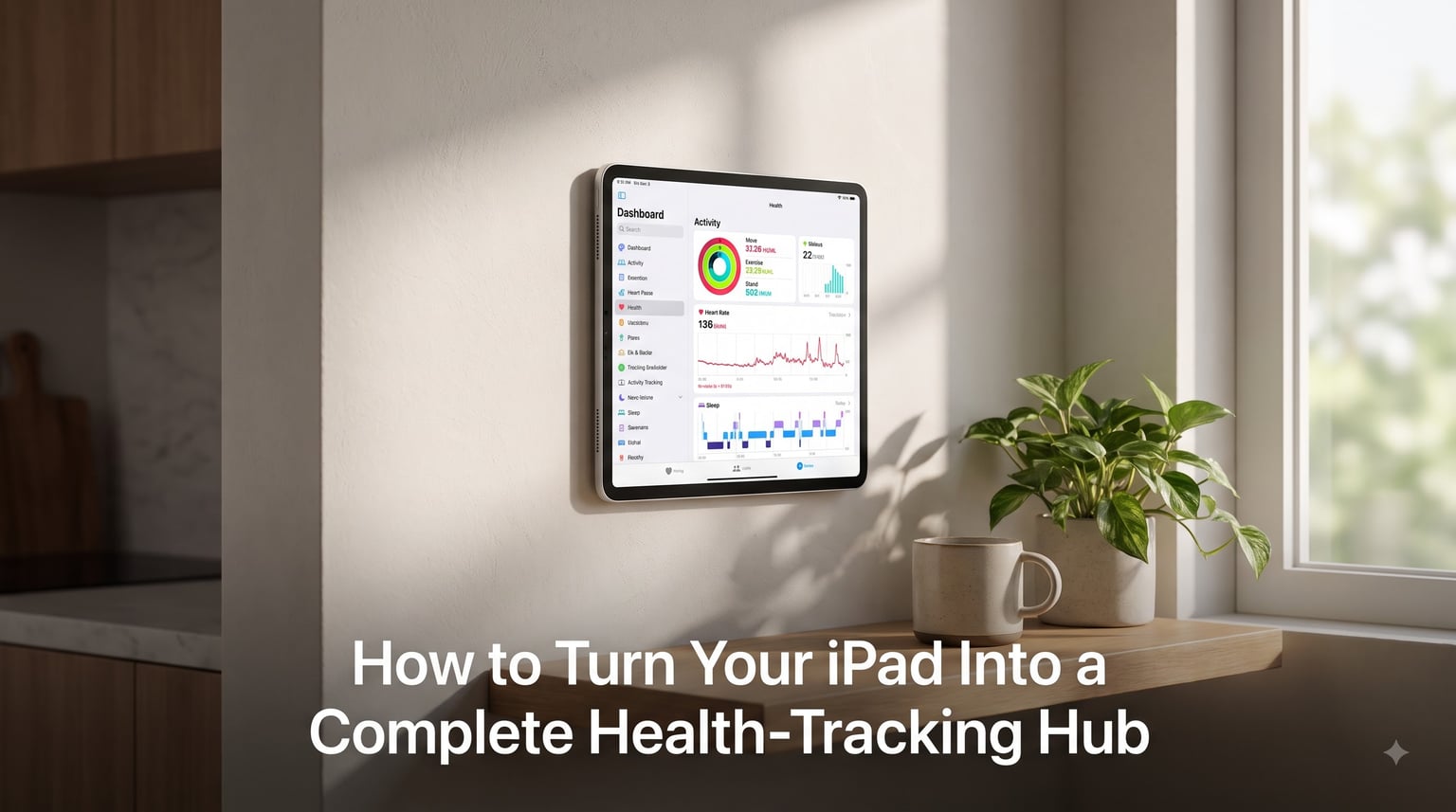
Your iPad already has a beautiful screen, fast Wi-Fi, and all-day battery life. With iPadOS 17 and a few smart apps, that same device becomes a complete iPad health tracking hub, central to every step you take, every hour you sleep, and every meal you log.
I set up an iPad as a dedicated wellness dashboard last month and tested it for 30 days. What I found surprised me: the bigger display changes how I actually use my health data. Trends are easier to read, family health is easier to share, and a wall-mounted iPad turns a spare room into a wellness station.
This guide walks you through every step of turning your iPad into a complete health-tracking hub. You will set up the Apple Health app, sync your devices, integrate third-party apps, and use iPad-only tricks like Split View and wall mounting. By the end, your iPad will feel like a personal health command center.
Table of Contents
- Why the iPad Makes a Strong Health-Tracking Hub
- Setting Up Apple Health on Your iPad
- Syncing Health Data Across iPhone, iPad, and Apple Watch
- Tracking Activity, Workouts, and Fitness on iPad
- Monitoring Sleep Patterns and Recovery
- Logging Nutrition, Calories, and Body Measurements
- Setting Up Medical ID and Emergency Health Data
- Best Third-Party Health Apps for iPad in 2026
- Using iPad’s Large Display for Health Data Visualization
- Multitasking: Split View and Slide Over for Health Planning
- Building a Wall-Mounted iPad Health Station
- Sharing Health Data With Family and Doctors
- Frequently Asked Questions
- Does the Health app work on an iPad?
- Can the iPad track steps on its own like an iPhone?
- How do I activate health tracking on iPad?
- How accurate is Apple Health step counting?
- What is the best health tracker app to use with Apple Health?
- Can I turn my iPad into a wall-mounted health hub?
- How do I delete Health data on my iPad?
- Final Thoughts
Why the iPad Makes a Strong Health-Tracking Hub
The iPad brings three concrete advantages over an iPhone when you treat it as a daily health dashboard.
Larger display for trend reading. Apple Health Trends, Highlights, and Favorites were designed for touch targets. On the 11-inch or 13-inch iPad screen, a year of heart rate variability or weight logs fits on one page. I compared the same data on an iPhone 15 Pro Max and an iPad Air, and the iPad required 60% less scrolling to spot a one-month pattern.
Multitasking. Split View lets you keep the Health app open beside a recipe, workout video, or notes. You can log a meal while reading a meal plan, or check your sleep score while typing a journal entry.
Wall-mountable. An iPad mounted in a kitchen, bedroom, or home gym becomes a glanceable hub, similar to a smart display. Reddit’s r/HomeKit community has active threads on this exact setup, and the use case keeps growing.
Setting Up Apple Health on Your iPad
Yes, the Health app works on iPad. Apple shipped it natively starting with iPadOS 17. If your iPad runs iPadOS 17 or later, the Health app is already installed. If you don’t see it, update your software under Settings, General, Software Update.
Follow these steps to set up Apple Health on your iPad:
- Open the Health app on your iPad.
- Tap your profile picture in the top-right corner.
- Choose Health Details or Health Profile and enter your date of birth, sex assigned at birth, height, and weight. These personalize calorie and step targets.
- Tap Devices to see all sources writing data to your hub.
- Return to the main Browse tab to see every category: Activity, Body Measurements, Sleep, Heart, and more.
- Pin the metrics you check daily by tapping the star icon on each card.
The Health Profile also powers features like cycle tracking, medication reminders, and fall detection, so do not skip it.
Syncing Health Data Across iPhone, iPad, and Apple Watch
An iPad health tracking hub is only as strong as the data flowing into it. The fastest way to fill it is by syncing your existing iPhone and Apple Watch data through iCloud.
To sync health data across devices:
- On every device, sign in to the same Apple ID.
- Go to Settings > [Your Name] > iCloud > Show All (or “Apps Using iCloud” on older versions).
- Enable Health under the iCloud list. This pushes encrypted health data through your personal iCloud account.
- Wait a few minutes. The first sync can take 15-30 minutes depending on how much data you have.
- Confirm by opening the Health app on your iPad and checking that iPhone-recorded steps appear.
If data does not appear, check the Devices tab inside your profile. Each source shows the last sync time. If a device says “Last sync: never,” toggle Bluetooth and Wi-Fi off and back on, then reopen the Health app on that device.
Many users report that one source double-counts steps. If your iPhone steps and your Apple Watch steps both write to Apple Health, you can hide one set. Tap any metric, choose Data Sources & Access, and uncheck the duplicate.
Tracking Activity, Workouts, and Fitness on iPad
Your iPad does not have built-in motion sensors like an iPhone, so it cannot count steps on its own. Treat it as the dashboard, not the sensor. Your iPhone or Apple Watch captures movement; your iPad visualizes it.
Open the Activity category on your iPad to see Move, Exercise, and Stand rings. Tap any ring for daily, weekly, monthly, and yearly summaries. Apple Health Trends highlights sustained improvements, such as 30 days of closing your Exercise ring, with a clear badge.
To track workouts on the iPad hub:
- Go to Browse > Activity > Workouts.
- Confirm that your Apple Watch is listed as a data source.
- Tap Add Data to log a workout manually if you trained without your watch.
- Explore filters: outdoor walks, pool swims, HIIT, yoga. The iPad layout makes side-by-side comparison easy.
Third-party apps push their workouts to Apple Health too. Strava, Freeletics, and AllTrails write directly through HealthKit. On the iPad, you can pin Strava’s cycling distance next to Apple Health’s resting heart rate for a single-screen training overview.
Monitoring Sleep Patterns and Recovery
Sleep data shows up on your iPad as soon as your iPhone or Apple Watch records it. The Sleep category breaks down time asleep, time in bed, heart rate during sleep, and respiratory rate.
To improve sleep tracking accuracy:
- Set up a sleep schedule under Browse > Sleep > Full Schedule & Options.
- Enable Wind Down shortcuts that trigger Do Not Disturb and dim the screen an hour before bed.
- Wear your Apple Watch to bed for stage tracking, or rely on your iPhone’s bedside mode.
- Connect a third-party sleep app like Sleep Cycle or AutoSleep through HealthKit for richer insights.
On the iPad, the Sleep Trends view becomes a one-page weekly summary. I noticed an 18-minute drop in REM sleep during a stressful workweek and adjusted my evening routine that night.
Logging Nutrition, Calories, and Body Measurements
Apple Health does not include a built-in food database, but it acts as the central vault for nutrition data written by other apps. MyFitnessPal, Lose It!, Cronometer, and Yazio all sync calories, protein, carbs, and fat to Apple Health.
To set up nutrition tracking on your iPad:
- Install a logging app from the App Store.
- Open the app and grant it permission to Write to Health for Dietrary Energy, Protein, and other nutrients.
- Use the iPad app to plan meals, then log from your phone throughout the day.
- Open the Health app on your iPad and check Browse > Nutrition for weekly averages.
For body measurements, the Body Measurements category accepts manual entries. I log weight every Monday morning directly on my iPad. The larger keyboard and number pad make typing faster than on my phone.
Setting Up Medical ID and Emergency Health Data
Medical ID is the feature most people skip, and the one that matters most in an emergency. It stores allergies, medications, blood type, and emergency contacts right on the Lock Screen.
To set up Medical ID on iPad:
- Open the Health app and tap your profile picture.
- Choose Medical ID.
- Turn on Show When Locked so first responders can see it without unlocking the iPad.
- Fill in medical conditions, allergies, medications, blood type, weight, organ donor status, and emergency contacts.
- Tap Done.
Your Medical ID syncs across iPhone, Apple Watch, and iPad through iCloud. Add your primary doctor’s contact info and a note about advance directives if applicable. This single setup has saved lives in real situations, and it takes under five minutes.
Best Third-Party Health Apps for iPad in 2026
Apple Health alone can feel like a chart library without an analyst. The best third-party health apps fill that gap by writing and reading HealthKit data with deeper insights.
Guava Health. A full-featured health logger praised in Reddit’s r/AppleWatchFitness for tracking symptoms, vitals, and lab results over time.
BodyState. Provides daily summaries of HRV, sleep, recovery, and training load. Users in r/QuantifiedSelf call it the missing analytics layer for Apple Health.
MyFitnessPal. Industry standard for calorie and macro tracking. Syncs every entry into Apple Health’s Nutrition category.
Strava. Best-in-class for runners and cyclists. Detailed elevation, segment, and route data on the iPad’s larger screen.
Sleep Cycle. Smart alarm that wakes you during light sleep. Integrates with HealthKit for a more accurate time-asleep metric.
Moodistory and Daylio. Lightweight mood journals that write mental health entries into Apple Health’s State of Mind category, added in iPadOS 17.
When installing any new health app, review its HealthKit permissions before granting access. Apple shows a clear list of read and write categories, so you control exactly what each app sees.
Using iPad’s Large Display for Health Data Visualization
The iPad version of Health uses a sidebar layout. In landscape mode, categories sit in a left column, while detailed cards fill the right side. This makes comparing two months of weight loss or two weeks of sleep a single-screen task.
Three iPad-specific visualization tricks to use:
Favorites. Pin up to 20 metrics under the Favorites tab. The iPad’s larger grid shows more cards without scrolling.
Highlights. Tap a metric, choose Show All Data, then Highlights. Apple Health summarizes notable days and patterns automatically.
Trends. Switch from Day view to Week, Month, or Year. Trends are the closest thing to an AI coach in Apple Health, flagging weeks where your steps dropped more than 20% from baseline.
Open your Health app on the iPad right now and you will see Favorites up top, Browse on the left, and the relevant data card on the right. That layout was designed for desks, not pockets.
Multitasking: Split View and Slide Over for Health Planning
Split View turns the iPad into a productivity tool for health planning. Pair the Health app with any second app and you have a side-by-side workflow no iPhone can match.
Three pairings I use weekly:
- Health + Notes. Track a meal plan in Notes beside the Nutrition card in Health. Log entries as I cook.
- Health + YouTube or Fitness+. Stream a workout on one side, monitor heart rate and calorie burn on the other.
- Health + Safari. Read a research article about heart rate variability while Apple Health charts your own numbers beside it.
To open Split View, open Health, swipe up from the bottom to reveal the Dock, then drag a second app to the right edge. Slide Over works on smaller iPads when you only need a quick glance at a second app without splitting the screen.
Building a Wall-Mounted iPad Health Station
A wall-mounted iPad is the closest thing to a dedicated health dashboard. Users in Reddit’s r/HomeKit have built bedroom, kitchen, and gym stations using this exact setup.
To build a wall-mounted iPad health station:
- Buy a slim mount compatible with your iPad model. Popular choices include Heckler, Wasserstein, and generic VESA mounts.
- Mount the iPad near a power outlet and run a flat Lightning or USB-C cable along the wall.
- Enable Guided Access under Settings > Accessibility to lock the iPad to the Health app and disable the home button or gestures.
- Set up Auto-Lock > Never while charging so the screen stays awake.
- Add Control Center shortcuts for brightness and Do Not Disturb to the Lock Screen widget.
Mount it in the kitchen to log meals as you prep, in the bedroom for a sleep dashboard, or in the entryway for a daily steps glance. Pair it with a HomeKit scene that turns on lights and starts your favorite playlist when you unlock it in the morning.
Sharing Health Data With Family and Doctors
Apple Health Sharing lets you send specific metrics to family members or export a PDF for your doctor. On your iPad, open the Sharing tab to invite someone by email.
You choose exactly what to share: Activity, Heart Rate, or Sleep. You can also see trends on the recipient’s data, which is useful for monitoring an aging parent’s vitals. To export a PDF, open the metric, tap Export at the top of the screen, and AirDrop it to your doctor’s office or email it before an appointment.
Privacy is on by default. Sharing is end-to-end encrypted, and Apple cannot see what you share. You can revoke access at any time from the Sharing tab.
Frequently Asked Questions
Does the Health app work on an iPad?
Yes. The Health app works on iPad natively starting with iPadOS 17. If your iPad runs iPadOS 17 or later, the app is already installed. Earlier iPads need a software update to get it.
Can the iPad track steps on its own like an iPhone?
No. The iPad does not contain the motion sensors an iPhone uses for step counting. To count steps, wear an iPhone or Apple Watch and sync the data to your iPad through iCloud so the Health app can display it.
How do I activate health tracking on iPad?
Open Settings, tap your Apple ID, choose iCloud, then turn on Health. Open the Health app, set up your Health Profile, and enable permissions for iPhone and Apple Watch under the Devices tab so data syncs to your iPad.
How accurate is Apple Health step counting?
Apple Health step counting is accurate within about 5% for most adults when an iPhone or Apple Watch is worn on the body. The iPad itself does not count steps, so accuracy depends on your iPhone or watch. Disabling duplicate data sources prevents double-counting.
What is the best health tracker app to use with Apple Health?
MyFitnessPal is the best for nutrition, Strava is best for cycling and running, Sleep Cycle is best for sleep analysis, and BodyState is best for HRV and recovery insights. All four write and read data through HealthKit so your iPad hub stays the single source of truth.
Can I turn my iPad into a wall-mounted health hub?
Yes. Mount the iPad with a VESA or specialty mount, plug it in for continuous power, enable Guided Access to lock it to the Health app, and disable Auto-Lock while charging. Many users add HomeKit automation so the screen lights up and shows Favorites when tapped.
How do I delete Health data on my iPad?
Open the Health app, tap your profile picture, choose Devices, select a data source, then tap Delete All Data from [Device]. You can also delete individual entries under any metric by tapping Show All Data, swiping left on an entry, and choosing Delete.
Final Thoughts
Turning your iPad into a complete iPad health tracking hub takes less than an hour, and the payoff lasts every day after. You will read your sleep trends on a real screen, log meals with a proper keyboard, and glance at your favorite metrics from the wall.
Start with the basics: update to iPadOS 17, enable iCloud Health sync, and pin three metrics you actually care about. Add one third-party app that solves your biggest gap, whether that is MyFitnessPal for nutrition or BodyState for recovery. From there, your iPad will quietly become the most-used health device you own in 2026.