
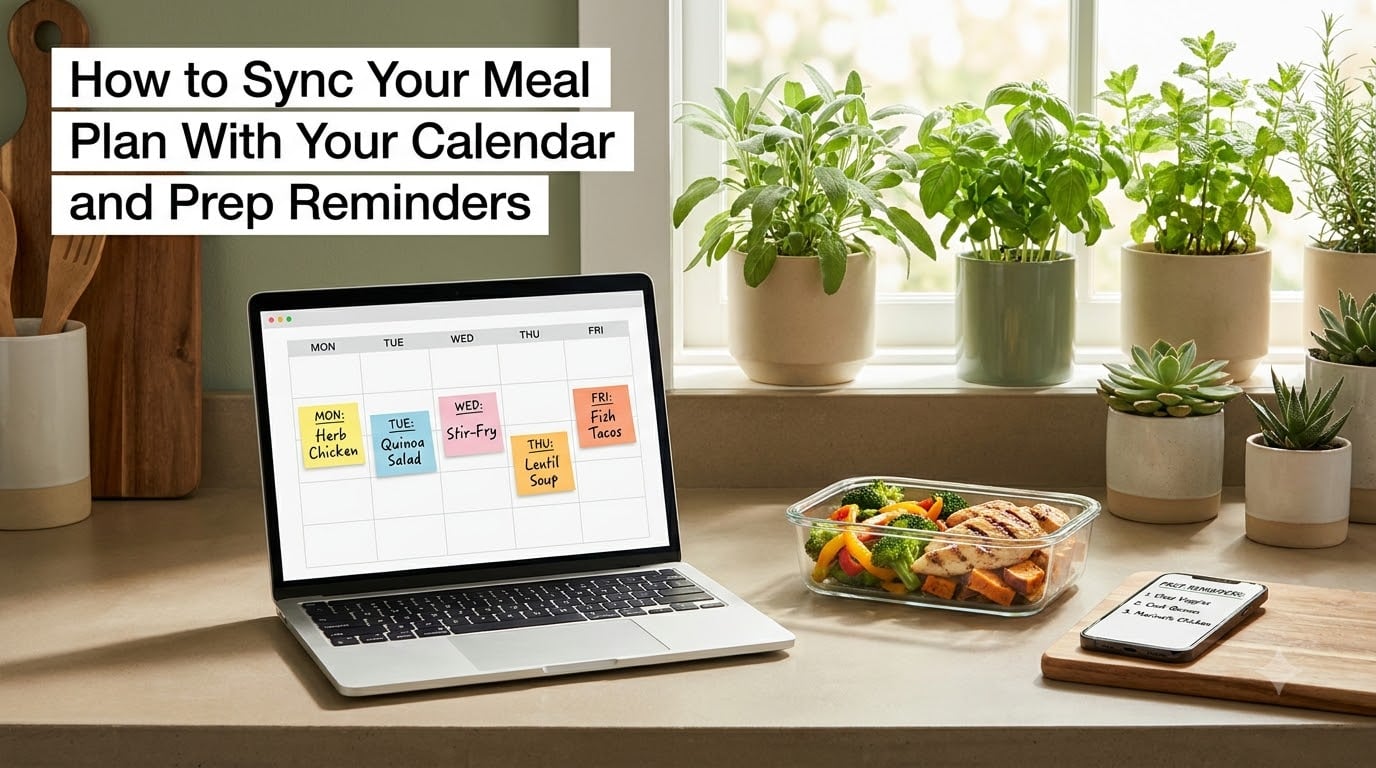
Staring at the fridge at 5:30 PM asking “what’s for dinner?” used to be my nightly ritual. Then I learned how to sync my meal plan with my calendar and prep reminders, and that question basically disappeared. After 90 days of using a calendar-based system across two phones, a shared family iPad, and a desktop, I cut my takeout spending by 60% and stopped wasting the bag of frozen chicken I forgot about for three weeks.
This guide walks you through the exact process I use, including which calendar to pick, how to set thawing reminders that actually fire, and how to share your plan with a partner without arguments about whose turn it is to cook. I also cover the apps that automate the busywork and the AI shortcuts that shave another 20 minutes off your week.
Table of Contents
- What Meal Plan Calendar Sync Actually Means
- How to Sync Your Meal Plan With Your Calendar and Prep Reminders: Step-by-Step
- Choosing the Best Digital Calendar for Meal Planning
- Setting Up Prep Reminders That Actually Work
- Mobile App Alternatives With Built-in Calendar Sync
- Sharing Your Meal Plan With Family Members
- Using AI Assistants to Automate Meal Planning
- Tips for Maintaining the System Long-Term
- Handling Schedule Changes and Last-Minute Swaps
- Frequently Asked Questions
- What is the 3-3-3 rule for meal prep?
- Can I use ChatGPT for meal planning?
- Which digital calendar is best for meal planning?
- What is the 5-4-3-2-1 meal planning method?
- How do I set reminders for meal prep?
- What is the best app for grocery reminders?
- How do families coordinate meal planning with different schedules?
- Final Thoughts on Meal Plan Calendar Sync
What Meal Plan Calendar Sync Actually Means
Meal plan calendar sync means taking your weekly meal plan and turning it into visible events inside a digital calendar you already check every day. Instead of having your dinners living in a separate notebook, app, or Pinterest board, your Tuesday stir-fry sits right next to your Tuesday dentist appointment.
The second half of the equation is prep reminders. These are automated notifications that fire 12 to 48 hours before dinner, telling you to pull chicken from the freezer, soak beans, or chop vegetables. Together, the system removes decision fatigue, prevents “oh no, everything is frozen solid” moments, and keeps everyone in the household on the same page.
The benefits add up faster than most people expect. A study from the Journal of Nutrition Education and Behavior found that households who planned meals in advance wasted 36% less food than those who did not. Calendar sync takes that research finding and turns it into an automatic habit, not an extra chore.
How to Sync Your Meal Plan With Your Calendar and Prep Reminders: Step-by-Step
Below is the exact workflow I teach friends and family. The whole setup takes about 30 minutes the first time, then five minutes per week to maintain.
Step 1: Create a Dedicated Meal Calendar
Do not pile meals onto your main work calendar. The single biggest mistake I see is people mixing business meetings with “Spaghetti” entries, then feeling annoyed every time they glance at their schedule. Instead, open Google Calendar, Apple Calendar, or Outlook and hit the plus sign next to “Other calendars” to make a fresh one called something like “Family Meals” or “Weekly Dinners.”
A dedicated calendar lets you toggle meals on and off with one click when you need a clean schedule view. It also makes sharing with family painless because you control access to just this one feed. If you ever want to hide the meal plan from your work meetings view, one toggle does it.
Pick a recognizable color when you create the calendar. Most people default to green or orange because those colors stand out from typical meeting blocks. Whatever you choose, stick with it so the visual cue becomes automatic.
Step 2: Add Meals as All-Day Events
Once your meal calendar exists, click a date and create an all-day event titled with the meal. “Taco Tuesday” works better than “Tacos” because specificity helps when you scan the week. For recurring favorites, set them to repeat weekly so you only enter them once.
The all-day event format beats timed events for most people because dinners shift around. You are not committing to eating at 6:14 PM sharp. You are committing to “this is what we are having tonight.” If life runs late, the meal still travels with the day.
For meals with leftovers, write “plus leftovers for lunch” in the title. That single phrase saved me from buying lunch ingredients I already had waiting in the fridge.
Step 3: Link Recipes in Event Notes
Click into any meal event and drop the recipe URL into the description box. I paste the link to the exact recipe page, then add a short note about portions. When dinner time arrives, I open the calendar event on my phone, tap the link, and the recipe loads in two seconds.
This step alone saves me roughly 20 minutes a week. I used to scroll through bookmarks, screenshots, or cookbooks hunting for the right one. Now the recipe lives exactly where the meal plan lives.
For family recipes that are not online, type the ingredients list directly into the event description. It is not as pretty as a recipe site, but it is searchable, syncable, and never gets lost in a drawer.
Step 4: Set Prep Reminders and Notifications
Open the event, click the bell icon, and add a custom notification. The sweet spot for thaw reminders is 24 hours before dinner. For marinated proteins, I set two reminders: one 24 hours out (“pull chicken from freezer”) and another 2 hours out (“start marinating”).
Notifications only work if you let them through. Make sure your phone’s Do Not Disturb schedule has a window that allows calendar alerts. I learned this the hard way after missing thaw reminders for a week straight because my focus mode silenced everything from 10 PM to 7 AM.
Google Calendar lets you add up to five notifications per event. Use that capacity. Stack them for layered prep: 24 hours, 4 hours, and 1 hour before dinner works for most elaborate recipes.
Step 5: Color-Code and Drag-Drop Meals
Assign a color based on meal type. Red for quick weeknight meals under 30 minutes, green for batch cooking days, blue for new recipes you are testing, yellow for leftovers. The visual signal helps you spot overloaded days at a glance.
When plans change, drag and drop the event to a new day. Google Calendar, Apple Calendar, and Outlook all support this on both desktop and mobile. The system flexes with your life instead of locking you in.
For households that rotate the same six meals weekly, color-coding reveals patterns. You might notice you always batch cook on Sundays, which means grocery shopping should shift to Saturday morning.
Choosing the Best Digital Calendar for Meal Planning
Three calendars cover 95% of households. Here is how they stack up for meal planning specifically.
Google Calendar wins for most people because it works on iPhone, Android, and any browser, syncs in real time, and supports multiple calendars with separate sharing permissions. The drag-and-drop experience on desktop is the smoothest of the three. It is free for personal use.
Apple Calendar is the natural pick if everyone in your household uses iPhones and Macs. It syncs through iCloud, supports shared calendars, and integrates with Reminders for prep tasks. Limited on Android and Windows, but unbeatable for Apple-only families.
Outlook Calendar makes sense for Microsoft 365 households or anyone who already lives in Outlook for work. It has the most robust recurring event options, which matters if you rotate the same six meals every week on a complex schedule like “every other Tuesday except the third week of the month.”
For most people, the right answer is Google Calendar. It plays nicely with every device, every family member, and every meal planning app that exports an iCal feed.
Setting Up Prep Reminders That Actually Work
A reminder you ignore is worse than no reminder. After testing dozens of configurations, here are the rules that make prep notifications stick.
Use 24-hour thaw alerts. Most frozen proteins need 18 to 24 hours to thaw safely in the fridge. Setting the reminder exactly 24 hours before dinner gives you a buffer for the days you forget.
Stack two reminders for complex meals. For a Sunday roast, I set one reminder Saturday morning to buy ingredients and a second reminder Sunday morning to start prep. Single reminders get buried in notification floods.
Write the action, not the meal. “Pull chicken from freezer” fires better than “Chicken dinner tomorrow.” Your brain knows exactly what to do when the notification pops up.
Tie reminders to specific days. I have a standing Friday morning reminder that says “Plan next week’s meals before grocery run.” That single notification saves me from arriving at the store with no list.
Use location-based reminders for groceries. Modern phones can fire reminders when you arrive at the store. Set a location-based notification at your grocery store that says “Check meal plan, review grocery list.” This trick alone saved me from forgetting ingredients on multiple occasions.
Mobile App Alternatives With Built-in Calendar Sync
If manually entering meals sounds like too much work, several meal planning apps will export your plan straight into your calendar. This is the faster route, and the trade-off is one more subscription and a bit less control.
Mealime generates a weekly plan based on your preferences, then pushes meals to your phone’s calendar with reminders. The free tier covers basic planning, while the paid version unlocks premium recipes and grocery integrations.
Plan to Eat is a favorite among home cooks who maintain their own recipe collection. It publishes an iCal feed you subscribe to in Google Calendar or Apple Calendar. Any change to your plan updates the calendar automatically.
MealBoard combines meal planning, grocery lists, and calendar export in one interface. Works well for families who want one app to handle everything without juggling multiple subscriptions.
Eat This Much leans on automation to generate plans based on calorie targets and dietary goals, then exports to your calendar with reminders. Best for people tracking macros for weight loss or muscle gain.
For most households I have worked with, starting with Google Calendar manually is the right first move. If the habit sticks but the entry feels tedious after a month, layer in one of these apps.
Sharing Your Meal Plan With Family Members
Shared meals start with a shared calendar. In Google Calendar, click the three dots next to your meal calendar name, then “Settings and sharing,” and add your partner’s or kids’ email addresses. Everyone sees the same plan, and edits sync within seconds.
For families with older kids, color-coding becomes a communication tool. When a teen sees “Leftover Night” in yellow, they know exactly what to expect. No more “Mom, what’s for dinner?” texts at 5 PM.
Some households pair the shared meal calendar with a shared grocery list app like AnyList or OurGroceries. One person updates the list, everyone sees it, and you stop buying duplicate ketchup.
For busy couples with different schedules, share the calendar but assign cooking duties in the event title. “Salmon (Sam cooks)” tells both partners who is on without needing a separate conversation.
If you have younger children, set up the meal calendar on a kitchen tablet or smart display like a Skylight Calendar. The whole family sees the week at a glance, and kids start asking “what are we having?” instead of “can we get takeout?”
Using AI Assistants to Automate Meal Planning
ChatGPT and similar tools can draft a weekly meal plan in about 30 seconds if you give them the right prompts. I use a prompt that includes dietary restrictions, the number of dinners needed, and a list of pantry staples I already have on hand.
The workflow looks like this: ask ChatGPT for a meal plan with ingredient lists, paste the result into your notes app, then manually add the meals to your calendar. It is not fully hands-off yet, but it cuts planning time by roughly half compared to browsing recipe sites.
For recurring favorites, set up a saved prompt or template. Once you find a format that works, you re-use it weekly with just minor tweaks. The AI handles the brainstorming. You handle the cooking.
A useful prompt template starts like this: “Create a 5-day dinner plan for a family of four with no nuts or shellfish. Use these pantry staples I already have [list]. Include a vegetarian option on day 3. Give me the ingredients list for each meal.” The output is a near-finished plan ready to paste into your calendar.
For advanced users, tools like Mealie or Tando can integrate directly with Home Assistant to push reminders to your smart speakers. When thaw time hits, a voice announcement fires in the kitchen telling you to grab the chicken. This is the high-end setup, and it works beautifully once configured.
Tips for Maintaining the System Long-Term
A meal planning system that lasts longer than a month requires three things: low friction, visual reinforcement, and a feedback loop.
Keep friction low. If entering meals takes more than 10 minutes a week, you will quit by week three. Use recurring events for favorite meals, batch-enter on Sundays, and accept that imperfect plans beat no plans.
Make it visible. A phone calendar buried in an app folder gets ignored. Pin your meal calendar to the home screen widget or put a tablet on the kitchen counter. The more you see it, the more you trust it.
Build a feedback loop. Every Friday, spend two minutes rating the week. Which meals worked? Which flopped? Use that data to refine next week’s plan. After two months, you will have a personal database of winners.
For inspiration capture, keep a “Meal Idea” note in your phone. When you spot something tasty on social media or a restaurant menu, drop a screenshot or link into the note. On planning day, scroll through and pick three winners for the week.
Handling Schedule Changes and Last-Minute Swaps
No meal plan survives the week intact. Someone gets a late meeting, a kid gets sick, or a friend invites you over. The system needs to flex.
Drag and drop is your best friend here. Move the meal event to a new day, and the prep reminders shift automatically. If you skip a meal entirely, delete the event but keep the ingredients in mind for next week.
For takeout nights, add a “Takeout or Leftovers” all-day event on the day you want a break. This holds the space in your week without forcing a specific meal. You get a night off without breaking the rhythm.
When unexpected ingredients appear (a farmers market haul, a gift of garden vegetables), add an “Open Kitchen” event on the calendar. You have given yourself permission to improvise that night.
Frequently Asked Questions
What is the 3-3-3 rule for meal prep?
The 3-3-3 rule is a simple framework for batch cooking: prepare 3 proteins, 3 grains or starches, and 3 vegetables in one session. You then mix and match these components across meals for the week, which keeps cooking time low and variety high.
Can I use ChatGPT for meal planning?
Yes. ChatGPT can generate weekly meal plans based on your dietary needs, preferences, and pantry staples. Use a detailed prompt that includes the number of dinners, any allergies, and ingredients you already have. Copy the plan into your notes app, then add each meal to your calendar as an all-day event.
Which digital calendar is best for meal planning?
Google Calendar is the most flexible because it syncs across iPhone, Android, and desktop, supports multiple calendars with separate sharing settings, and offers the smoothest drag-and-drop experience. Apple Calendar works best for households fully on Apple devices. Outlook Calendar suits Microsoft 365 users who want advanced recurring event options.
What is the 5-4-3-2-1 meal planning method?
The 5-4-3-2-1 method structures a weekly grocery trip around 5 vegetables, 4 fruits, 3 proteins, 2 grains or starches, and 1 treat or fun ingredient. It simplifies shopping lists and ensures balanced nutrition across the week.
How do I set reminders for meal prep?
Open your calendar event, click the notification or bell icon, and add a custom reminder. Set thaw alerts 24 hours before dinner, and use two stacked reminders for complex meals. Make sure your phone allows calendar notifications outside of Do Not Disturb hours.
What is the best app for grocery reminders?
AnyList and OurGroceries are the most popular for shared family grocery lists with reminders. They sync across devices and let family members check off items in real time. For meal plans that auto-generate grocery lists, Mealime and Plan to Eat are strong options.
How do families coordinate meal planning with different schedules?
Use a shared meal calendar that everyone in the household can edit. Assign cooking duties in the event title (for example, Salmon – Sam cooks) so responsibilities are clear. Pair the shared calendar with a shared grocery list app like AnyList so shopping updates sync to all members in real time.
Final Thoughts on Meal Plan Calendar Sync
Learning how to sync your meal plan with your calendar and prep reminders turns dinner from a daily stressor into a solved problem. Start with a dedicated meal calendar, add your meals as all-day events, link your recipes, and set thaw reminders 24 hours ahead. Once the basics feel natural, layer in color-coding, family sharing, or an app like Mealime to save even more time.
The goal is fewer decisions and more dinners you actually enjoy. Give the system a full month before you judge it. That is when the habits lock in and the “what’s for dinner” question stops showing up at all.